ARTICLE · 1284714
pdfplumber(jsvine/pdfplumber)
点击蓝字关注我们
定位:基于 pdfminer.six 的 Python PDF 精准抽取库,擅长“有文本层”的机器生成 PDF:文本、字符坐标、表格、线条、矩形、图片、注释、超链接,带视觉调试。 作者:Jeremy Singer-Vine|协议:MIT|当前稳定线:0.11.x(0.11.8~0.11.10 区间)|Python ≥ 3.8
一、核心能力
1. 文本与布局
•extract_text():按阅读顺序拼文本,保留空格/换行•extract_words():分词级对象,带坐标•page.chars:每个字符的 x0/x1/top/bottom/fontname/size/text•支持 layout=True、x_tolerance/y_tolerance、unicode_norm(NFC/NFD/NFKC/NFKD)•中文正常抽,乱码多因 PDF 本身没文本层或字体映射缺失
2. 表格抽取(最常用)
•extract_table():单表•extract_tables():一页多表•双策略:
•vertical_strategy/horizontal_strategy = "lines":靠 PDF 里真实横竖线(有线框表格)•"text":靠文字对齐和空白推断(无边框表格)
•可混用:横向用线、纵向用文本•调参:snap_tolerance、intersection_tolerance、join_tolerance
3. 几何与对象级访问
•page.lines / rects / curves / images / annots•crop((x0, top, x1, bottom)):区域裁剪再抽•within_bbox():只保留完全在框内对象•filter(lambda obj: ...):按字体大小/位置过滤
4. 视觉调试(杀手锏)
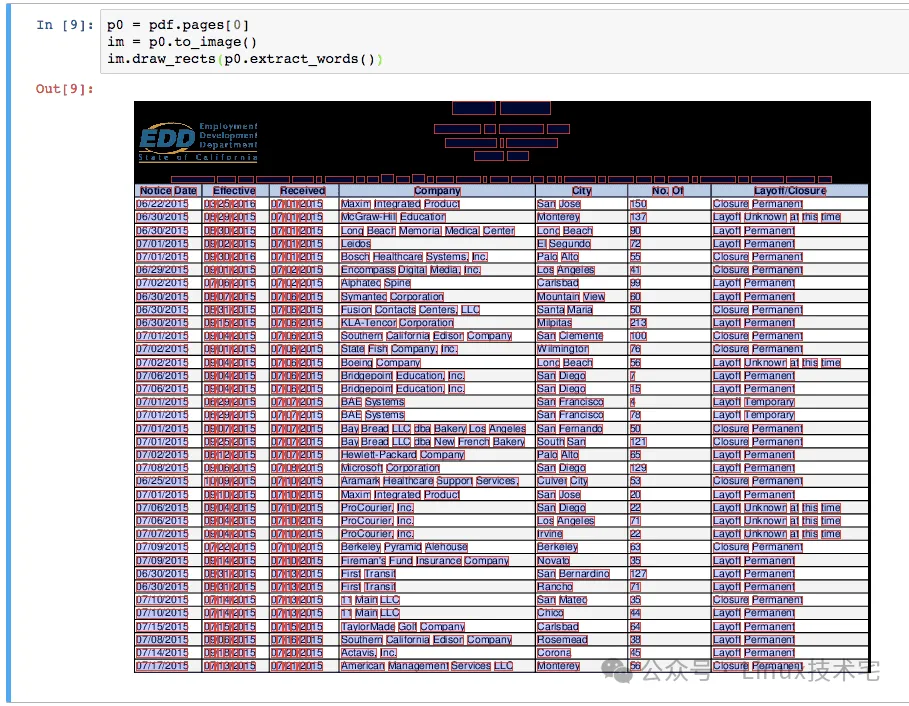
•page.to_image(resolution=150)•im.draw_rects(chars/words/lines)•im.debug_tablefinder(settings):把表格识别线画出来看为什么抽错
5. 其他
•元数据:pdf.metadata•密码 PDF:pdfplumber.open("x.pdf", password="...")•超链接:page.hyperlinks•命令行:pdfplumber file.pdf > out.csv(char/line/rect 级导出)•页面数、宽高、旋转信息
⚠️ 不是 OCR:扫描件/图片型 PDF 抽不到文本,需先 Tesseract/Surya/OlmOCR 做 OCR 再抽。
二、安装部署
1. 环境要求
•Python 3.8 / 3.9 / 3.10 / 3.11 / 3.12•系统:Linux / macOS / Windows•核心依赖(自动装):pdfminer.six、Pillow、pypdfium2
2. 虚拟环境(推荐)
python -m venv venvsource venv/bin/activate # Windows: venv\Scripts\activatepip install -U pip
3. pip 安装
pip install pdfplumber国内加速:
pip install pdfplumber -i https://pypi.tuna.tsinghua.edu.cn/simple锁版本(生产推荐):
pip install pdfplumber==0.11.10 pdfminer.six==202512304. Conda 安装
conda install -c anaconda pdfplumber5. 视觉调试额外依赖
to_image() 需要渲染后端,通常 Pillow + pypdfium2 已够; Linux 若报缺底层库:
# Debian/Ubuntusudo apt-get install -y build-essential poppler-utils libpoppler-cpp-dev# macOSbrew install poppler
6. 验证
import pdfplumberprint(pdfplumber.__version__)
三、快速上手
1. 抽文本
import pdfplumberwith pdfplumber.open("example.pdf") as pdf:print("页数:", len(pdf.pages))page = pdf.pages[0]print(page.extract_text())
2. 抽表格 → DataFrame → Excel
import pdfplumberimport pandas as pddfs = []with pdfplumber.open("report.pdf") as pdf:for i, page in enumerate(pdf.pages, 1):for tbl in page.extract_tables():if not tbl:continueheader, *rows = tbldfs.append(pd.DataFrame(rows, columns=header).assign(page=i))out = pd.concat(dfs, ignore_index=True)out.to_excel("output.xlsx", index=False)
3. 无边框表格调参
settings = {"vertical_strategy": "text","horizontal_strategy": "lines","snap_tolerance": 3,"intersection_tolerance": 5,"join_tolerance": 2,}with pdfplumber.open("invoice.pdf") as pdf:page = pdf.pages[0]table = page.extract_table(settings)for row in table:print(row)
4. 区域裁剪(去掉页眉页脚)
with pdfplumber.open("doc.pdf") as pdf:page = pdf.pages[0]# (x0, top, x1, bottom)body = page.crop((0, 80, page.width, page.height - 60))print(body.extract_text())
5. 字符级坐标(做版式分析/重排)
with pdfplumber.open("doc.pdf") as pdf:for ch in pdf.pages[0].chars[:5]:print(ch["text"], round(ch["x0"],1), round(ch["top"],1), ch["fontname"], ch["size"])
6. 视觉调试
with pdfplumber.open("doc.pdf") as pdf:page = pdf.pages[0]im = page.to_image(resolution=150)im.draw_rects(page.extract_words())im.debug_tablefinder({"vertical_strategy": "text"})im.save("debug.png")
7. 命令行导出原始对象
pdfplumber examples/pdfs/background-checks.pdf --format json > objs.jsonpdfplumber file.pdf --pages 1 3-5 --format csv > chars.csv
四、典型场景
•发票/对账单:抽表格进 Excel•研报/年报:抽正文 + 章节坐标•合同:按区域抽乙方/金额/日期•数据清洗流水线:PDF → DataFrame → 数仓•RAG 预处理:先抽文本层,再切 chunk,比直接丢 LLM 稳•审计/合规:超链接、注释、签名域提取
五、常见坑与排错
unicode_norm="NFKC" | ||
vertical_strategy="text" | ||
intersection_tolerance | ||
No module named pdfplumber | python -m pip install | |
pdfminer | pdfminer3k | pip uninstall pdfminer3k |
password= | ||
pdfplumber.open(x, strict=False) |
六、生产化建议
requirements.txt
pdfplumber==0.11.10pdfminer.six==20251230Pillow>=9.1pypdfium2>=4.18.0pandas>=1.5openpyxl
Docker 片段
FROM python:3.11-slimRUN apt-get update && apt-get install -y --no-install-recommends \build-essential poppler-utils && rm -rf /var/lib/apt/lists/*WORKDIR /appCOPY requirements.txt .RUN pip install -r requirements.txt -i https://pypi.tuna.tsinghua.edu.cn/simpleCOPY . .CMD ["python", "extract.py"]
批处理模板
from pathlib import Pathimport pdfplumberdef iter_pages(pdf_path):with pdfplumber.open(pdf_path) as pdf:for page in pdf.pages:yield pagefor p in Path("input").glob("*.pdf"):for page in iter_pages(p):text = page.extract_text() or ""# 写库 / 写文件 / 送下游
七、同类对比
•pdfplumber:坐标精细、表格稳、可调试,适合结构化抽取•PyMuPDF(fitz):更快,适合大批量/渲染/搜索,表格稍弱•Camelot:表格专用,依赖 Ghostscript,有线表强•pypdf:合并拆分加密元数据,不擅长精准布局•Marker/Docling:ML 布局,适合扫描件/复杂论文
经验法则:
机器生成 + 要表格/坐标 → pdfplumber 扫描件 → OCR 后再说 超大量纯文本 → PyMuPDF
八、资源
•GitHub:https://github.com/jsvine/pdfplumber[1]•PyPI:https://pypi.org/project/pdfplumber/[2]•官方 README 文档(含中文翻译社区版)
References
[1]: https://github.com/jsvine/pdfplumber[2]: https://pypi.org/project/pdfplumber/
END
求点赞

求分享

求喜欢


点击上图跳转小程序,访问历史记录
