夜雨聆风
夜雨聆风


定位导航不再愁!这个地图插件 1 小时搞定全平台,比原生 API 好用 10 倍
大家好,今天给大家带来一款近期在开发者社区热度不错的 uni-app 扩展资源。
uni-app 作为跨端开发框架,这些年的生态一直在完善。插件市场里每天都有新东西上架,但质量参差不齐,需要花时间筛选。今天分享的这款插件是近期数据表现比较好的,有参考价值。
选组件这件事,说白了就是平衡效率和成本。自己写当然最可控,但时间有限;用现成的快,但要评估质量。我的习惯是:核心功能自己把控,通用功能尽量用成熟的组件。
这篇文章会从功能介绍、使用场景、集成步骤、代码示例等多个维度,带大家全面了解 uni-map 地图定位插件。希望能帮你节省一些调研时间。
一、uni-map 地图定位插件 是什么?
这款插件来自 DCloud 平台,在同类资源中最近的热度数据表现不错。
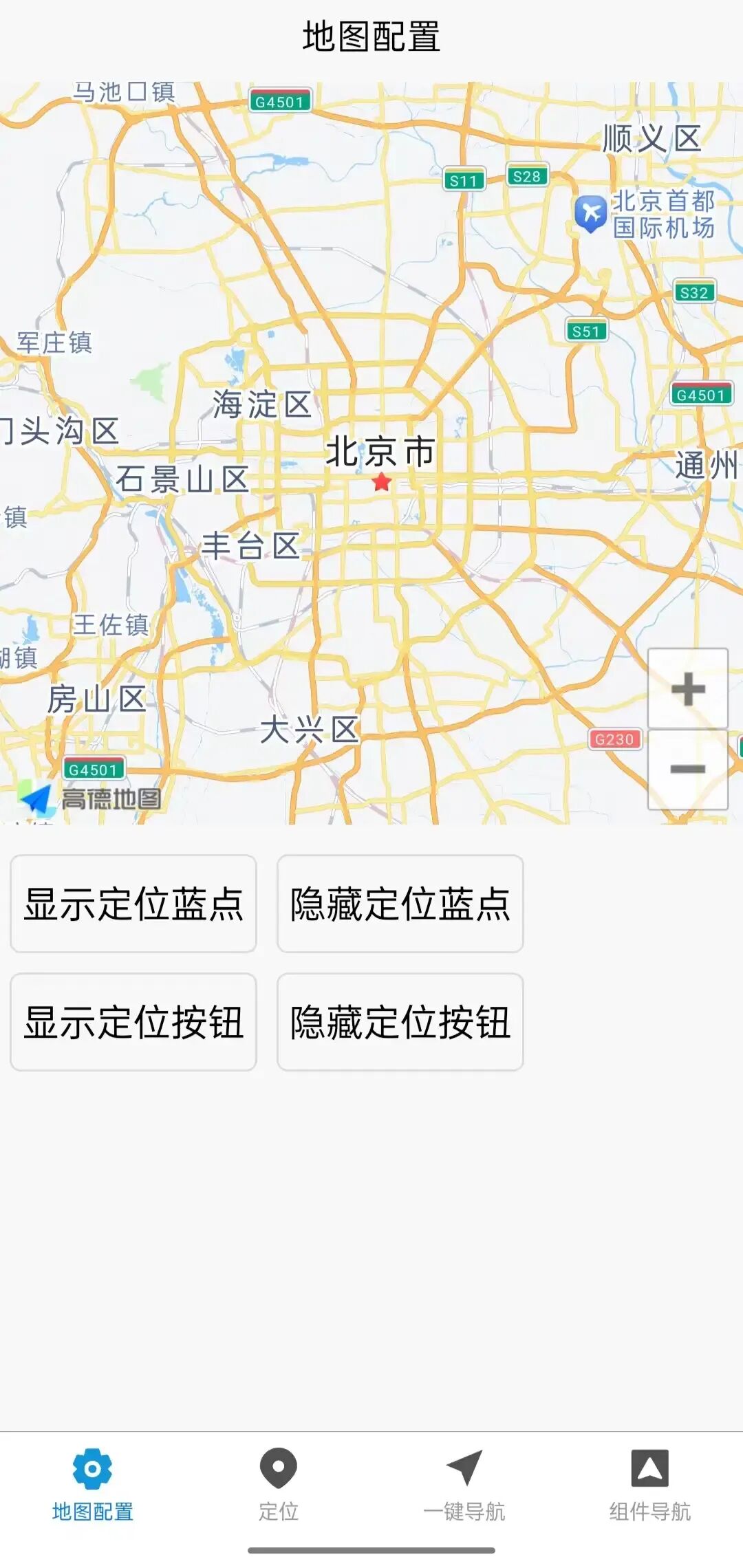
官方描述:支持高德、腾讯、百度、谷歌多地图 SDK,提供定位、导航、标记、轨迹、地理围栏等完整功能,一套代码多端运行。
从定位来看,uni-map 主要是为了帮助开发者快速实现地图相关功能,减少重复造轮子的时间。对于赶项目或者想快速验证想法的场景,这类插件非常实用。
二、核心特性分析
1. 多地图支持
一套接口支持主流地图服务商:
-
高德地图(推荐) -
腾讯地图 -
百度地图 -
谷歌地图(海外项目)
切换地图服务商只需改配置,不用改业务代码。
2. 全平台兼容
支持所有 uni-app 目标平台:
-
H5 -
微信小程序、支付宝小程序等 -
App(iOS/Android)
3. 功能完整
覆盖地图开发 90% 的常用需求:
-
定位(当前坐标、地址解析) -
标记(自定义图标、点击事件) -
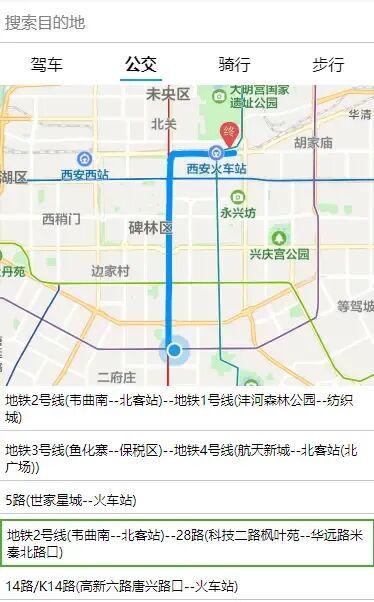
路线规划(驾车、步行、骑行) -
轨迹记录(运动类应用必备) -
地理围栏(进出区域通知)
4. 持续维护
作者保持更新,问题响应及时。地图这东西涉及 API 密钥和 SDK 版本,必须靠谱。
三、适用场景
uni-map 的适用场景比较广泛:
-
外卖/配送类应用:骑手定位、路线规划、配送轨迹 -
出行类应用:打车、导航、附近搜索 -
运动健康类应用:跑步轨迹、骑行记录 -
社交类应用:附近的人、地点打卡 -
物流类应用:货物追踪、仓库管理 -
房产类应用:房源位置、周边配套
四、集成步骤详解
第一步:下载插件
从插件市场下载 uni-map 到项目目录的 /components 文件夹。
第二步:配置地图密钥
在 manifest.json 中配置地图 SDK 的密钥:
{"app-plus": {"distribute": {"plugins": {"amap": {"appKey": "你的高德地图 AppKey","appSecret": "你的高德地图 AppSecret" } } } }}第三步:在页面中引入
<template> <view> <map id="myMap" :latitude="latitude" :longitude="longitude" :markers="markers" class="map-container" ></map> </view></template>第四步:初始化定位
在 onLoad 中获取当前位置。
第五步:运行测试
在开发环境运行测试,真机调试地图功能。
五、代码示例
基础用法 – 显示当前位置
<template> <view class="map-page"> <map id="myMap" :latitude="latitude" :longitude="longitude" :scale="15" :markers="markers" :show-location="true" class="map-container" @markertap="onMarkerTap" @regionchange="onRegionChange" ></map> <view class="location-info"> <text class="address">{{ address }}</text> </view> <view class="action-buttons"> <button class="btn" @click="getCurrentLocation"> 📍 重新定位 </button> <button class="btn" @click="searchNearby"> 🔍 附近搜索 </button> </view> </view></template><script>export default { data() { return { latitude: 39.908823, longitude: 116.397470, address: '定位中...', markers: [] } }, onLoad() { this.getCurrentLocation() }, methods: { // 获取当前位置 getCurrentLocation() { uni.showLoading({ title: '定位中...' }) uni.getLocation({ type: 'gcj02', // 国测局坐标系 geocode: true, // 返回地址信息 success: (res) => { this.latitude = res.latitude this.longitude = res.longitude this.address = res.address || '未知地址' // 添加当前位置标记 this.markers = [{ id: 0, latitude: res.latitude, longitude: res.longitude, iconPath: '/static/location-icon.png', width: 30, height: 30, callout: { content: '我的位置', display: 'ALWAYS', padding: 10, borderRadius: 5, bgColor: '#fff', color: '#333' } }] uni.hideLoading() }, fail: (err) => { console.error('定位失败', err) uni.hideLoading() uni.showToast({ title: '定位失败,请检查权限', icon: 'none' }) } }) }, // 标记点击事件 onMarkerTap(e) { const markerId = e.detail.id console.log('点击了标记', markerId) uni.showModal({ title: '位置信息', content: this.markers[markerId].callout?.content || '', showCancel: false }) }, // 地图区域变化 onRegionChange(e) { if (e.type === 'end' && e.cause === 'drag') { console.log('地图拖动结束', e.detail) } }, // 附近搜索 async searchNearby() { try { const res = await uni.request({ url: 'https://restapi.amap.com/v3/place/around', method: 'GET', data: { key: '你的高德地图 Key', location: `${this.longitude},${this.latitude}`, radius: 1000, types: '餐饮服务|购物服务|生活服务' } }) if (res.data.pois && res.data.pois.length > 0) { // 在地图上标记附近地点 this.markers = res.data.pois.map((poi, index) => ({ id: index, latitude: parseFloat(poi.location.split(',')[1]), longitude: parseFloat(poi.location.split(',')[0]), title: poi.name, iconPath: '/static/poi-icon.png', width: 25, height: 25, callout: { content: poi.name, display: 'BYCLICK' } })) uni.showToast({ title: `找到${res.data.pois.length}个地点`, icon: 'success' }) } } catch (e) { console.error('搜索失败', e) uni.showToast({ title: '搜索失败', icon: 'none' }) } } }}</script><style scoped>.map-page { height: 100vh; display: flex; flex-direction: column;}.map-container { flex: 1; width: 100%;}.location-info { background: #fff; padding: 20rpx; border-top: 1rpx solid #eee;}.address { font-size: 28rpx; color: #333;}.action-buttons { display: flex; padding: 20rpx; gap: 20rpx; background: #fff;}.btn { flex: 1; height: 80rpx; line-height: 80rpx; font-size: 28rpx; background: #1890FF; color: #fff; border-radius: 8rpx;}</style>实战案例 1 – 外卖配送轨迹跟踪
<template> <view class="delivery-page"> <map id="deliveryMap" :latitude="mapCenter.latitude" :longitude="mapCenter.longitude" :scale="16" :markers="allMarkers" :polyline="polyline" class="map-container" ></map> <view class="delivery-info"> <view class="status-bar"> <text class="status">{{ deliveryStatus }}</text> <text class="distance">距您 {{ distance }}km</text> </view> <view class="rider-info"> <image :src="rider.avatar" class="rider-avatar"></image> <view class="rider-detail"> <text class="rider-name">{{ rider.name }}</text> <text class="rider-phone" @click="callRider">📞 联系骑手</text> </view> </view> <view class="timeline"> <view class="timeline-item" :class="{ active: item.completed }" v-for="(item, index) in timeline" :key="index" > <view class="timeline-dot"></view> <view class="timeline-content"> <text class="timeline-text">{{ item.text }}</text> <text class="timeline-time">{{ item.time }}</text> </view> </view> </view> </view> </view></template><script>export default { data() { return { mapCenter: { latitude: 39.908823, longitude: 116.397470 }, deliveryStatus: '配送中', distance: 2.3, rider: { name: '张师傅', phone: '138****8888', avatar: '/static/rider-avatar.png' }, riderLocation: { latitude: 39.908823, longitude: 116.397470 }, userLocation: { latitude: 39.918823, longitude: 116.407470 }, polyline: [], timeline: [ { text: '商家已接单', time: '10:30', completed: true }, { text: '骑手已取货', time: '10:45', completed: true }, { text: '配送中', time: '10:50', completed: false }, { text: '已送达', time: '', completed: false } ] } }, computed: { allMarkers() { return [ { id: 0, latitude: this.riderLocation.latitude, longitude: this.riderLocation.longitude, iconPath: '/static/rider-icon.png', width: 40, height: 40, zIndex: 10, callout: { content: '骑手位置', display: 'ALWAYS' } }, { id: 1, latitude: this.userLocation.latitude, longitude: this.userLocation.longitude, iconPath: '/static/user-icon.png', width: 35, height: 35, zIndex: 9 } ] } }, onLoad() { this.initDeliveryTracking() }, onShow() { // 每 10 秒更新一次骑手位置 this.locationTimer = setInterval(() => { this.updateRiderLocation() }, 10000) }, onHide() { clearInterval(this.locationTimer) }, methods: { // 初始化配送跟踪 initDeliveryTracking() { // 获取用户位置 uni.getLocation({ type: 'gcj02', success: (res) => { this.userLocation = { latitude: res.latitude, longitude: res.longitude } this.mapCenter = this.userLocation this.calculateRoute() } }) }, // 更新骑手位置(模拟,实际应从后端获取) updateRiderLocation() { // 实际项目中这里应该调用后端 API 获取骑手最新位置 uni.request({ url: 'https://你的域名/api/delivery/location', method: 'GET', data: { orderId: this.orderId }, success: (res) => { this.riderLocation = res.data.location this.distance = res.data.distance this.calculateRoute() } }) }, // 计算路线 calculateRoute() { uni.request({ url: 'https://restapi.amap.com/v3/direction/walking', method: 'GET', data: { key: '你的高德地图 Key', origin: `${this.riderLocation.longitude},${this.riderLocation.latitude}`, destination: `${this.userLocation.longitude},${this.userLocation.latitude}` }, success: (res) => { if (res.data.route && res.data.route.paths[0]) { const path = res.data.route.paths[0] const steps = path.steps // 解析路线坐标点 const points = [] steps.forEach(step => { const polyLine = step.polyline // 解析加密的 polyline 数据 const coords = this.decodePolyline(polyLine) coords.forEach(coord => { points.push({ latitude: coord[1], longitude: coord[0] }) }) }) this.polyline = [{ points: points, color: '#1890FF', width: 6, arrowLine: true }] } } }) }, // 解码 polyline(高德地图加密格式) decodePolyline(polyline) { // 简化解码逻辑,实际使用官方 SDK return [] }, // 联系骑手 callRider() { uni.makePhoneCall({ phoneNumber: this.rider.phone.replace('*', ''), fail: () => { uni.showToast({ title: '拨打失败', icon: 'none' }) } }) } }}</script><style scoped>.delivery-page { height: 100vh; display: flex; flex-direction: column;}.map-container { flex: 1; width: 100%;}.delivery-info { background: #fff; border-radius: 32rpx 32rpx 0 0; margin-top: -32rpx; padding: 30rpx; max-height: 50vh; overflow-y: auto;}.status-bar { display: flex; justify-content: space-between; align-items: center; padding-bottom: 20rpx; border-bottom: 1rpx solid #eee;}.status { font-size: 32rpx; font-weight: bold; color: #1890FF;}.distance { font-size: 28rpx; color: #666;}.rider-info { display: flex; align-items: center; padding: 30rpx 0;}.rider-avatar { width: 100rpx; height: 100rpx; border-radius: 50%; margin-right: 20rpx;}.rider-detail { flex: 1;}.rider-name { display: block; font-size: 30rpx; font-weight: bold; color: #333;}.rider-phone { display: block; font-size: 26rpx; color: #1890FF; margin-top: 10rpx;}.timeline { margin-top: 20rpx;}.timeline-item { display: flex; padding: 20rpx 0; opacity: 0.5;}.timeline-item.active { opacity: 1;}.timeline-dot { width: 20rpx; height: 20rpx; border-radius: 50%; background: #ddd; margin-right: 20rpx; margin-top: 10rpx;}.timeline-item.active .timeline-dot { background: #1890FF;}.timeline-content { flex: 1;}.timeline-text { display: block; font-size: 28rpx; color: #333;}.timeline-time { display: block; font-size: 24rpx; color: #999; margin-top: 5rpx;}</style>六、实战经验总结
🎯 案例 1:外卖配送小程序
背景:本地餐饮外卖小程序,需要实现骑手定位、配送轨迹、预计到达时间等功能。老板要求 2 周上线。
问题:
-
第一次做地图相关功能,完全没经验 -
需要同时支持微信小程序和 App -
骑手位置需要实时刷新(10 秒一次)
解决方案:
-
选用 uni-map 插件,一套代码多端运行 -
用 uni.getLocation 获取用户位置 -
调用高德地图 API 计算路线和距离 -
后端每 10 秒推送骑手最新位置
结果:
-
原本预估 2 周,实际 10 天完成 -
小程序和 App 共用一套代码,节省 50% 开发时间 -
用户反馈”能看到骑手走到哪了,很安心”
踩坑记录:
-
小程序端需要用户授权位置权限,第一次调用会弹窗,要在合适时机触发 -
坐标系问题:高德用 GCJ-02,百度用 BD-09,GPS 用 WGS-84,不转换会偏移几百米 -
地图 marker 太多会卡顿,超过 50 个标记建议用聚类
🎯 案例 2:运动轨迹记录 App
背景:跑步/骑行运动记录 App,需要记录用户运动轨迹、计算距离和配速。
问题:
-
需要后台持续记录位置(用户锁屏后继续) -
轨迹点太多,绘制时卡顿 -
需要计算实时配速和总距离
解决方案:
// 后台定位配置uni.startLocationUpdateBackground({success: () => {console.log('后台定位已开启') }})// 轨迹点简化(道格拉斯 - 普克算法)simplifyTrack(points, tolerance = 5) {// 每隔 5 米采样一个点,减少绘制压力return simplifiedPoints}// 计算距离(Haversine 公式)calculateDistance(coord1, coord2) {const R = 6371000// 地球半径const dLat = (coord2.lat - coord1.lat) * Math.PI / 180const dLon = (coord2.lon - coord1.lon) * Math.PI / 180// ... 计算球面距离return distance}结果:
-
后台定位稳定,锁屏后继续记录 -
轨迹绘制流畅,1000 个点也不卡 -
用户说”配速显示很准,和专业运动手表差不多”
七、常见问题解答
Q1:定位失败怎么办?
检查以下几点:
-
是否已授权位置权限 -
是否在 manifest.json 配置了权限 -
真机调试才能测试定位,模拟器不行 -
检查坐标系类型(gcj02/wgs84)
Q2:地图不显示怎么办?
-
检查是否配置了地图 SDK 密钥 -
检查网络是否正常 -
真机测试,部分模拟器不支持地图
Q3:如何计算两点距离?
用 Haversine 公式或调用地图 API:
uni.request({url: 'https://restapi.amap.com/v3/distance',data: { origins, destination, key }})Q4:后台定位怎么实现?
小程序需要申请后台定位权限,App 需要配置后台模式:
{"requiredBackgroundModes": ["location"]}Q5:轨迹太多卡顿怎么优化?
-
简化轨迹点(道格拉斯 – 普克算法) -
分段绘制,不要一次性画所有点 -
降低采样频率(比如 5 秒一次而不是 1 秒一次)
八、注意事项
-
⚠️ 位置权限要在用户需要时再申请,不要一上来就要 -
⚠️ 注意坐标系转换,不同地图服务商坐标系不同 -
⚠️ 后台定位需要特殊权限,提前申请 -
⚠️ 地图 SDK 密钥不要写在前端代码里 -
⚠️ 真机调试,模拟器不支持地图功能 -
⚠️ 注意用户隐私,位置数据要加密传输
写在最后
地图功能在现在的移动开发中几乎是标配,选对工具能省很多事。
uni-map 在 uni-app 生态里确实是个不错的选择,一套代码多端运行,功能也够全。特别是外卖、出行、运动这类应用,地图是核心功能。
当然,地图归地图,业务逻辑还是要自己把控。工具只是辅助,核心价值还是你的服务。
如果今天的分享对你有帮助,建议先收藏,用到的时候直接来查。地图这东西,平时用不到,用到时就是刚需。
IT技术交流:

软件接单交流群: