 夜雨聆风
夜雨聆风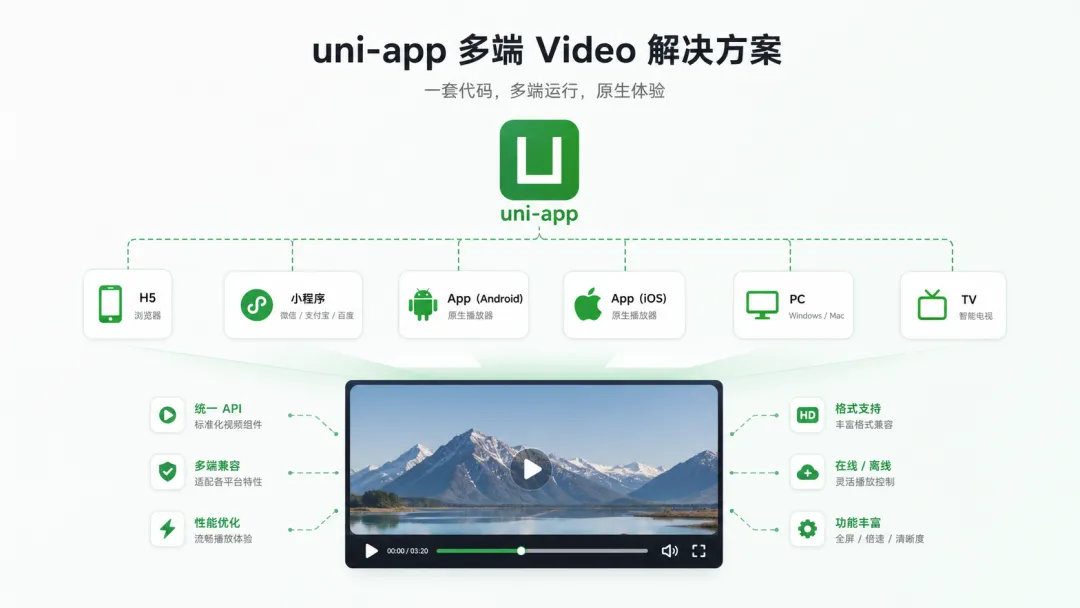
uni-app 在 APP-PLUS(即 App 端)的视频播放,本质是原生组件方案——底层用 ijkplayer 库实现,而不是 H5 的 <video> 标签。所以"怎么播"只是入口,"怎么解决原生组件层级 / 全屏横屏 / 直播流"才是真正的工程难点。下面按三种典型场景给出可落地的方案。
🎯 方案一:常规点播 —— 直接用 <video> 组件
这是 90% 场景的首选。App 端 <video> 是原生组件,打包时必须勾选 manifest.json -> App 模块权限配置 -> VideoPlayer 模块(该模块体积较大,非默认内置)。
<template> <video id="myVideo" :src="videoSrc" controls :autoplay="false" @error="onVideoError" @timeupdate="onTimeUpdate"> </video></template><script>export default { data() { return { videoSrc: 'https://example.com/video.mp4' } }, onReady() { this.videoCtx = uni.createVideoContext('myVideo', this) }, methods: { play() { this.videoCtx.play() }, pause() { this.videoCtx.pause() }, seek(t) { this.videoCtx.seek(t) }, // 跳转,单位秒 setRate(r) { this.videoCtx.playbackRate(r) } // 倍速:0.5/0.8/1.0/1.25/1.5 }}</script>关键约束:
<video> 使用 ijkplayer 库实现,比腾讯视频等商业 SDK 仍有差距,无法满足需求时可考虑插件市场的商业 SDKmanifest.json 文件内 app-plus 节点下新增 runmode 配置,设置值为 liberate⚠️ 3.6.14 及以上 + iOS 16 以上全屏:必须在
manifest.json的app-plus节点下新增screenOrientation配置:"screenOrientation": ["portrait-primary","portrait-secondary","landscape-primary","landscape-secondary"]
📐 方案二:自定义 UI / 解决层级遮挡 —— cover-view 或 subNVue
非 H5 端 <video> 是原生组件,层级高于普通前端组件。想在上面盖自定义控件(倍速按钮、弹幕、礼物动画),普通 <view> 会被压住,必须用以下手段:
cover-view | cover-view/cover-image,CSS 支持有限 | |
subNVue | uni.$emit/on 通信 | |
plus.nativeObj.view |
CSDN 上较成熟的实践是做一个统一接口层NativeVideoWrapper.vue,内部按平台分支:
业务层 → 统一接口层 → 平台适配层 ├── H5 → HTML5 Video ├── 微信小程序 → createVideoContext └── App → plus.video.createVideoPlayer这样业务代码不感知平台差异,扩展新平台只需加一个适配层。
🎬 方案三:直播流 / 强制横屏 / 系统级播放 —— plus.video 原生播放器
当 <video> 组件满足不了需求(直播流、需要完全接管全屏、要调系统播放器),直接调 5+ Engine 的 plus.video:
// 仅 APP-PLUS 环境// #ifdef APP-PLUSconst player = plus.video.createVideoPlayer('videoPlayer', { src: 'https://example.com/live.m3u8', top: '0px', left: '0px', width: '100%', height: '100%', fullscreen: true})player.play()player.setFullscreen(true) // 自动旋转屏幕// #endifplus.video 原生播放器支持的协议比 <video> 组件宽:mp4、flv 格式;http/https、rtmp、hls、rtsp 直播流均支持。
强制横屏播放的完整配置:
// manifest.json -> app-plus{ "orientation": ["landscape-primary"], "screenOrientation": ["landscape-primary"]}并在 pages.json 中对视频页单独设置:
{ "path": "pages/video-player", "style": { "app-plus": { "hardwareAccelerated": true, "orientation": "landscape" } }}💡 调用
videoContext.requestFullScreen()失败的常见原因:iOS 要求禁用原生控件(controls="false")、视频源必须是 HTTPS、未开启横屏配置。
⚠️ 三个高频踩坑点
1. Android 小黑块,iOS 正常几乎都是编码问题。用 FFmpeg 转成 H.264 + MP4:
ffmpeg -i input.mp4 -c:v libx264 -c:a aac output.mp4避免 H.265、AV1、WebM 等 Android 兼容性差的格式。若仍黑块,在 pages.json 该页面 app-plus 下设置 "hardwareAccelerated": false。
2. 进度条拖动卡死 / timeupdate 不触发uni-app 的 <video> 在非 H5 端不支持 HLS(.m3u8)协议,也不支持 MSE。服务端务必开启 Accept-Ranges: bytes 响应头,否则拖动只能从头加载。
3. content:// 路径播不了Android 上 uni.chooseMedia 返回的是 content:// 协议,必须转换:
let path = res.tempFiles[0].tempFilePathif (path.startsWith('content://')) { path = plus.io.convertLocalFileSystemURL(path) // → file://...}this.videoSrc = pathAPP-PLUS 端做"高仿抖音竖滑",唯一能扛住流畅度要求的方案是 nvue 页面 + 垂直 swiper + 原生 video。官方文档明确:微信基础库 2.4.0+ 和 App 端 nvue 2.1.5+,才可以通过在垂直的 swiper 中内嵌 video 来实现;非 H5 端 <video> 是原生组件,普通 <view> 盖不住,必须用 cover-view 绘制 UI 层。
下面是一套可直接落地的实现。
一、架构选型:为什么必须用 nvue
| nvue 页面 + swiper + video | gestureConfig、direction,touch 事件可被完整捕获 | |
💡 如果你的项目同时要兼容 H5 和小程序,建议路由级分平台:App 走 nvue 页面,H5/小程序走 vue 页面。同路由下同时放同名
.vue和.nvue,HBuilderX 会自动按平台选择。
二、核心页面结构(nvue)
<!-- pages/feed/feed.nvue --><template> <swiper class="swiper" :vertical="true" :current="currentIndex" :duration="250" @change="onSwiperChange" @animationfinish="onAnimationFinish"> <swiper-item v-for="(item, index) in visibleList" :key="item.id" class="swiper-item"> <!-- 只渲染当前项前后各1个 video,其余不挂 video --> <video v-if="isActive(index)" :ref="'video_' + item.id" class="video" :src="item.url" :autoplay="index === currentIndex" :loop="true" :muted="index === 0 ? true : false" show-center-play-btn="false" show-fullscreen-btn="false" show-progress="false" object-fit="cover" @play="onPlay" @pause="onPause" @ended="onEnded(index)" @loadedmetadata="onLoadedMeta(index)"> </video> <!-- 封面兜底:video 未就绪时显示 --> <image v-if="!item.ready" :src="item.cover" class="cover" mode="aspectFill"> </image> <!-- UI 层:必须用 cover-view,普通 view 盖不住原生 video --> <cover-view class="ui-layer"> <!-- 右侧操作栏 --> <cover-view class="side-bar"> <cover-view class="side-btn" @click="onLike(item)"> <cover-image class="side-icon" :src="item.liked ? likeActive : likeNormal"></cover-image> <cover-view class="side-text">{{ item.likes }}</cover-view> </cover-view> <cover-view class="side-btn" @click="onComment(item)"> <cover-image class="side-icon" :src="commentIcon"></cover-image> <cover-view class="side-text">{{ item.comments }}</cover-view> </cover-view> <cover-view class="side-btn" @click="onShare(item)"> <cover-image class="side-icon" :src="shareIcon"></cover-image> <cover-view class="side-text">分享</cover-view> </cover-view> </cover-view> <!-- 底部信息 --> <cover-view class="bottom-info"> <cover-view class="author">@{{ item.author }}</cover-view> <cover-view class="title">{{ item.title }}</cover-view> </cover-view> <!-- 双击点赞动画锚点 --> <cover-view class="double-tap-area" @click="onSingleTap(index)" @doubleclick="onDoubleTap(item, $event)"> </cover-view> </cover-view> </swiper-item> </swiper></template>三、关键 JS 逻辑
<script>export default { data() { return { currentIndex: 0, videoList: [], // 完整列表 visibleList: [], // 当前渲染的窗口(current-1 ~ current+1) likeNormal: '/static/icon-like.png', likeActive: '/static/icon-like-active.png', commentIcon: '/static/icon-comment.png', shareIcon: '/static/icon-share.png' } }, onLoad(query) { this.loadVideoList(query.feedId) }, onReady() { // 首屏:静音自动播放,规避 iOS 自动播放策略 this.playCurrent(true) }, methods: { // === 列表与窗口管理 === loadVideoList(feedId) { // 从接口拉取,这里用假数据示意 this.videoList = [ { id: 1, url: 'https://xxx/video1.mp4', cover: '...', author: '张三', title: '第一条视频', likes: 1200, comments: 88, liked: false, ready: false }, { id: 2, url: 'https://xxx/video2.mp4', cover: '...', author: '李四', title: '第二条视频', likes: 3200, comments: 156, liked: false, ready: false }, // ...更多 ] this.refreshVisible() }, // 只保留 current-1, current, current+1 三个 video 实例 refreshVisible() { const start = Math.max(0, this.currentIndex - 1) const end = Math.min(this.videoList.length - 1, this.currentIndex + 1) this.visibleList = this.videoList.slice(start, end + 1) }, isActive(index) { const realIndex = this.currentIndex - 1 + index return Math.abs(realIndex - this.currentIndex) <= 1 }, // === 滑动切换 === onSwiperChange(e) { const next = e.detail.current if (next === this.currentIndex) return // 1. 暂停旧的 this.pauseAt(this.currentIndex) // 2. 更新索引 this.currentIndex = next // 3. 刷新渲染窗口 this.refreshVisible() // 4. 播放新的 this.$nextTick(() => { this.playCurrent(this.currentIndex === 0) }) }, onAnimationFinish(e) { // 滑动动画结束后,清理非相邻 video 资源 this.releaseDistantVideos() }, playCurrent(muted = false) { const item = this.videoList[this.currentIndex] if (!item) return const ctx = uni.createVideoContext('video_' + item.id, this) ctx.play() if (!muted) { // 首屏之后取消静音 setTimeout(() => ctx.mute(false), 100) } }, pauseAt(index) { const item = this.videoList[index] if (!item) return const ctx = uni.createVideoContext('video_' + item.id, this) ctx.pause() }, releaseDistantVideos() { // 滑出视口 500ms 后释放:pause + src置空 + load setTimeout(() => { this.videoList.forEach((item, idx) => { if (Math.abs(idx - this.currentIndex) > 1) { const ctx = uni.createVideoContext('video_' + item.id, this) ctx.pause() item._released = true } }) }, 500) }, // === video 事件 === onLoadedMeta(index) { this.videoList[index].ready = true }, onEnded(index) { // 抖音式循环播放,不自动跳下一个 const item = this.videoList[index] const ctx = uni.createVideoContext('video_' + item.id, this) ctx.seek(0) ctx.play() }, // === 交互 === onLike(item) { item.liked = !item.liked item.likes += item.liked ? 1 : -1 }, onDoubleTap(item, e) { if (!item.liked) { item.liked = true item.likes++ } // 这里可以加个爱心飘出的动画 cover-view }, onSingleTap(index) { // 单击:播放/暂停切换 const item = this.videoList[index] const ctx = uni.createVideoContext('video_' + item.id, this) // 用 playing 状态判断,这里简化 ctx.pause() } }}</script>四、样式要点(nvue 用 flex 布局)
<style scoped>.swiper { flex: 1; width: 750rpx; }.swiper-item { width: 750rpx; height: 1334rpx; position: relative; }.video { width: 750rpx; height: 1334rpx; }.cover { position: absolute; top: 0; left: 0; width: 750rpx; height: 1334rpx; }.ui-layer { position: absolute; top: 0; left: 0; right: 0; bottom: 0;}.double-tap-area { position: absolute; top: 0; left: 0; right: 0; bottom: 200rpx;}.side-bar { position: absolute; right: 24rpx; bottom: 240rpx; flex-direction: column; align-items: center;}.side-btn { flex-direction: column; align-items: center; margin-bottom: 40rpx; }.side-icon { width: 80rpx; height: 80rpx; }.side-text { color: #fff; font-size: 24rpx; margin-top: 8rpx; }.bottom-info { position: absolute; left: 24rpx; right: 160rpx; bottom: 60rpx;}.author { color: #ffd700; font-size: 32rpx; font-weight: bold; }.title { color: #fff; font-size: 28rpx; margin-top: 12rpx; }</style>五、manifest.json 必配项
{ "app-plus": { "modules": { "VideoPlayer": {} }, "nvue": { "compiler": "uni-app" }, "screenOrientation": ["portrait-primary"], "launchwebview": { "renderType": "always" } }}nvue 页面必须配置沉浸式导航栏(在 pages.json 中):
{ "path": "pages/feed/feed", "style": { "app-plus": { "navigationBarTitleText": "", "navigationStyle": "custom", "backgroundColor": "#000000" } }}六、五个高频踩坑点
1. swiper 嵌套 video 后画面不跟随滑动这是 vue 页面的经典问题——视频是独立原生图层,swiper 切换时画面层不跟着动。必须用 nvue 页面,真原生渲染才没有这个问题。
2. iOS 首屏黑屏不自动播浏览器策略要求自动播放必须静音。首屏 video 必须 :muted="true" + :autoplay="true",等用户有过交互或其他视频再取消静音。
3. 内存爆炸一次性渲染 100 个 video,App 端内存直接飙到 500MB+。只保留 current-1, current, current+1 三个实例,滑出视口 500ms 后 pause() + 清空 src + load() 释放解码资源。
4. cover-view 的限制
cover-view无法嵌套、无法内部滚动、无法覆盖到视频全屏界面cover-view / cover-image 的直接子节点subNVue 辅助5. 双击/单击手势冲突cover-view 支持 @click 和 @doubleclick,但单击会有 300ms 延迟(等双击判定)。抖音式的"双击点赞 + 单击暂停"需要自己在 touchstart/touchend 里算时间间隔,或者用 @doubleclick + 延时单击方案。
七、性能优化清单
object-fit="cover" 让视频填满屏幕preload="auto"(nvue 端),让系统自动管理缓冲loadedmetadata 后再隐藏封面v-if 控制 video 挂载,不要靠 displaysubNVue 承载,避免 cover-view 重排总结 方案选型决策树
<video> + uni.createVideoContextcover-view 或 subNVueplus.video.createVideoPlayer