 夜雨聆风
夜雨聆风


图片导出到PDF后出现莫名其妙的灰线
你有没有遇到过这样的问题:一张用PPT画的图,导出为图片,放到word里面,再把word导出为PDF后,图片上出现了莫名其妙的灰线,而当把PDF放大后,这些灰线会自动消失。
这是因为我们导出的图片是透明背景的图片。仔细对比PDF中的图片(上方,能明显看到灰线)和Windows图片查看器中的图片(下方,透明背景显示为黑色),我们容易发现,灰线恰出现在透明背景的边界处。
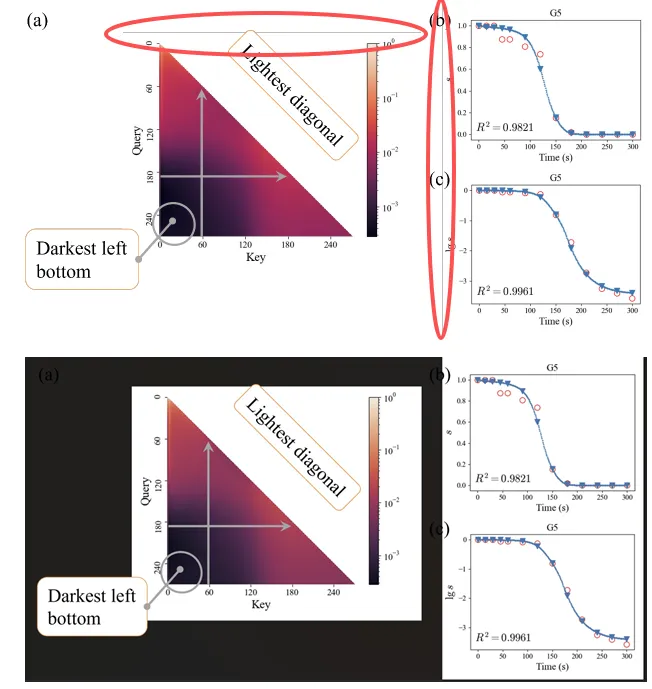
针对这个问题,比较方便的解决方案是在导出PDF时,选择“创建PDF/XPS”文档,而非导出Adobe PDF。然而,这一方法并不适用于所有情况。我最近在给期刊投稿,所有材料提交完毕后,期刊会把材料整合在PDF里面,我的图果然还是出现了莫名其妙的灰线(有的时候是一片黑色区域)。我们不能决定期刊系统用什么方式转换,因此,我们必须从源头上解决问题。
这个问题出现的根源是因为我们使用了透明背景的图片。然而,PPT只能导出透明背景的图。怎么解决呢?当然就是把透明背景转为白色背景。对此,有两种方案:
-
在PPT里面直接加个白色背景的方框作为底层图案,然后与原图形一并导出。这样做可以把中间部分的透明背景全部修改为白色背景,但是在图片的边界处,可能还是有透明背景,需手动去除。手动去除可能是比较麻烦的,因为很难在确保原图形完整显示的情况下,完全去除掉所有透明边框。 -
PPT导出为透明背景的图,使用第三方工具将透明像素转为白色像素。
针对第一个方案,我写了一个Python程序,自动去掉透明边框。针对第二个方案,我也写了一个Python程序,自动把透明背景转为白色背景。使用Python程序的好处是可以自动化批量处理,而且很精确,不用一个一个仔细裁。
工具函数
defsplit_path(path: str):
from pathlib import Path

    path = Path(path)
return path.parent, path.stem, path.suffix
自动去掉透明边框
先检测边框(get_inner_bbox),再去除边框(remove_borders)。
这个程序不仅可以用于去除透明边框,也可用于去除白边,只要把边框颜色border_color设为(0,0,0)即可。默认的border_color是图片左上角的像素颜色。
from PIL import Image, ImageChops

defget_inner_bbox(path_image, border_color=None):
"""
    Get the bounding box of the inner content of an image, excluding the border.
    User can use the returned bbox to crop the image to remove the border, e.g.:
    bbox = get_inner_bbox(image)
    cropped_image = image.crop(bbox)

    :path_image: str, the path of the image to be processed
    :border_color: tuple, the color of the border to be removed, if None,
        it will be assumed to be the same as the pixel at (0, 0)
        typical border_color: - white (255, 255, 255)
                              - transparent (0, 0, 0, 0)
    :return: tuple, the bounding box of the inner content of the image, in the format of (left, upper, right, lower)
    """
    image = Image.open(path_image)
if border_color isNone:
        border_color = image.getpixel((0, 0))
# assume the border color is the same as the pixel at (0, 0)
    bg = Image.new(image.mode, image.size, border_color)
# compute the difference between the image and the background
    diff = ImageChops.difference(image, bg)
# get the bounding box of the non-background area
    bbox = diff.getbbox()
return bbox

defremove_borders(path_image, border_color=None):
# Get the image name, format, and directory path
    dir_path, image_name, image_format = split_path(path_image)
    image_name_cropped = image_name + '_cropped' + image_format

    image = Image.open(path_image)
    bbox = get_inner_bbox(path_image, border_color)
    cropped_image = image.crop(bbox)
    cropped_image.save(f'{dir_path}/{image_name_cropped}')
使用:
remove_borders('image.png')
自动把透明背景转为白色背景
from PIL import Image

deftransparent2white(path_image):
# Get the image name, format, and directory path
    dir_path, image_name, image_format = split_path(path_image)
    image_name_new = image_name + '_white' + image_format

    image = Image.open(path_image)
    image.split()
if image.mode == 'RGBA':
# Create a white background image
        white_bg = Image.new('RGB', image.size, (255, 255, 255))
# Paste the original image onto the white background using the alpha channel as a mask
        white_bg.paste(image, mask=image.split()[3])  # Use the alpha channel as a mask
        white_bg.save(f'{dir_path}/{image_name_new}')
else:
        print(f'Image {path_image} does not have an alpha channel. No conversion needed.')
使用:
transparent2white('image.jpg')

