 夜雨聆风
夜雨聆风


uniapp+vue3+ts:小程序实现用户自定义海报
已关注
关注
重播 分享 赞
const elements = ref([]) //画布中的元素集合//绘制所有元素const redraw = () => {if (!canvas.value) return; //画布对象是否存在const ctx = canvas.value;// 清空画布ctx.clearRect(0, 0, cSize.value.width, cSize.value.height)// 重新绘制所有元素elements.value.forEach(element => {if (element.type === 'circle' && element.radius) { //圆形 且存在半径radiusctx.fillStyle = element.color; //填充颜色// 绘制圆形路径ctx.beginPath();ctx.arc(element.x, element.y, element.radius, 0, Math.PI * 2);ctx.closePath();ctx.fill(); //填充} else if (element.type === 'text' && element.text) { //文字ctx.fillStyle = element.color;ctx.font = element.font + "px Arial";ctx.fillText(element.text, element.x, element.y);} else if (element.type === 'images' && element.path) { //图片ctx.drawImage(element.path, element.x, element.y, element.width, element.height);} else if (element.type === 'cImages' && element.path) { //圆形图片ctx.save(); // 保存当前状态// 绘制圆形路径ctx.beginPath();ctx.arc(element.x + element.width / 2, element.y + element.height / 2, Math.min(element.width,element.height) / 2, 0, Math.PI * 2);ctx.closePath();ctx.clip(); // 设置裁剪区域,裁剪为圆形ctx.drawImage(element.path, element.x, element.y, element.width, element.height); // 绘制图片到圆形区域内ctx.restore(); // 恢复状态} else { //默认矩形ctx.fillStyle = element.color; //填充颜色ctx.fillRect(element.x, element.y, element.width, element.height);}})}
const bgInfo = ref({x: 0,y: 0,width: 80,height: 80,path: "/static/bg/01.jpg",type: 'images',cate: 'bgCate', //背景}); //背景的属性//初始化const initView = async () => {const {windowWidth,windowHeight} = uni.getSystemInfoSync(); //获取系统屏幕信息//设置画布大小cSize.value.width = windowWidth;cSize.value.height = windowHeight;//背景图大小bgInfo.value.width = windowWidth;bgInfo.value.height = windowHeight;await nextTick(); //DOM 加载完成//加入到元素列表中 - 可用于添加之后的重绘elements.value.push(bgInfo.value); //把背景加入元素集合中canvas.value = uni.createCanvasContext("myCanvas");redraw(); //绘制元素canvas.value.draw();};
切换则需要更改路径(path)的值,再绘制
//背景切换const drawRectBg = (img) => {elements.value.map((item) => {if (item.cate == 'bgCate' && item.type == 'images') {item.path = img;}})redraw(); //绘制元素canvas.value.draw();};
3、元素的移动(以头像的移动为例子)
如头像的属性为(坐标、长宽、类型、路径)
const avatar = ref({x: 30,y: 30,width: 80,height: 80,path: "/static/logo.png",type: 'images',cate: 'avatarCate', //头像}); //头像的属性
画布(canvas)中需要定义触摸事件,用于捕捉当前的坐标位置:
<!--画布--><canvasclass="pb-canvas"canvas-id="myCanvas"id="myCanvas":style="'width:'+cSize.width+'px;height:'+cSize.height+'px'"@touchstart="tsEvent"@touchmove="tmEvent"@touchend="teEvent"></canvas>
捕抓到的坐标用于判断是否点触在头像的矩形范围内,如果是则定义一个存储触点偏移量的变量,并赋值:
const tsEvent = (e) => {const res = e.changedTouches[0];const mouseX = res.clientX;const mouseY = res.clientY;//在非按下时 可操作if(!isDragging.value){const rect = avatar.value;//判读焦点是否在范围内 - 头像的选中if (mouseX >= rect.x &&mouseX <= (rect.width + rect.x)&& mouseY >= rect.y&& mouseY <= (rect.y + rect.height)) {isDragging.value = true; //按下了offset.value.x = mouseX - avatar.value.x; //记录当前的左边X轴offset.value.y = mouseY - avatar.value.y;offset.value.type = "avatar"; //头像}
确定了触点在头像的矩形框中,则在画布(canvas)的触摸移动事件中更改头像元素的坐标值,再进行绘制 ,则可实现了元素在画布中移动:
//移动事件const tmEvent = (e) => {const res = e.changedTouches[0];const size = cSize.value; //画布大小const rect = avatar.value; //矩形属性 - 头像if (isDragging.value) {avatar.value.x = res.clientX - offset.value.x;avatar.value.y = res.clientY - offset.value.y;//边界-最左边if (res.clientX < 0) {avatar.value.x = 0;}//边界-最右边if (res.clientX >= (size.width - rect.width)) {avatar.value.x = size.width - rect.width;}//边界-最上边if (res.clientY >= (size.height - rect.height)) {avatar.value.y = size.height - rect.height;}//边界-最底部if (res.clientY < 0) {avatar.value.y = 0;}}//先删除const arr = elements.value;const newArr = arr.filter(item => item.cate != 'avatarCate'); //筛选出不是 images的元素 为新的数组elements.value = newArr;//新增元素elements.value.push(avatar.value);}
4、生成图片保存
先把画布(canvas)导出临时路径,再下载到移动端中:
//保存为图片const saveToImage =async()=>{const res = await new Promise((resolve,reject)=>{//导出临时路径uni.canvasToTempFilePath({x:0,y:0,width:cSize.value.width,height:cSize.value.height,destWidth:cSize.value.width*2, // 高清倍率destHeight:cSize.value.height*2,canvasId:"myCanvas",success:resolve,fail:reject})});//成功if(res.errMsg == "canvasToTempFilePath:ok"){const tempPath = res.tempFilePath; //获取结果//保存到相册uni.saveImageToPhotosAlbum({filePath:tempPath,success: (res) => {uni.showToast({title:"已保存至相册"})},fail: (e) => {console.error("错误:",e);uni.showModal({ content: JSON.stringify(e), showCancel: false })}})}};
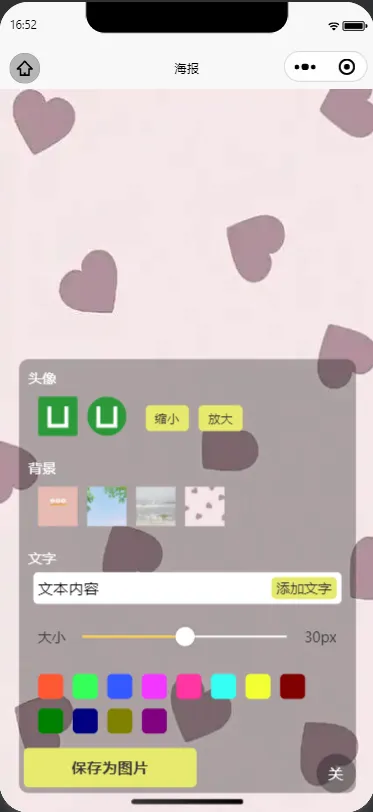
<template><viewclass="poster-box"><!--画布--><canvasclass="pb-canvas"canvas-id="myCanvas"id="myCanvas":style="'width:'+cSize.width+'px;height:'+cSize.height+'px'" @touchstart="tsEvent" @touchmove="tmEvent"@touchend="teEvent"></canvas><!--工具栏--><view:class="['pb-tool',isShowTool?'pb-tool-show':'pb-tool-hiden']"v-if="isShowTool"><viewclass="pb-t-block uni-column"><viewclass="pb-tb-item uni-column"><labelclass="pb-tbi-label">头像</label><viewclass="pb-tbi-block uni-row"><viewclass="pb-tbi-img pb-tbi-rect" @tap="drawRectAvatar"><image:src="avatar.path"mode="aspectFill"></image></view><viewclass="pb-tbi-img pb-tbi-circle" @tap="drawCircleAvatar"><image:src="avatar.path"mode="aspectFill"></image></view><viewclass="pb-tbi-img uni-row"><textclass="pb-tbi-i-btn"@tap="imageSizeChangeSmall()">缩小</text><textclass="pb-tbi-i-btn"@tap="imageSizeChangeBig()">放大</text></view></view></view><viewclass="pb-tb-item uni-column"><labelclass="pb-tbi-label">背景</label><viewclass="pb-tbi-block uni-row"><viewclass="pb-tbi-img pb-tbi-rect"v-for="(item,index) in bgArr":key="index"><image:src="item"mode="aspectFill" @tap="drawRectBg(item)"></image></view></view></view><viewclass="pb-tb-item uni-column"><labelclass="pb-tbi-label">文字</label><viewclass="pb-tbi-block uni-row"><viewclass="pb-tbi-img pb-tbi-text uni-row"><inputclass="pb-tbi-t-input"v-model="myText.text"placeholder="输入文字" /><textclass="pb-tbi-t-btn" @tap="drawText">添加文字</text></view></view><viewclass="pb-tbi-block uni-row"><viewclass="pb-tbi-img pb-tbi-size uni-row"><textclass="pb-tbi-ts-label">大小</text><viewclass="pb-tbi-ts-slider"><sliderclass="pdb-tbic-i-slider":value="myText.font"min="10"block-size="20"max="50"activeColor="#FFCC33" backgroundColor="#ffffff" fore-color="#8A6DE9"@changing="textSizeChange" /></view><textclass="pb-tbi-ts-label">{{ myText.font +'px'}}</text></view></view><viewclass="pb-tbi-block-color uni-row"><viewclass="pb-tbi-img pb-tbi-color uni-row"v-for="(item,index) in textColors":key="index"><textclass="pb-tbi-c-text":style="'background-color:'+item+';'" @tap="drawTextColor(item)"></text></view></view></view><viewclass="saveBtn" @tap="saveToImage">保存为图片</view></view></view><!--折叠--><viewclass="pb-tool-close" @tap="showOrCloseTool">{{ btnText }}</view><!--end--></view></template><scriptsetup>import {ref,onMounted,nextTick} from "vue";const cSize = ref({width: 300,height: 300}) //画布大小const canvas = ref(null); //画布const bgInfo = ref({x: 0,y: 0,width: 80,height: 80,path: "/static/bg/01.jpg",type: 'images',cate: 'bgCate', //背景}); //背景的属性const bgArr = ref(['/static/bg/01.jpg', '/static/bg/02.jpg', '/static/bg/03.jpg', '/static/bg/04.jpg']); //背景数组const avatar = ref({x: 30,y: 30,width: 80,height: 80,path: "/static/logo.png",type: 'images',cate: 'avatarCate', //头像}); //头像的属性const avatarScale = ref(1); //头像放大倍率const myText = ref({x: 120,y: 120,font: 30,color: "#ff6100",text: '文本内容',type: 'text',}) //文字的属性const elements = ref([]) //画布中的元素集合const isDragging = ref(false); //按下了const offset = ref({x: 0,y: 0,type:'text', //选中的元素 text =>文字 avatar=>头像}); //当前元素的偏移量const isShowTool = ref(true); //是否显示工具栏const textColors = ref(['#FF5733','#33FF57','#3357FF','#F333FF','#FF33A1','#33FFF3','#F3FF33','#800000','#008000','#000080','#808000','#800080']); //字体颜色const btnText = ref("关"); //右下角按钮文字onMounted(() => {initView(); //初始化页面})//初始化const initView = async () => {const {windowWidth,windowHeight} = uni.getSystemInfoSync(); //获取系统屏幕信息//设置画布大小cSize.value.width = windowWidth;cSize.value.height = windowHeight;//背景图大小bgInfo.value.width = windowWidth;bgInfo.value.height = windowHeight;await nextTick(); //DOM 加载完成//加入到元素列表中 - 可用于添加之后的重绘elements.value.push(bgInfo.value); //把背景加入元素集合中canvas.value = uni.createCanvasContext("myCanvas");redraw(); //绘制元素canvas.value.draw();};//背景切换const drawRectBg = (img) => {elements.value.map((item) => {if (item.cate == 'bgCate' && item.type == 'images') {item.path = img;}})redraw(); //绘制元素canvas.value.draw();};//绘制矩形头像:头像只能绘制一个 不是矩形的就是圆形的const drawRectAvatar = () => {//先删除const arr = elements.value;const newArr = arr.filter(item => item.cate != 'avatarCate'); //筛选出不是 cImages的元素 为新的数组elements.value = newArr;//新增元素avatar.value.type = "images";elements.value.push(avatar.value);redraw(); //绘制元素canvas.value.draw();};//绘制圆形头像:头像只能绘制一个 不是矩形的就是圆形的const drawCircleAvatar = () => {//先删除const arr = elements.value;const newArr = arr.filter(item => item.cate != 'avatarCate'); //筛选出不是 images的元素 为新的数组elements.value = newArr;//新增元素avatar.value.type = "cImages";elements.value.push(avatar.value);redraw(); //绘制元素canvas.value.draw();};//绘制所有元素const redraw = () => {if (!canvas.value) return; //画布对象是否存在const ctx = canvas.value;// 清空画布ctx.clearRect(0, 0, cSize.value.width, cSize.value.height)// 重新绘制所有元素elements.value.forEach(element => {if (element.type === 'circle' && element.radius) { //圆形 且存在半径radiusctx.fillStyle = element.color; //填充颜色// 绘制圆形路径ctx.beginPath();ctx.arc(element.x, element.y, element.radius, 0, Math.PI * 2);ctx.closePath();ctx.fill(); //填充} else if (element.type === 'text' && element.text) { //文字ctx.fillStyle = element.color;ctx.font = element.font + "px Arial";ctx.fillText(element.text, element.x, element.y);} else if (element.type === 'images' && element.path) { //图片ctx.drawImage(element.path, element.x, element.y, element.width, element.height);} else if (element.type === 'cImages' && element.path) { //圆形图片ctx.save(); // 保存当前状态// 绘制圆形路径ctx.beginPath();ctx.arc(element.x + element.width / 2, element.y + element.height / 2, Math.min(element.width,element.height) / 2, 0, Math.PI * 2);ctx.closePath();ctx.clip(); // 设置裁剪区域,裁剪为圆形ctx.drawImage(element.path, element.x, element.y, element.width, element.height); // 绘制图片到圆形区域内ctx.restore(); // 恢复状态} else { //默认矩形ctx.fillStyle = element.color; //填充颜色ctx.fillRect(element.x, element.y, element.width, element.height);}})}//图片放大const imageSizeChangeBig = () => {avatarScale.value = 1;avatarScale.value += 0.1; //放大avatar.value.width = avatar.value.width * avatarScale.value;avatar.value.height = avatar.value.height * avatarScale.value;redraw(); //绘制元素canvas.value.draw();}//图片缩小const imageSizeChangeSmall = () => {avatarScale.value = 1;avatarScale.value = avatarScale.value - 0.1; //缩小if (avatarScale.value <= 0.1) {avatarScale.value = 0.1}avatar.value.width = avatar.value.width * avatarScale.value;avatar.value.height = avatar.value.height * avatarScale.value;redraw(); //绘制元素canvas.value.draw();};//添加文字const drawText = () => {elements.value.push(myText.value);redraw(); //绘制元素canvas.value.draw();};//字体大小调整const textSizeChange = (e) => {myText.value.font = e.detail.value;elements.value.map((item) => {if (item.type == 'text') {item.font = e.detail.value;}})redraw(); //绘制元素canvas.value.draw();};//字体颜色const drawTextColor =(color)=>{myText.value.color = color;elements.value.map((item) => {if (item.type == 'text') {item.color = color;}})redraw(); //绘制元素canvas.value.draw();}//按下事件const tsEvent = (e) => {// isShowTool.value = false; //隐藏showOrCloseTool();const res = e.changedTouches[0];const mouseX = res.clientX;const mouseY = res.clientY;//在非按下时 可操作if(!isDragging.value){const rect = avatar.value;//判读焦点是否在范围内 - 头像的选中if (mouseX >= rect.x && mouseX <= (rect.width + rect.x) && mouseY >= rect.y && mouseY <= (rect.y + rect.height)) {isDragging.value = true; //按下了offset.value.x = mouseX - avatar.value.x; //记录当前的左边X轴offset.value.y = mouseY - avatar.value.y;offset.value.type = "avatar"; //头像}const textRect = myText.value;const textWidth = canvas.value.measureText(textRect.text).width;//判读焦点是否在范围内 - 文字的选中if (mouseX >= textRect.x && mouseX <= (textWidth + textRect.x) && mouseY >= (textRect.y-textRect.font) && mouseY <= (textRect.y + textRect.font)) {isDragging.value = true; //按下了offset.value.x = mouseX - myText.value.x; //记录当前的左边X轴offset.value.y = mouseY - myText.value.y;offset.value.type = "text"; //文字}}}//移动事件const tmEvent = (e) => {const res = e.changedTouches[0];const size = cSize.value; //画布大小//根据类别移动if(offset.value.type === "text"){const rect = myText.value; //文字const textWidth = canvas.value.measureText(rect.text).width;if (isDragging.value) {myText.value.x = res.clientX - offset.value.x;myText.value.y = res.clientY - offset.value.y;//边界-最左边if (res.clientX < 0) {myText.value.x = 0;}//边界-最右边if (res.clientX >= (size.width - rect.width)) {myText.value.x = size.width - rect.width;}//边界-最上边if (res.clientY >= (size.height - rect.height)) {myText.value.y = size.height - rect.height;}//边界-最底部if (res.clientY < 0) {myText.value.y = 0;}// isShowTool.value = false;showOrCloseTool();}//先删除const arr = elements.value;const newArr = arr.filter(item => item.type != 'text'); //筛选出不是 images的元素 为新的数组elements.value = newArr;//新增元素elements.value.push(myText.value);}else{const rect = avatar.value; //矩形属性 - 头像if (isDragging.value) {avatar.value.x = res.clientX - offset.value.x;avatar.value.y = res.clientY - offset.value.y;//边界-最左边if (res.clientX < 0) {avatar.value.x = 0;}//边界-最右边if (res.clientX >= (size.width - rect.width)) {avatar.value.x = size.width - rect.width;}//边界-最上边if (res.clientY >= (size.height - rect.height)) {avatar.value.y = size.height - rect.height;}//边界-最底部if (res.clientY < 0) {avatar.value.y = 0;}// isShowTool.value = false;showOrCloseTool();}//先删除const arr = elements.value;const newArr = arr.filter(item => item.cate != 'avatarCate'); //筛选出不是 images的元素 为新的数组elements.value = newArr;//新增元素elements.value.push(avatar.value);}redraw(); //绘制元素canvas.value.draw();}//结束-重置属性const teEvent = (e) => {isDragging.value = false; //已经放下了// isShowTool.value = true; //显示offset.value = {x:0,y:0,type:'text'};showOrCloseTool();}//底部工具栏开启关闭const showOrCloseTool =()=>{const show = isShowTool.value;if(show){isShowTool.value = false; //关闭btnText.value = "开";}else{isShowTool.value = true; //显示btnText.value = "关";}};//保存为图片const saveToImage =async()=>{const res = await new Promise((resolve,reject)=>{//导出临时路径uni.canvasToTempFilePath({x:0,y:0,width:cSize.value.width,height:cSize.value.height,destWidth:cSize.value.width*2, // 高清倍率destHeight:cSize.value.height*2,canvasId:"myCanvas",success:resolve,fail:reject})});//成功if(res.errMsg == "canvasToTempFilePath:ok"){const tempPath = res.tempFilePath; //获取结果//保存到相册uni.saveImageToPhotosAlbum({filePath:tempPath,success: (res) => {uni.showToast({title:"已保存至相册"})},fail: (e) => {console.error("错误:",e);uni.showModal({ content: JSON.stringify(e), showCancel: false })}})}};</script><stylelang="scss">.poster-box {width: 100vw;height: 100vh;position: relative;}.pb-canvas {width: 100%;height: 100%;}/**工具栏***/.pb-tool {position: absolute;// width: 90%;// height: 100rpx;background-color: rgba(0, 0, 0, 0.3);// left: 0;// right: 0;// bottom: 40rpx;// margin: 0rpx auto;opacity: 0;border-radius: 20rpx;}.pb-tool-close{width:80rpx;height:80rpx;position: absolute;bottom: 40rpx;right: 5%;border-radius: 50%;background-color:rgba(0, 0, 0, 0.3);color:#fff;font-size: 1rem;text-align: center;line-height: 80rpx;}.pb-t-block {padding: 10rpx;}.pb-tb-item {padding: 10rpx;.pb-tbi-label {font-size: 0.9rem;color:#fff;}.pb-tbi-block {padding: 10rpx;align-items: center;.pb-tbi-img {overflow: hidden;padding: 10rpx;image {width: 80rpx;height: 80rpx;}}.pb-tbi-circle {image {width: 80rpx;height: 80rpx;border-radius: 50%;}}.pb-tbi-i-btn {padding: 10rpx 20rpx;background-color:#e7e96d;margin-left: 20rpx;border-radius: 10rpx;font-size: 0.8rem;color:#333;}}.pb-tbi-text {padding: 10rpx 20rpx;background-color:#fff;border-radius: 10rpx;align-items: center;flex-grow: 1;.pb-tbi-t-input {flex: 2;}.pb-tbi-t-btn {padding: 5rpx 10rpx;background-color:#e7e96d;border-radius: 10rpx;color:#333;font-size: 0.9rem;}}.pb-tbi-size {flex-grow: 1;align-items: center;.pb-tbi-ts-label {font-size: 0.9rem;color:#333;}.pb-tbi-ts-slider {flex: 2;}}.pb-tbi-block-color{padding: 10rpx;align-items: center;flex-wrap: wrap;.pb-tbi-color{padding:10rpx;.pb-tbi-c-text{width: 50rpx;height: 50rpx;border-radius: 10rpx;}}}}.saveBtn{width: 50%;text-align: center;font-size: 1rem;font-weight: bold;background-color:#e7e96d;color:#333;padding:20rpx 10rpx;border-radius: 10rpx;}.pb-tool-show {animation: showToolBoxAni 1s forwards;}.pb-tool-hiden {animation: closeToolBoxAni 1s forwards;}@keyframes showToolBoxAni {0% {width: 80rpx;height: 80rpx;bottom: 40rpx;right: 5%;opacity: 0;padding: 0rpx;}100% {width: 90%;height: 60vh;bottom: 40rpx;right: 5%;opacity: 1;padding: 0rpx;// margin: 0rpx auto;}}@keyframes closeToolBoxAni {0% {width: 90%;height: 60vh;bottom: 40rpx;right: 5%;opacity: 1;padding: 0rpx;}100% {width: 80rpx;height: 80rpx;bottom: 40rpx;right: 5%;opacity: 0;padding: 0rpx;}}</style>