 夜雨聆风
夜雨聆风OpenClaw 安装指南(Windows 版)
💡安装准备
系统要求
Windows 10 或 Windows 11(64位)
能访问 GitHub 的网络环境
⚠️安全小提示
建议在备用机或干净的电脑上安装运行。
第一步:安装 Node.js
Node.js 是 OpenClaw 的运行环境,装一次就够了。
⚠️ OpenClaw 要求 Node.js 22 或以上,低于这个版本会安装失败。
先检查有没有装过
在系统搜索栏搜索
PowerShell打开,输入:node-v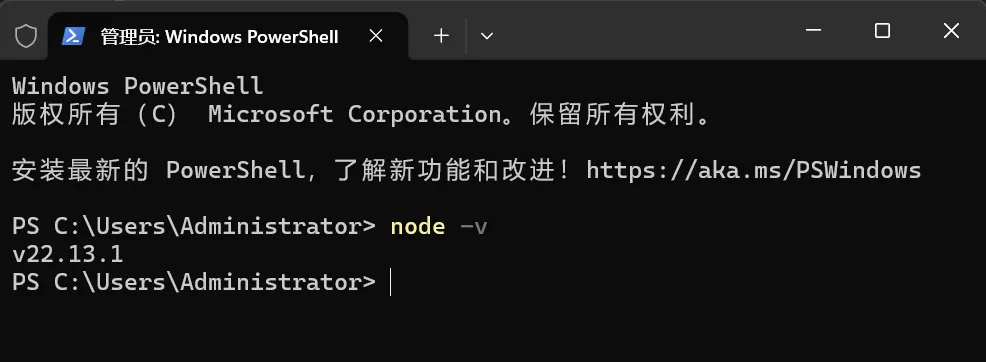
看到
v22.x.x或更高 → 已满足要求,直接跳到第二步看到
v20.x.x或更低 → 版本太旧,需要重新安装提示"找不到命令" → 还没装过,继续往下
官网下载安装包
打开这个链接:👉 https://nodejs.org/zh-cn/download
下载 Windows 安装程序(.msi 文件),然后:
双击打开安装包
勾选同意协议
一路点击 Next
点击 Install,等待进度条走完
点击 Finish
✅ Node.js 安装完成。
第二步:安装 Git
Git 是 OpenClaw 安装脚本拉取依赖时需要用到的工具,无版本硬性要求,装最新版就行。
先检查有没有装过
在 PowerShell 里输入:
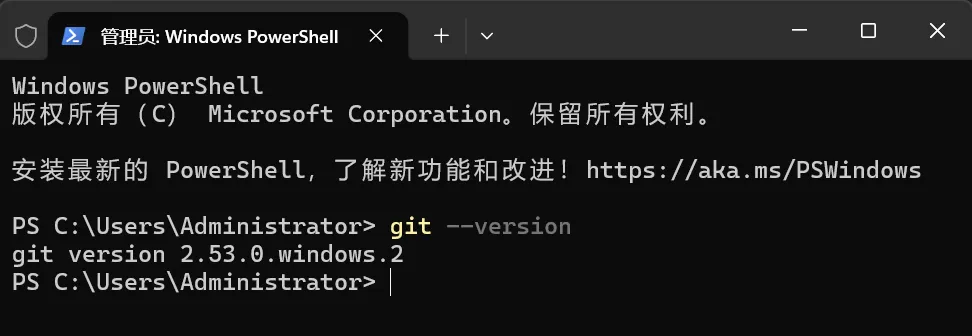
git--version
看到
git version 2.x.x→ 已安装,直接跳到第三步提示"找不到命令" → 还没装过,继续往下
官网下载安装包
打开这个链接:👉 https://git-scm.com/install/windows
下载 Windows 安装程序,然后:
双击打开安装包
一路点击 Next(所有选项保持默认)
点击 Install,等待进度条走完
点击 Finish
✅ Git 安装完成。
第三步:安装 OpenClaw
准备安装
在系统搜索栏搜索 PowerShell,右键选择 以管理员身份运行
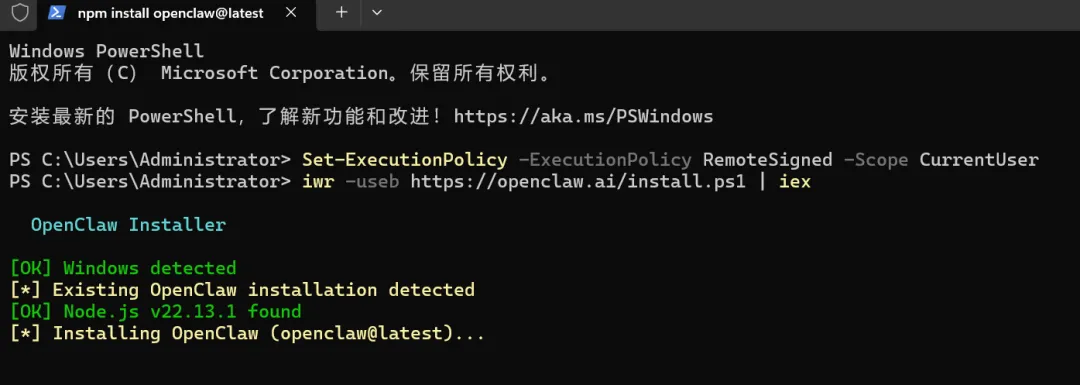
在蓝色窗口里依次输入以下两条命令,每输完一条就按回车:
第一条:
Set-ExecutionPolicy-ExecutionPolicyRemoteSigned-ScopeCurrentUser
如果出现询问,输入 Y 然后回车。
第二条:
iwr-usebhttps://openclaw.ai/install.ps1|iex
等待安装过程,大约需要2-10分钟,速度取决于网络。
跟着向导操作
用键盘上下箭头选择,回车确认:
| 步骤 | 看到的问题 | 推荐选择 | 说明 | 截图 |
|---|---|---|---|---|
| 1 | 安全警告 | Yes | 了解风险,继续安装 | 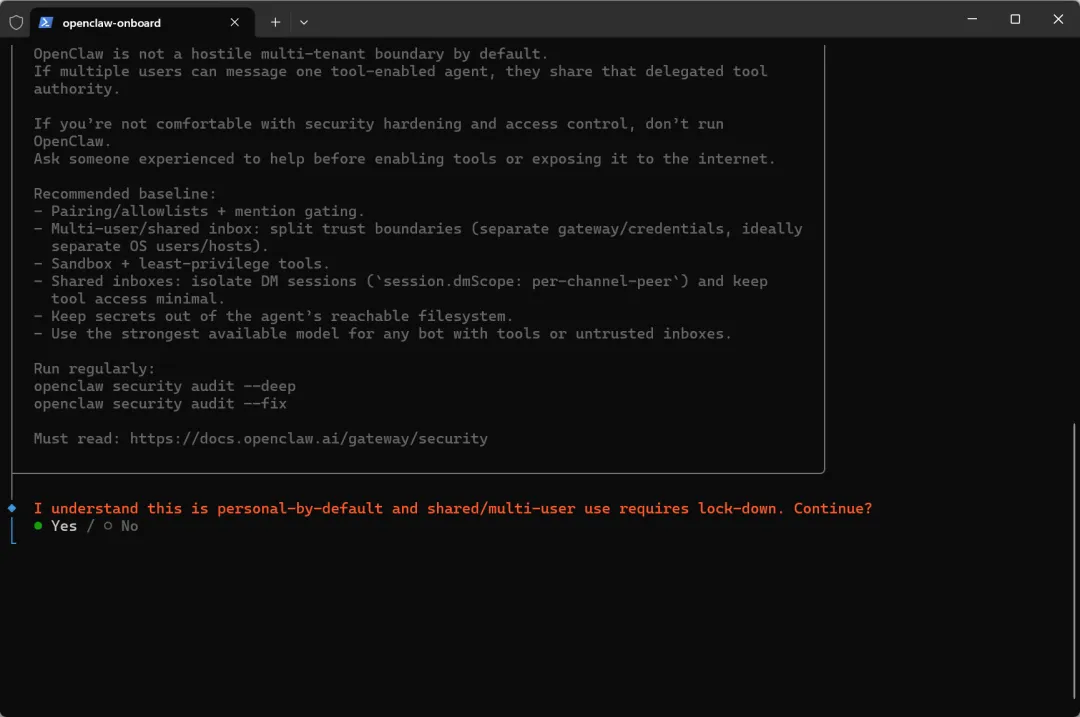 |
| 2 | 安装模式 | QuickStart | 快速开始,适合新手 | 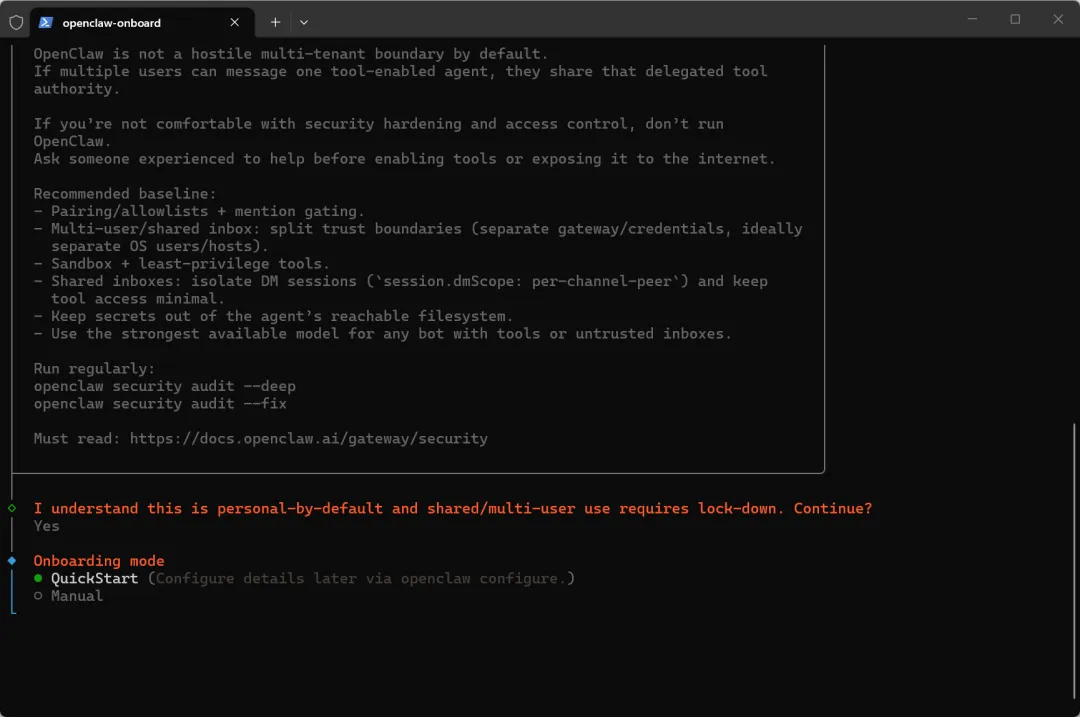 |
| 3 | 选择 AI 模型 + 输入 API Key | / | 如没有 API Key 的话,后续就没办法跟 AI 对话 | 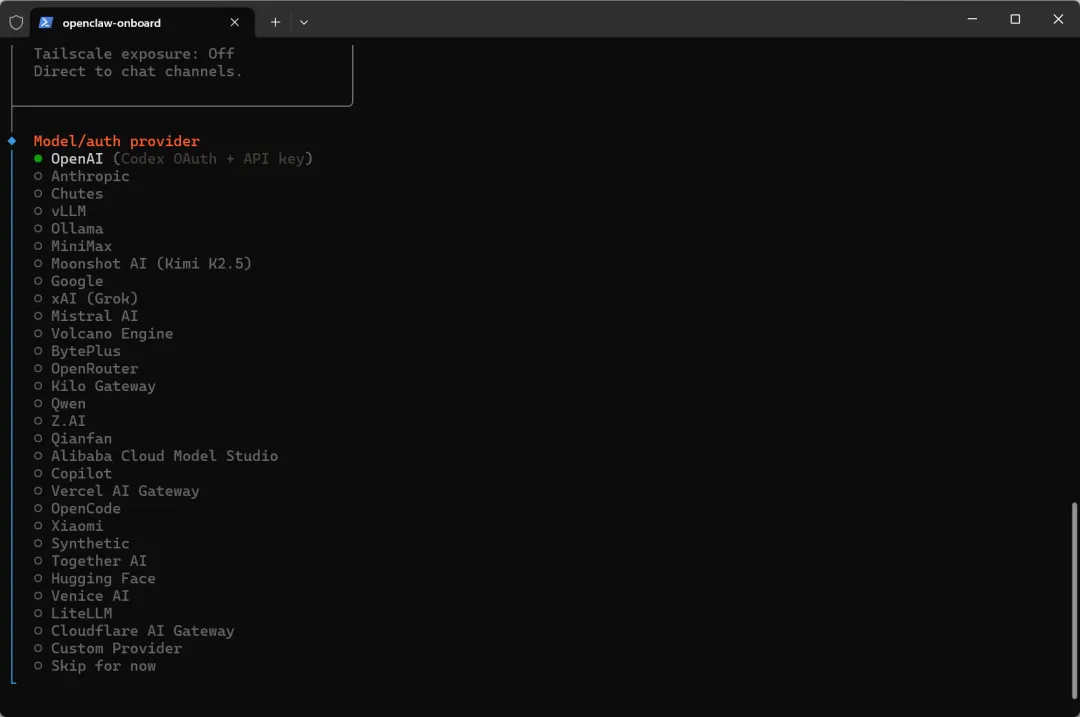 |
💡后续我们会出一份 API Key 对比文档,帮大家找最划算的选择,也欢迎铁铁们来补充~ | ||||
| 6 | 选择聊天渠道 | feishu | 可以先直接设置飞书,如不选可跳过 | 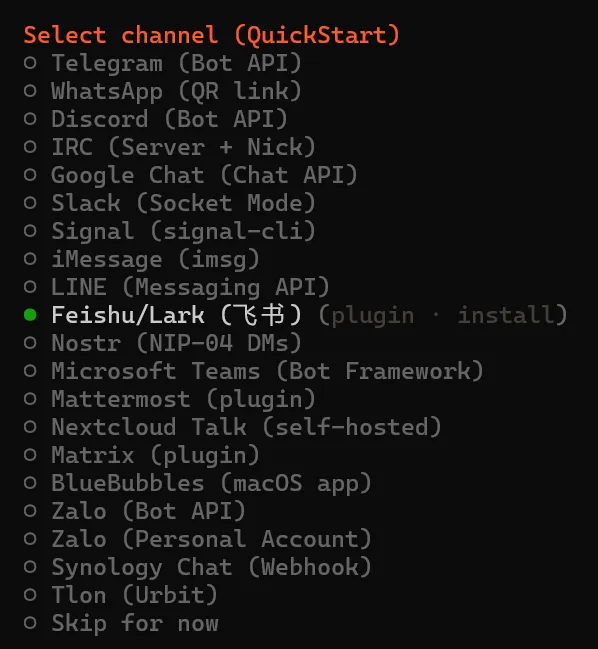 |
| 6.1 | 是否安装飞书插件 | Download from npm (@openclaw/feishu) | 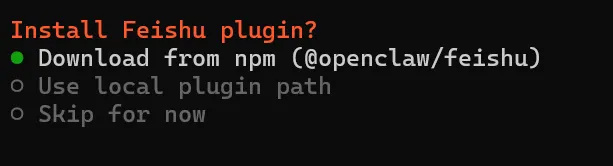 | |
| 6.2 | 提供APP Secret和APP ID | 提供相应信息 | 进入飞书应用中心:开发者后台 - 飞书开放平台使用飞书账号登录。Lark(国际版)请使用  创建版本 创建版本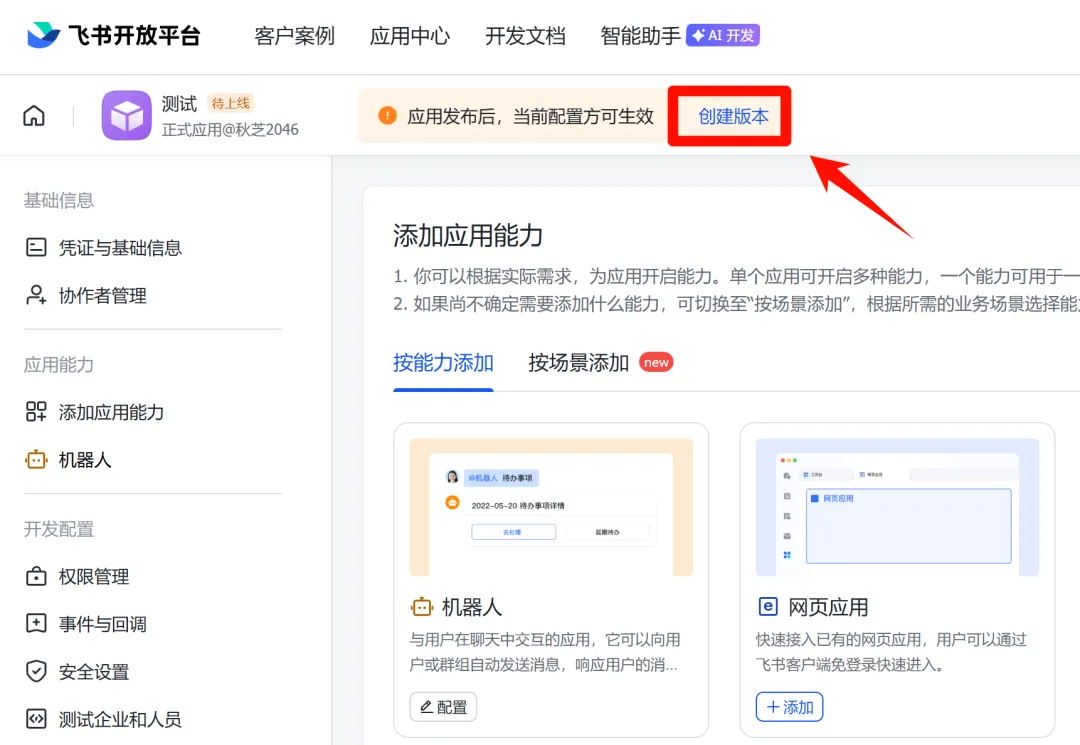 更新应用 Token回到 凭证与基础信息 页面,将App ID / App Secret 同步更新到 OpenClaw 配置中。 更新应用 Token回到 凭证与基础信息 页面,将App ID / App Secret 同步更新到 OpenClaw 配置中。 |   |
| 6.3 | 连接方式 | WebSocket | 默认就行,不用改 | |
| 6.4 | 群聊响应策略 | Open | Allowlist(当前选中) 只在你指定的特定群里响应Open 在所有群都会响应,但需要有人 @ 它才触发Disabled 完全不在群里响应,只处理私聊 | |
| 7 | 联网搜索 | Skip for now | 需要额外的API Key,可先跳过 | 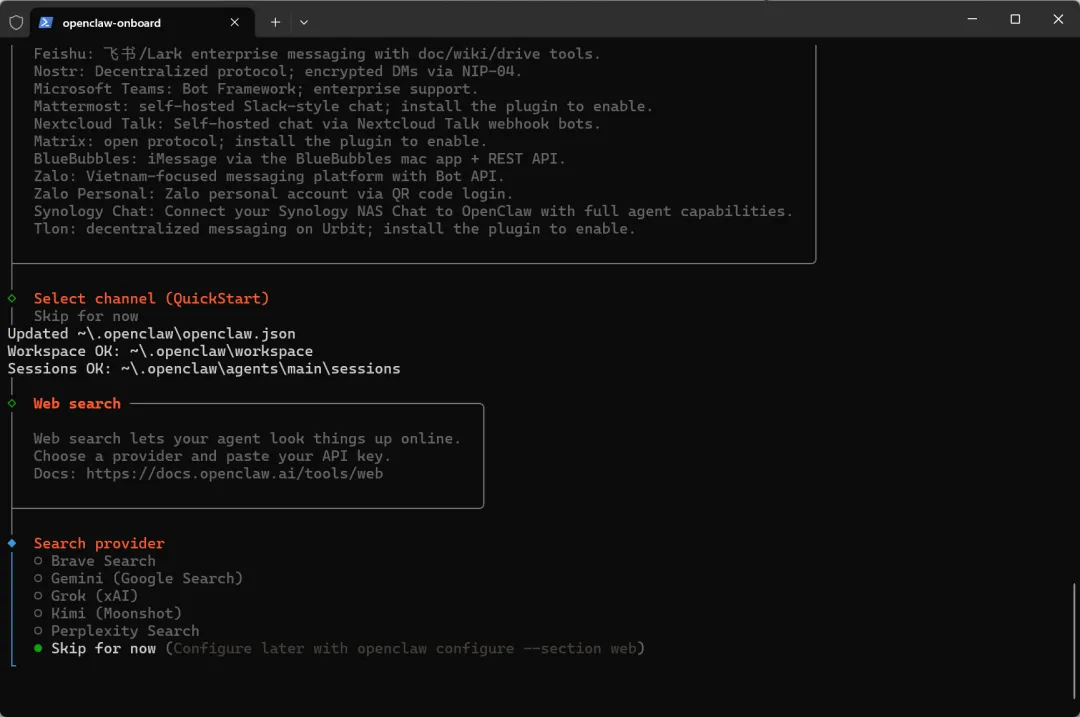 |
| 8 | 配置技能 | Yes/No | 只想先跑通基础聊天先选 No,后续可以随时安装 | 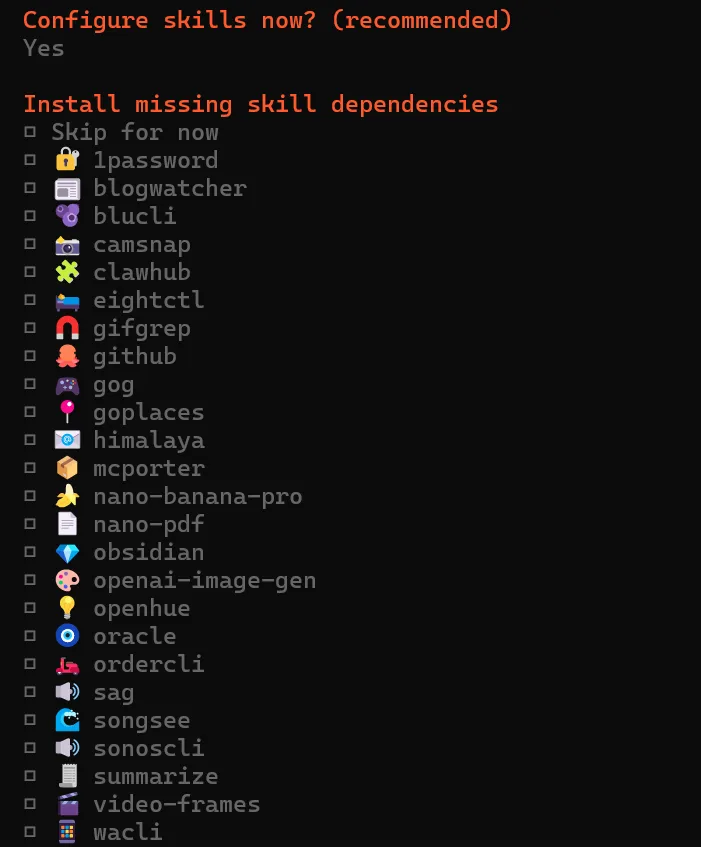 |
| 9 | hooks(自动化功能) | 全选安装 | 都是非常实用的技能 | 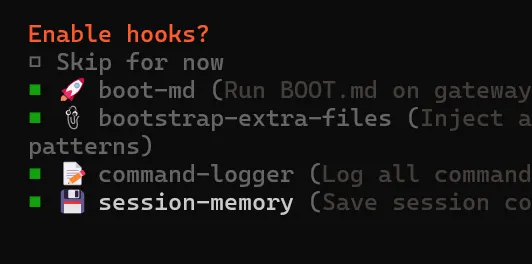 |
到这里,程序会自动启动网关,屏幕上会弹出一个新的命令窗口。⚠️ 原先的 PowerShell 窗口和新弹出的窗口都不要关,回到最开始的 PowerShell 窗口继续操作。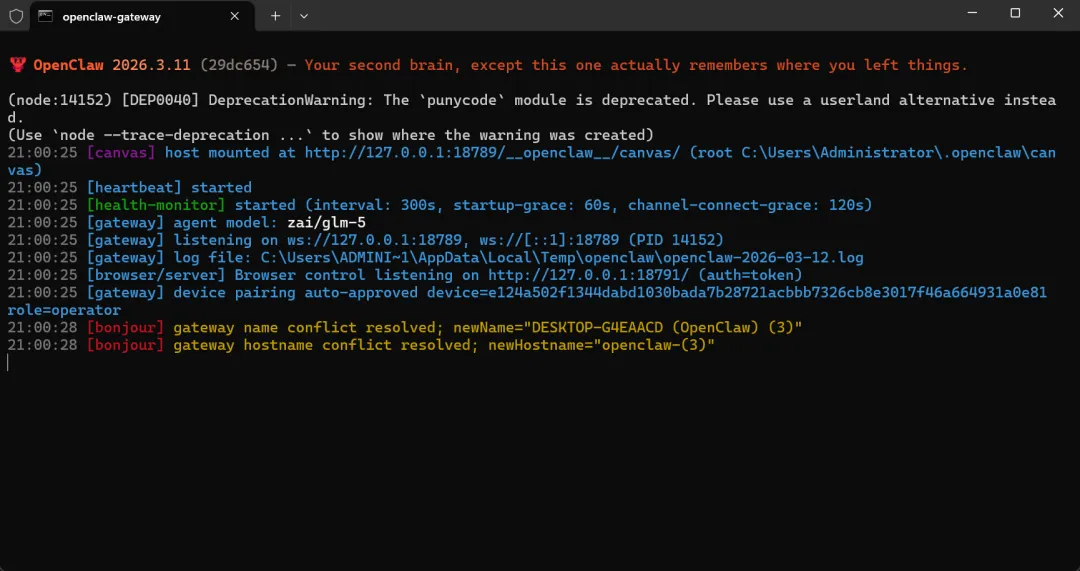 | ||||
| 10 | 启动方式 | Web UI | 网页图形界面会更加直观和操作友好一些 | 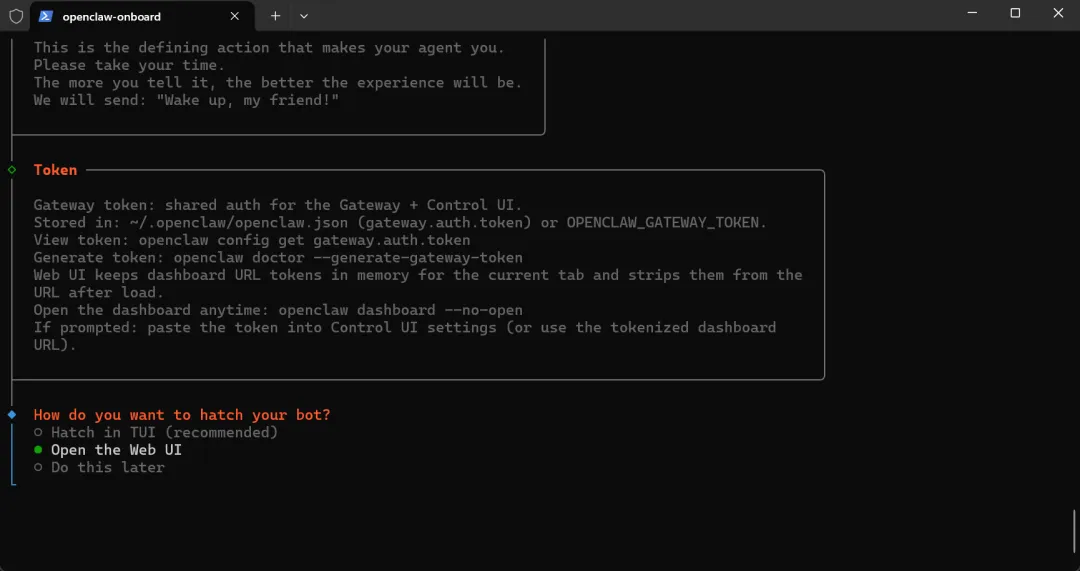 |
回车后会提示有网页自动打开,进入 http://127.0.0.1:18789/。
发送消息
在聊天界面发一条消息,收到小龙虾的回复,说明配置完成 🎉
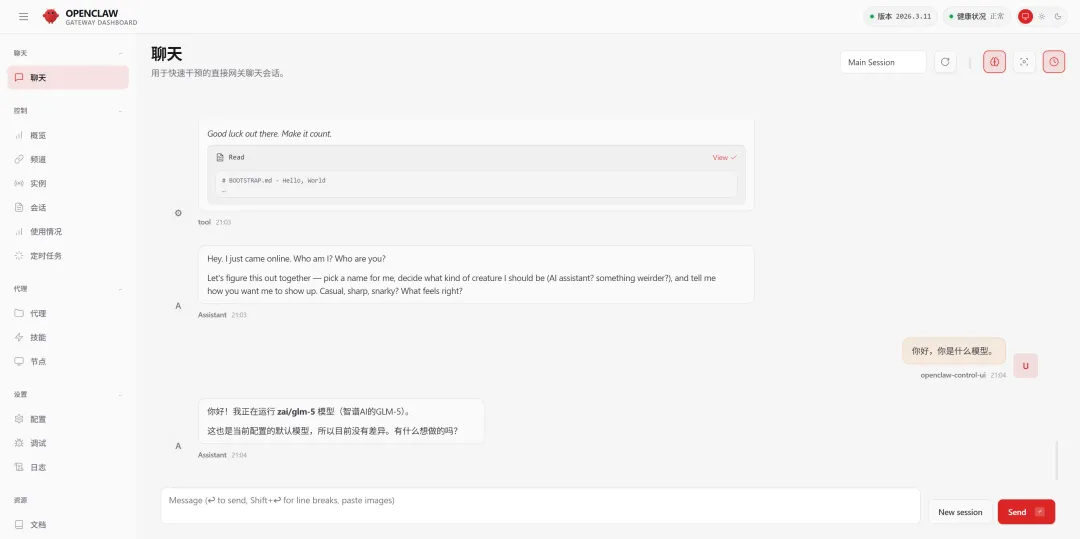
后续打通飞书,在飞书上使用机器人的操作步骤
配置应用权限
进入飞书应用中心:开发者后台 - 飞书开放平台
在刚才已有机器人的权限管理页面,点击批量导入按钮,粘贴以下 JSON 配置一键导入所需权限。
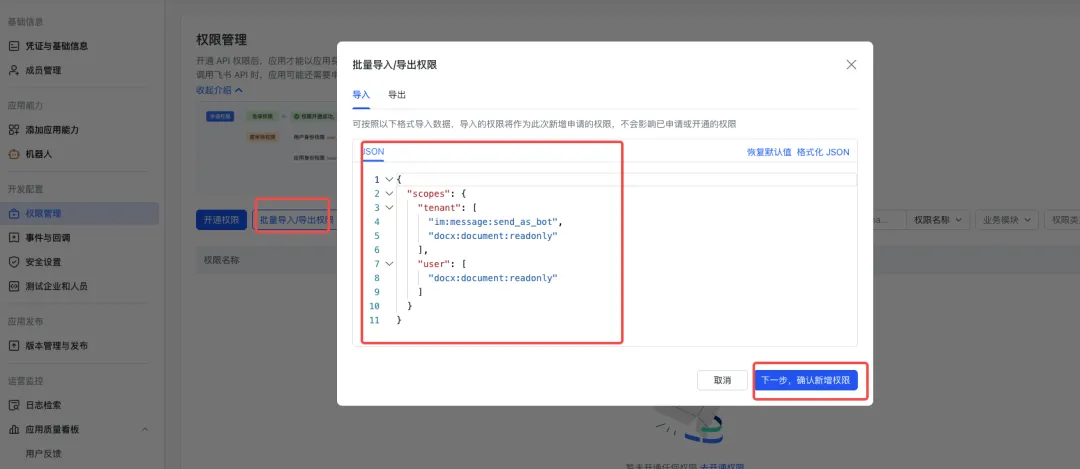
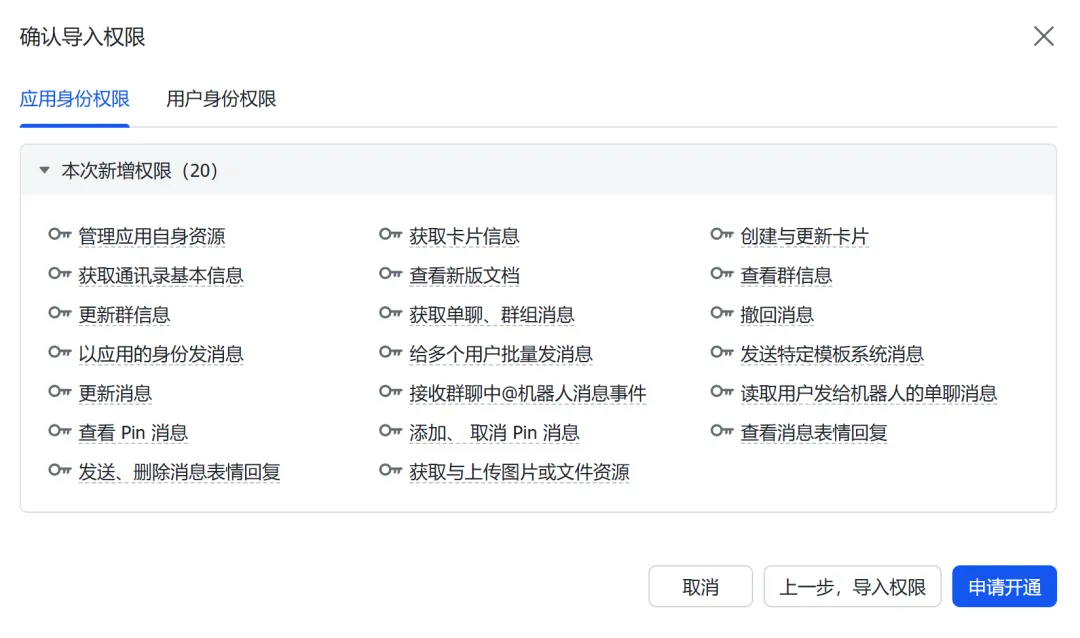
{"scopes": {"tenant": ["contact:contact.base:readonly","docx:document:readonly","im:chat:read","im:chat:update","im:message.group_at_msg:readonly","im:message.p2p_msg:readonly","im:message.pins:read","im:message.pins:write_only","im:message.reactions:read","im:message.reactions:write_only","im:message:readonly","im:message:recall","im:message:send_as_bot","im:message:send_multi_users","im:message:send_sys_msg","im:message:update","im:resource","application:application:self_manage","cardkit:card:write","cardkit:card:read"],"user": ["contact:user.employee_id:readonly","offline_access","base:app:copy","base:field:create","base:field:delete","base:field:read","base:field:update","base:record:create","base:record:delete","base:record:retrieve","base:record:update","base:table:create","base:table:delete","base:table:read","base:table:update","base:view:read","base:view:write_only","base:app:create","base:app:update","base:app:read","board:whiteboard:node:create","board:whiteboard:node:read","calendar:calendar:read","calendar:calendar.event:create","calendar:calendar.event:delete","calendar:calendar.event:read","calendar:calendar.event:reply","calendar:calendar.event:update","calendar:calendar.free_busy:read","contact:contact.base:readonly","contact:user.base:readonly","contact:user:search","docs:document.comment:create","docs:document.comment:read","docs:document.comment:update","docs:document.media:download","docs:document:copy","docx:document:create","docx:document:readonly","docx:document:write_only","drive:drive.metadata:readonly","drive:file:download","drive:file:upload","im:chat.members:read","im:chat:read","im:message","im:message.group_msg:get_as_user","im:message.p2p_msg:get_as_user","im:message:readonly","search:docs:read","search:message","space:document:delete","space:document:move","space:document:retrieve","task:comment:read","task:comment:write","task:task:read","task:task:write","task:task:writeonly","task:tasklist:read","task:tasklist:write","wiki:node:copy","wiki:node:create","wiki:node:move","wiki:node:read","wiki:node:retrieve","wiki:space:read","wiki:space:retrieve","wiki:space:write_only"]}}
设置事件回调(Callback)
⚠️ 重要提醒:在配置事件订阅前,请务必确保已完成以下步骤:
运行 openclaw channels add 添加了 Feishu 渠道
网关处于启动状态(可通过 openclaw gateway status 检查状态)
在
事件订阅页面:选择 使用长连接接收事件(WebSocket 模式)
⚠️ 注意:如果网关未启动或渠道未添加,长连接设置将保存失败。
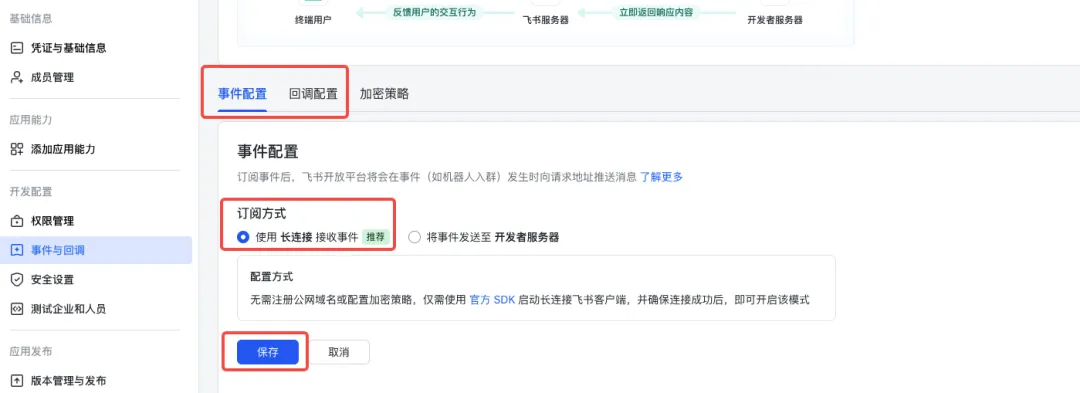
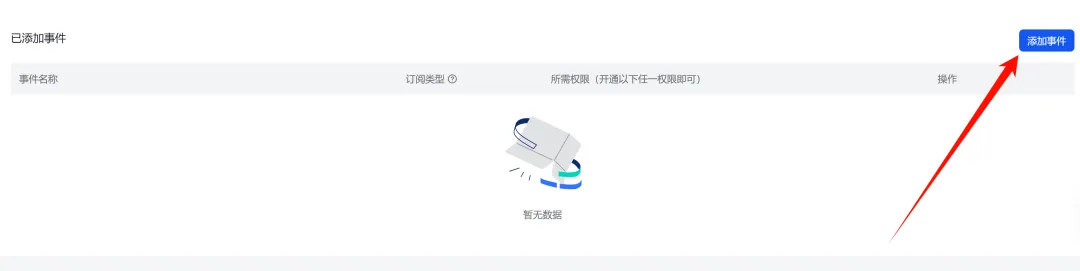
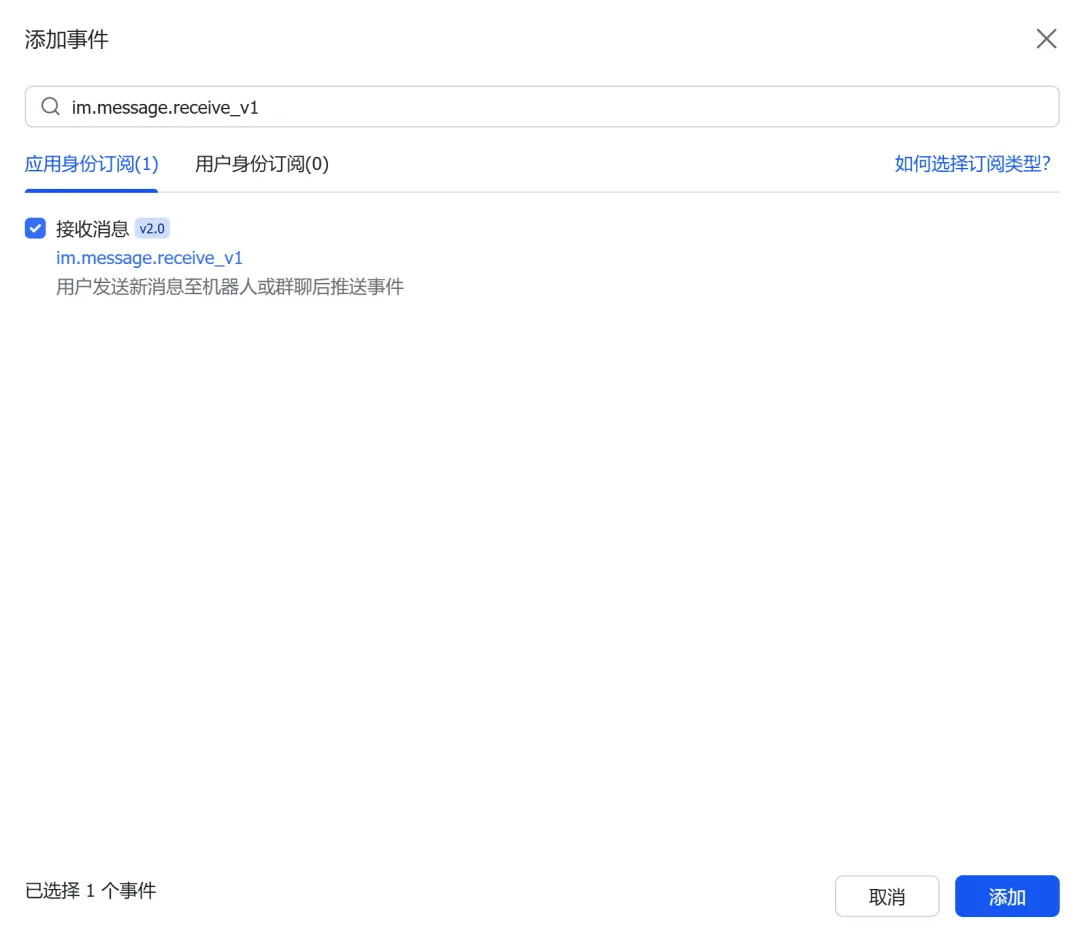
添加事件:
im.message.receive_v1(接收消息)
发布应用
创建新版本
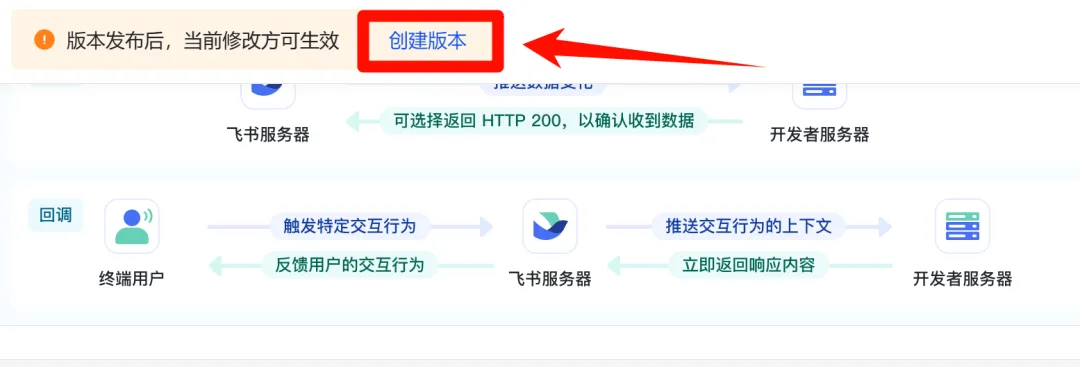
提交审核并发布
等待管理员审批(企业自建应用通常自动通过)
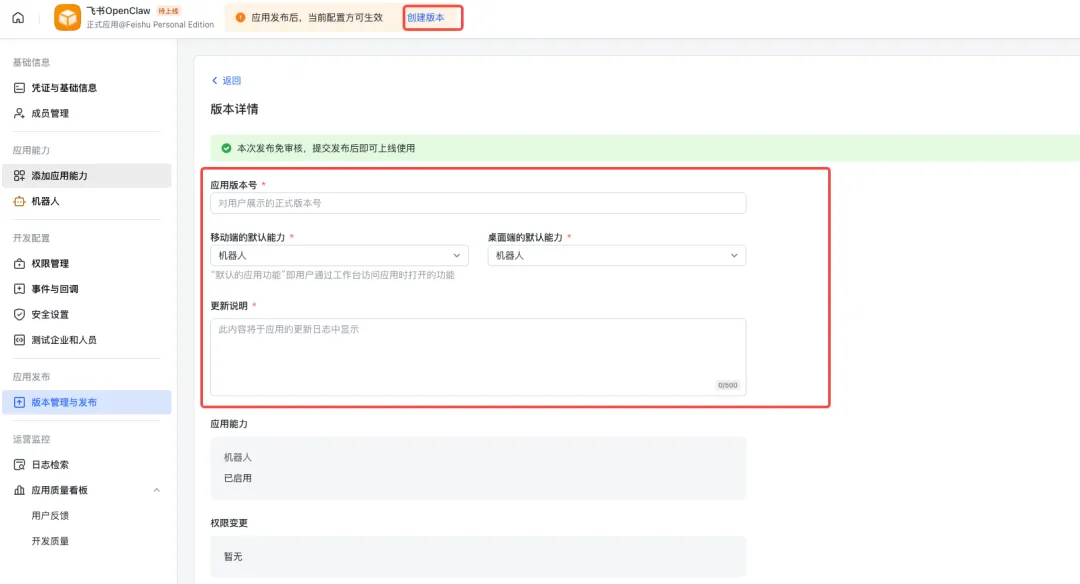
发送测试消息
审批通过后,在飞书中搜索我们刚创建好的机器人的名字,发送一条消息。
配对授权
默认情况下,机器人会回复一个配对码。你需要批准此代码(此时已经可以在 WebUI 中直接和🦞对话,让它帮忙完成这步):
openclaw pairing approve feishu <配对码>
批准后即可正常对话啦!