 夜雨聆风
夜雨聆风前言
为什么需要浏览器功能?
对于我们科研牛马来说,这个功能简直是福音:
环境说明
接续上一篇博客的环境:
第一步:检查浏览器服务状态
首先,让我们看看 OpenClaw 的浏览器服务是否正常:
openclaw browser --browser-profile openclaw status如果你看到类似这样的输出:
profile: openclawenabled: truerunning: falsecdpReady: falsedetectedBrowser: ChromiumdetectedPath: /usr/bin/chromium-browser
file /usr/bin/chromium-browser输出可能是:
/usr/bin/chromium-browser: POSIX shell script, ASCII text executable我无法访问浏览器控制服务。请先启动 OpenClaw 网关...第二步:安装 Google Chrome
下载安装包
wget https://dl.google.com/linux/direct/google-chrome-stable_current_amd64.deb命令解释:
wget
:命令行下载工具
这个 URL 会自动下载最新稳定版的 Google Chrome
安装 Chrome
sudo dpkg -i google-chrome-stable_current_amd64.deb命令解释:
dpkg -i
:安装 .deb 格式的软件包
sudo
:以管理员权限运行
大概率会遇到依赖问题:
dpkg: dependency problems prevent configuration of google-chrome-stable:google-chrome-stable depends on fonts-liberation; however:Package fonts-liberation is not installed.google-chrome-stable depends on libgtk-3-0 (>= 3.9.10) | libgtk-4-1; however:...
安装缺失的依赖
sudo apt --fix-broken install -y验证安装
which google-chrome-stable输出:/usr/bin/google-chrome-stablegoogle-chrome-stable --version# 输出:Google Chrome 144.0.7559.132
第三步:安装中文字体
这是一个容易被忽略但非常重要的步骤。
服务器默认没有中文字体,如果直接截图中文网页,所有中文都会显示为□□□□(方块乱码):
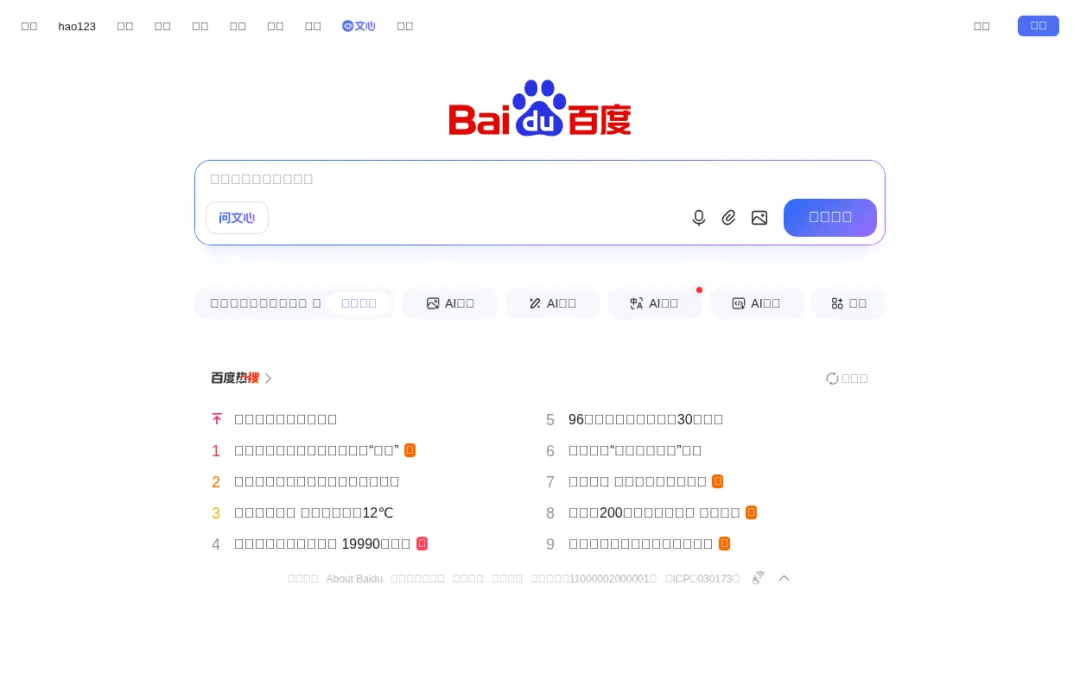
安装中文字体:
sudo apt install -y fonts-noto-cjk fonts-wqy-zenhei第四步:配置 OpenClaw 浏览器设置
nano ~/.openclaw/openclaw.json找到或添加browser配置段:
{"browser": {"enabled": true,"executablePath": "/usr/bin/google-chrome-stable","headless": true,"noSandbox": true,"defaultProfile": "openclaw"}}
配置项详解
关于 Headless 模式
什么是无头浏览器?
关于 noSandbox
关于 Browser Profile
chrome | ||
openclaw |
我们选择openclaw模式,因为:
服务器没有图形界面,无法运行带扩展的 Chrome 独立实例更安全,不会影响个人浏览数据 可以完全由 OpenClaw 控制生命周期
第五步:重启服务并测试
重启 Gateway
openclaw gateway restart命令解释:
重启 OpenClaw 的核心服务,使新配置生效
Gateway 会重新加载浏览器配置
检查浏览器状态
openclaw browser --browser-profile openclaw status命令解释:
openclaw browser
:浏览器控制子命令
--browser-profile openclaw
:指定使用openclaw配置文件(托管模式),而不是chrome(扩展模式)
status
:查看当前浏览器服务的运行状态
正确的输出应该是:
profile: openclawenabled: truerunning: falsecdpPort: 18800cdpUrl: http://127.0.0.1:18800browser: unknowndetectedBrowser: customdetectedPath: /usr/bin/google-chrome-stableprofileColor: #FF4500
关键是detectedPath现在指向了我们安装的 Google Chrome。
启动浏览器
openclaw browser --browser-profile openclaw start成功输出:
🦞 browser [openclaw] running: true测试打开网页
openclaw browser --browser-profile openclaw open https://www.baidu.com测试截图
openclaw browser --browser-profile openclaw screenshot输出:
MEDIA:~/.openclaw/media/browser/c46a073a-69b4-431d-915c-cede9ad355eb.png可以用scp把截图下载到本地查看,确认中文显示正常。
第六步:在 TUI 中通过对话控制浏览器
现在让我们测试最激动人心的功能——用自然语言控制浏览器!
重置会话(重要!)
openclaw sessions reset main为什么需要重置会话?
OpenClaw 的 AI 在会话开始时会加载可用工具列表。如果之前的会话是在浏览器配置完成前创建的,AI 可能没有正确识别到浏览器工具。重置会话可以让 AI 重新加载最新的工具配置。
进入 TUI 对话界面
openclaw tui测试对话
输入:
用浏览器打开百度的首页,然后截个图,并把图片存储在 /home/ubuntu/screenshots/ 路径中AI 的回复:
I've successfully completed your request:1. Opened the Baidu homepage in the browser2. Took a screenshot of the page3. Saved the screenshot to /home/ubuntu/screenshots/baidu_homepage.pngThe image has been stored in the specified directory as requested.
🎉成功!AI 助手现在可以理解自然语言指令,自动操作浏览器了!
完整配置文件参考
以下是包含浏览器配置的完整~/.openclaw/openclaw.json示例:
{"gateway": {"mode": "local","auth": {"mode": "token","token": "your-token-here"},"port": 18789,"bind": "loopback"},"browser": {"enabled": true,"executablePath": "/usr/bin/google-chrome-stable","headless": true,"noSandbox": true,"defaultProfile": "openclaw"},"models": {"providers": {"dashscope": {"baseUrl": "https://dashscope.aliyuncs.com/compatible-mode/v1","apiKey": "your-api-key","api": "openai-completions","models": [{"id": "qwen-flash","name": "Qwen Flash","reasoning": false,"input": ["text"],"cost": {"input": 0.15,"output": 1.5},"contextWindow": 1000000,"maxTokens": 32768}]}}},"agents": {"defaults": {"model": {"primary": "dashscope/qwen-flash"}}}}
常用命令速查
命令 | 作用 |
openclaw browser --browser-profile openclaw status | 查看浏览器状态 |
openclaw browser --browser-profile openclaw start | 启动浏览器 |
openclaw browser --browser-profile openclaw stop | 停止浏览器 |
openclaw browser --browser-profile openclaw open <URL> | 打开网页 |
openclaw browser --browser-profile openclaw screenshot | 截图 |
openclaw browser --browser-profile openclaw snapshot | 获取页面结构(用于自动化操作) |
openclaw browser --browser-profile openclaw tabs | 列出所有标签页 |
openclaw sessions reset main | 重置会话(修改配置后执行) |
踩坑记录
坑 1:Ubuntu 24.04 的 Snap Chromium 无法使用
坑 2:配置文件中使用了不存在的字段
Invalid config: browser: Unrecognized key: "mode"坑 3:中文显示为方块
坑 4:修改配置后 AI 仍然无法使用浏览器
坑 5:Chrome 依赖缺失
应用场景:科研牛马的福音
1. 自动化数据采集
帮我打开 arXiv,搜索 "large language model",把前 10 篇论文的标题和链接保存到文件2. 定时监控与截图
结合 OpenClaw 的 cron 功能:
每小时截图一次我的 TensorBoard 训练曲线页面
3. 批量表单填写
读取这个 Excel 文件,把每一行的数据填写到报销系统的表单中
4. 网页内容提取
打开这个网页,提取所有表格数据并保存为 CSV
5. 自动化测试
打开我们的 Web 应用,依次测试登录、创建项目、删除项目功能,截图记录每一步