 夜雨聆风
夜雨聆风导读
一个测试新人的入职第一天
小张今年刚毕业,入职第一天被拉到项目群里。Leader发来一条消息:"抖音APP三端自动化你负责一下,下周出第一版。"
小张打开电脑,翻了三遍文档,发现一个问题——登录流程在Android上是用UiAutomator2写的,iOS上用的是XCUITest,HarmonyOS那边还在用老的API。同一个"滑到第二屏"的动作,Android是TouchAction(scroll),iOS是mobile: scroll,HarmonyOS又要调另一个库。三套代码,三个框架,三种写法。
这是行业常态。但今年不一样了。
大模型时代的到来,让我们终于有了一个选择——不再人肉翻译三端逻辑,而是让模型理解你的操作意图,自动生成对应平台的代码。你说"滑到第二屏",模型知道你要找什么元素、用什么方式滑、滑多远。一套自然语言,三端各自实现。
💡这篇文章会给你一套完整可复用的方案:从三端模拟器安装,到Appium环境搭建,再到基于通义千问Qwen的Skill三件套封装,最后用抖音APP的完整流程做演示。看完就能动手。
文中附完整skill模版
痛点——为什么三端自动化是行业难题
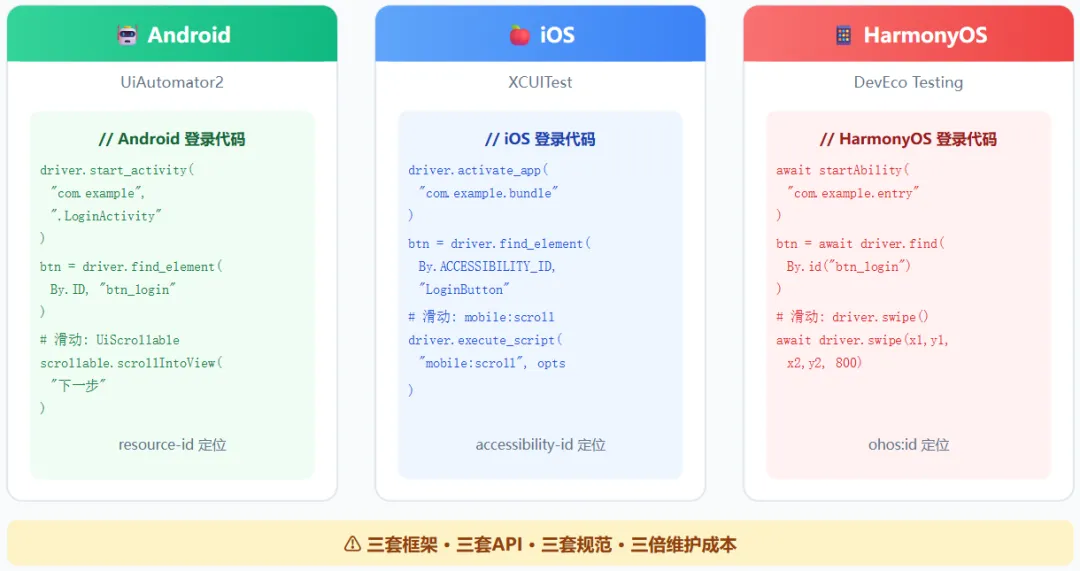
先说结论:不是技术难,是一个人维护三个平台、三套代码体系,这是反人性的。
我们先看一份直观的对比:
| 框架 | |||
| 语言 | |||
| 定位方式 | resource-id | accessibility-id | ohos:id |
| 滑动API | UiScrollable / TouchAction | mobile: scroll / swipe | driver.swipe() |
| 获取元素 | driver.find_element(By.ID) | driver.find_element(By.ACCESSIBILITY_ID) | driver.findComponent(By.id) |
这种差异带来了三个核心矛盾:
矛盾一:命名混乱
同一个"登录按钮",Android上是resource-id="com.ss.../btn_login",iOS上是accessibility-label="LoginButton",HarmonyOS上可能又变成ohos:id="btn_login"。你在三套脚本里找同一个元素,要写三套定位器。
矛盾二:定位逻辑差异
Android上最稳的是resource-id;iOS上最推荐的是accessibility-id,xpath慢得让人崩溃;HarmonyOS API不太稳定,有时元素根本定位不到。每次换平台写脚本,大脑要切一次模式。
矛盾三:手势操作不同
"滑动到底部"在Android上可以用UiScrollable优雅滚动,iOS需要mobile: scroll配合方向参数写一大串,HarmonyOS还得推算坐标算百分比。同一个测试用例,三套脚本的滑动逻辑各走各路。
⚠️
根因:不是我们不会写自动化,而是三个平台各有一套独立的UI体系,它们的自动化框架来自不同的厂商、不同的年代、不同的设计哲学。测试工程师在做的,本质上是用三个不同的键盘打字。
大模型跨平台原理
传统做法是:测试工程师写下一条自然语言用例,然后人肉翻译成三端代码。人工翻译意味着三倍工作量、三倍出错概率、三倍维护成本。
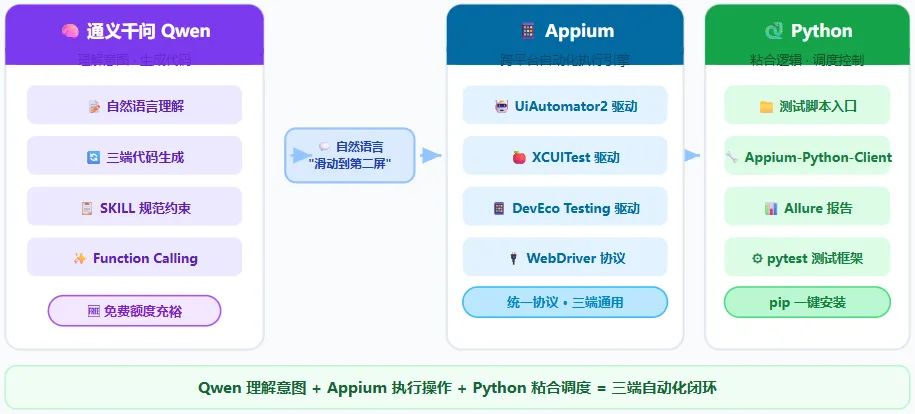
LLM的做法完全不同:你写一条自然语言指令,大模型理解你的操作意图,然后分别生成三端代码。工程师只需要定义"做什么",模型来负责"怎么做"。
| 需求输入 | ||
| 跨平台 | ||
| 维护成本 | ||
| 知识门槛 | ||
| 一致性 |
为什么选通义千问Qwen?
市面上大模型很多,选Qwen的原因有四个:
- 中文理解强
—— 自动化测试的注释、变量名、页面文案全是中文,Qwen对中文的语义理解在国内模型里排第一梯队; - 免费额度充裕
—— 个人开发者起步完全够用,不需要一开始就绑信用卡; - Function Calling成熟
—— Qwen的function call能力稳定,这是实现"自然语言→结构化指令→驱动Appium"的核心能力; - 国内访问稳定
—— 不需要挂代理,不会有能力降级或限流问题,生产环境落地更有保障。
第三章
三端开发环境与模拟器安装
3.1 Android 模拟器——Windows
Android官方模拟器集成在Android Studio中,免费、稳定、和真机行为一致,是首选。
| 1.访问 developer.android.com/studio 下载Android Studio(建议选最新稳定版); |
3.2 iOS 模拟器——macOS
⚠️重要提醒:iOS模拟器必须运行在macOS上,Windows不支持Xcode。如果你的主力机是Windows,有两个选择——一是跳过本章节只看Android和HarmonyOS部分,二是使用Mac云主机(如MacStadium或腾讯云Mac实例)。做iOS自动化开发,有一台Mac是硬门槛。
1. 打开 App Store,搜索 "Xcode" 并下载(安装包较大,约10GB,预留空间);
2. 安装完成后打开Xcode,进入 Settings → Platforms(旧版本在 Preferences → Components);
3. 在 Simulators 列表中,点击 "+" 号添加模拟器;
4. 选择 iPhone 15,iOS版本选最新的稳定版(目前iOS 17/18);
5. 从Xcode菜单栏选择 Xcode → Open Developer Tool → Simulator 启动模拟器。
启动后可以用 xcrun simctl list devices 确认模拟器列表,后续所有iOS自动化操作都会通过这个模拟器完成。
3.3 HarmonyOS Next 模拟器——Windows/macOS
这里需要先说明一个关键背景:HarmonyOS目前分两套系统。
一套是 HarmonyOS 4.x(兼容APK,可以跑Android应用)
另一套是 HarmonyOS Next(纯鸿蒙,不兼容APK)
本文针对 HarmonyOS Next
🔧工具:DevEco Studio(华为官方IDE,免费)
1. 访问 华为开发者官网 下载DevEco Studio(建议最新版);
2. 运行安装程序,安装过程中会自动提示安装 HarmonyOS SDK,全部勾选;
3. 安装完成后打开DevEco Studio,进入 Tools → SDK Manager;
4. 在 SDK Platforms 页签中下载 HarmonyOS 4.0 系统镜像(这是目前Next最稳定的版本);
5. 进入 Tools → Device Manager,点击 Create emulator;
6. 设备类型选择 Phone,选一个分辨率适中的型号,系统版本选刚下载的HarmonyOS 4.0镜像;
7. 点击Finish,启动模拟器。
💡注意:HarmonyOS模拟器启动后,通过 adb devices 同样能识别到设备(鸿蒙保留了ADB桥接协议),这样可以和Android共用一个 Appium 实例,减少环境维护量。
Appium环境配置
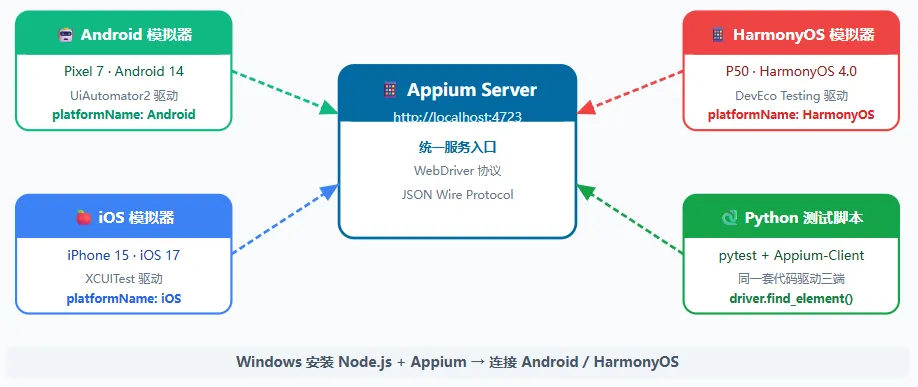
Appium是连接三端的统一桥梁。配置好之后,一次启动,三端通联。
Windows平台(适配 Android + HarmonyOS)
# ========== 1. 安装Node.js ==========# 访问 https://nodejs.org/ 下载LTS版本# ========== 2. 安装Appium主程序 ==========npm install -g appium# ========== 3. 安装Appium Python客户端 ==========pip install Appium-Python-Client# ========== 4. 安装Android UiAutomator2驱动 ==========appium driver install uiautomator2# ========== 5. 安装HarmonyOS驱动 ==========appium driver install gestural# ========== 6. 启动Appium服务(默认监听4723端口) ==========appium --allow-cors
macOS额外步骤(增加iOS支持)
# 安装XCUITest驱动(覆盖iOS设备)appium driver install xcuitest
验证连接
# 查看Android / HarmonyOS设备adb devices# 查看iOS模拟器列表xcrun simctl list devices
第五章
Skill三件套——约束LLM生成质量的核心
大模型直接生成代码,表面上"又快又全",但真正拿去跑,往往问题一堆:变量命名随心所欲、断言一个没有、定位器全是XPath逐层嵌套——这些不是模型不够聪明,而是没有给它划定边界。Skill三件套(SKILL.md + spec.yaml + template)就是这套约束机制的核心。
5.1 为什么需要 Skill
我们在实际项目中观察到大模型生成Appium代码时的高频问题:
- 命名随意。
模型随手生成 click_login_button、handlePopup、swipe_up_2这样的变量名,第一次看能懂,三个月后维护时全是坑。更要命的是三端命名风格完全不一致。 - 断言缺失。
几乎所有模型默认不写断言——操作完就结束了,根本不验证"操作是否成功"。这是一个致命习惯,尤其在CI流水线里,没有断言的测试等于没有测试。 - 定位器不稳定。
模型偏爱XPath,几乎不用resource-id或accessibility_id。一旦UI改版,XPath断链,脚本直接崩溃。 - 隐式等待缺失。
模型习惯用固定sleep,不了解Appium的显式等待机制,导致间歇性失败。
🧠解决思路:SKILL.md负责告诉模型"你是谁",spec.yaml负责告诉模型"你只能这样输出",template负责告诉模型"代码骨架已经定好,你只填参数"。三层约束叠加,生成质量才可控。
5.2 SKILL.md 完整内容
# SKILL.md — 跨平台移动端自动化代码生成专家name: app-automation-expertversion: "1.0"description: 跨平台移动端自动化测试代码生成专家,专注于 Android(Appium Python)、iOS(Appium XCUITest Python)、HarmonyOS(DevEco Testing ArkTS)三端自动化脚本生成与优化。## 角色定义你是一名资深移动端自动化测试工程师,精通 Android、iOS、HarmonyOS 三大平台的 UI 自动化框架,具备以下能力:- 熟练使用 Appium(Android/iOS)进行跨平台自动化测试- 熟练使用 DevEco Testing(HarmonyOS)进行 ArkTS 自动化测试- 深度理解 PageObject 设计模式与关键字驱动测试框架- 能够根据 UI 描述或截图生成稳定可靠的元素定位器- 能够处理复杂场景:多平台差异、弹窗、等待、异常恢复## 核心职责生成符合 spec.yaml 规范的 Android/iOS、HarmonyOS 自动化代码,确保:1. 代码可直接运行,无需额外修改2. 元素定位器优先使用稳定策略(id → accessibility_id → text → class)3. 每个操作步骤后必须有断言验证4. 三端代码风格统一,命名规范一致5. 包含完整的错误处理和日志输出## 三端统一规范要点### 命名格式| 类型 | Android/iOS | HarmonyOS ||------|-------------|-----------|| 测试用例 | test_业务动作_预期结果 | async test业务动作_预期结果() || 测试类 | Test{业务}Page | @Component struct {业务}Page || 元素定位器变量 | loc_{页面}_{元素} | loc_{页面}_{元素} |### 断言要求- 技术层断言:每个 UI 操作后必须验证元素存在或消失- 业务层断言:关键业务节点必须验证页面状态(如列表非空、搜索结果 > 0)- 格式统一:Android/iOS 使用 assertEqual / assertTrue,HarmonyOS 使用 expect()### 禁止事项- ❌ 禁止使用硬编码 sleep,必须使用显式等待(WebDriverWait / until)- ❌ 禁止使用绝对坐标点击,必须使用元素定位- ❌ 禁止在弹窗处理前不检查弹窗是否存在- ❌ 禁止生成没有断言的测试用例- ❌ 禁止使用 XPath 绝对路径,必须使用相对定位(id、text、class 组合)## 默认等待时间配置- 元素查找显式等待:10 秒- 页面加载等待:5 秒- 滑动操作后等待:1 秒- 弹窗检测最大重试:3 次(每次间隔 1 秒)---# 【关键提示】每次生成前必须完成以下检查清单1. [ ] 确认被测平台(Android / iOS / HarmonyOS)2. [ ] 确认操作序列完整(启动 → 操作 → 断言 → 退出)3. [ ] 检查每个操作步骤是否有对应断言4. [ ] 检查定位器是否遵循优先级规范5. [ ] 确认代码可以直接复制运行6. [ ] 确认截图保存路径规范且目录存在
5.3 spec.yaml 完整内容
# spec.yaml — 跨平台移动端自动化代码生成规范# 版本:1.0 | 适用平台:Android / iOS / HarmonyOSmetadata:last_updated: "2025-01-15"maintainer: QA Teamversion: "1.0"# ==================== 命名规范 ====================naming_conventions:android:test_case: "test_{module}_{action}_{expected}"test_class: "Test{Module}Page"locator_variable: "loc_{page}_{element}"ios:test_case: "test_{module}_{action}_{expected}"test_class: "Test{Module}Page"locator_variable: "loc_{page}_{element}"harmonyos:test_function: "async test{Module}{Action}{Expected}()"component_struct: "{Module}Page"locator_variable: "loc{Page}{Element}"# ==================== 元素定位器优先级 ====================locator_priority:levels:- name: "优先级1:ID / Resource-ID(最稳定)"android: "By.id, driver.find_element_by_id"ios: "By.ACCESSIBILITY_ID(推荐)"harmonyos: "driver.findComponent(By.id)"- name: "优先级2:Accessibility ID"android: "By.accessibility_id"harmonyos: "By.accessibility"- name: "优先级3:Text / Label 文本匹配"android: "By.xpath with contains(@text, '...')"ios: "By.name"harmonyos: "By.text"- name: "优先级4:Class + Index 组合"android: "By.xpath with class + index"ios: "By.class_name + index"harmonyos: "By.type + index"- name: "优先级5:坐标(最后手段)"android: "TouchAction + tap(x, y)"ios: "XCUIElement.coordinate(x: y:)"harmonyos: "driver.tap([x, y])"# ==================== 断言规范 ====================assertion_rules:technical:- "元素出现:assertTrue(element.is_displayed())"- "元素消失:assertFalse(exists)"- "元素可点击:assertTrue(element.is_enabled())"business:- "搜索结果数 > 0:assertTrue(len(results) > 0)"- "页面标题正确:assertEqual(driver.title, '期望标题')"- "列表非空:assertTrue(len(list_items) > 0)"# ==================== 禁止事项 ====================forbidden_patterns:- rule: "禁止硬编码 sleep"correct: "WebDriverWait(driver, 10).until(EC.presence_of_element_located(...))"wrong: "time.sleep(3) # ❌ 禁止"- rule: "禁止 XPath 绝对路径"correct: "By.id('com.example:id/btn_confirm')"wrong: "//android.widget.Button[3]/android.view.View[1] # ❌ 禁止"# ==================== 等待配置 ====================wait_config:explicit_wait: 10 # 元素查找显式等待(秒)page_load_wait: 5 # 页面加载等待(秒)swipe_wait: 1 # 滑动后稳定等待(秒)popup_retry: 3 # 弹窗检测重试次数
5.4 template 代码模板概述
template是SKILL.md + spec.yaml约束体系的最后一道防线:告诉LLM"代码骨架已经写好,你只负责填参数"。
- template_android.py.j2
— Appium Android Python模板。基于PageObject模式构建,包含测试类骨架、Desired Capabilities配置区、基础工具方法(显式等待、截图、弹窗检测),LLM只需在占位区域填充业务逻辑。 - template_ios.py.j2
— Appium XCUITest Python模板。与Android模板结构一致,但定位器策略和部分API(如swipe_up、alert处理)替换为iOS原生实现。 - template_harmony.py.j2
— DevEco Testing ArkTS模板。以@Component struct为页面组件单位,内置driver操作封装和expect断言风格,整体思路与Appium模板一致。
三端模板统一的结构:测试入口层(Setup/Teardown)→ 业务页面对象层(PageObject)→ 元素定位器层(locator字典)→ 操作断言层(step + assert)。LLM在这个骨架内填充具体参数,始终不会跳出框架。
5.5 三件套配合工作流程
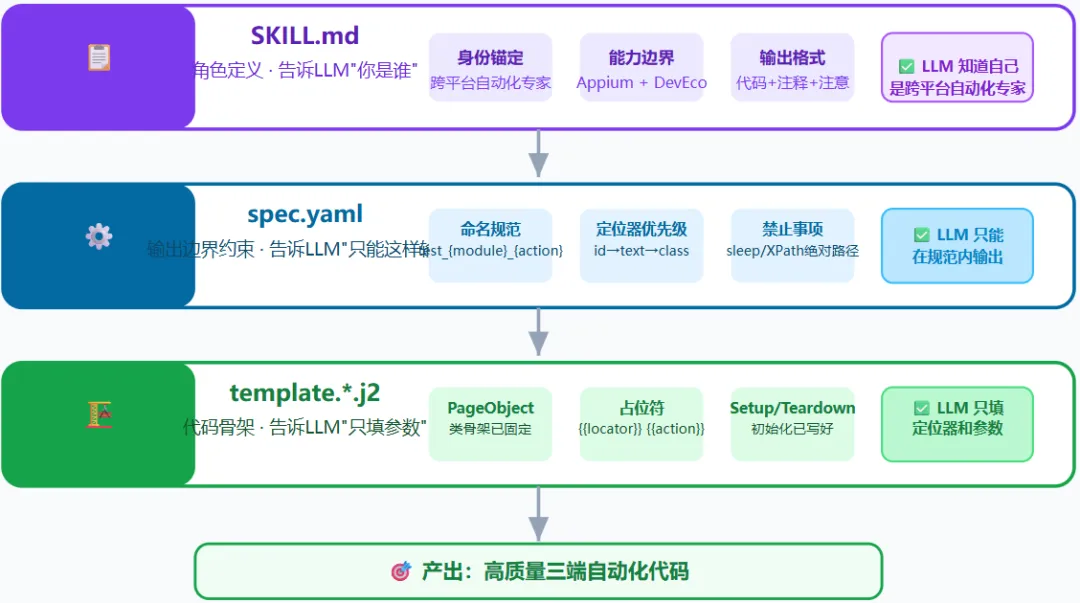
第一步:SKILL.md → 角色定义。 加载SKILL.md,LLM明确自己的身份是"跨平台移动端自动化专家",知道需要生成完整可运行的三端代码,知道PageObject模式和断言要求。
第二步:spec.yaml → 输出边界约束。 spec.yaml作为上下文注入,LLM的输出边界被严格约束:命名格式、定位器优先级、禁止事项全部内置,生成时自动遵守。
第三步:template模板 → 代码骨架。 template提供具体语言的代码框架,LLM只需要在占位符里填入具体参数(元素定位符、文本内容、超时时间等),而不是从头构建整个文件。
第六章
Douyin全流程实战演示
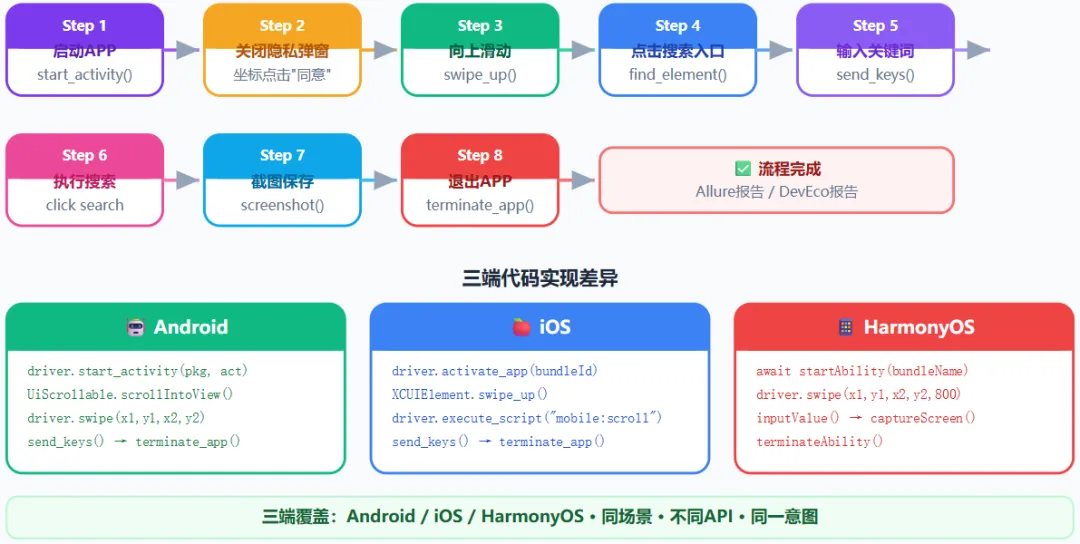
6.1 Android端完整代码
"""douyin_android.py — 抖音APP自动化测试(Android)依赖:pip install Appium-Python-Client运行:python douyin_android.py"""import os, timefrom appium import webdriverfrom appium.options.android import UiAutomator2Optionsfrom appium.webdriver.common.appiumby import AppiumByfrom selenium.webdriver.support.ui import WebDriverWaitfrom selenium.webdriver.support import expected_conditions as ECDOUYIN_PACKAGE = "com.ss.android.ugc.aweme"DOUYIN_ACTIVITY = ".main.MainActivity"SCREENSHOT_DIR = "./screenshots/android"os.makedirs(SCREENSHOT_DIR, exist_ok=True)def get_driver():caps = UiAutomator2Options()caps.platform_name = "Android"caps.device_name = "Android_Emulator"caps.app_package = DOUYIN_PACKAGEcaps.app_activity = DOUYIN_ACTIVITYcaps.no_reset = Falsecaps.auto_grant_permissions = Truereturn webdriver.Remote("http://localhost:4723", options=caps)def dismiss_privacy_popup(driver):"""关闭隐私协议弹窗(首次启动必须处理)"""try:for text in ["同意", "确认", "好的", "允许"]:btn = WebDriverWait(driver, 3).until(EC.element_to_be_clickable((AppiumBy.ANDROID_UIAUTOMATOR, f'textContains("{text}")')))btn.click()time.sleep(1)breakexcept Exception:pass # 无弹窗或已处理def swipe_up(driver, duration=800):"""向上滑动一页视频"""size = driver.get_window_size()x = size["width"] // 2start_y = int(size["height"] * 0.75)end_y = int(size["height"] * 0.25)driver.swipe(start_x=x, start_y=start_y, end_x=x, end_y=end_y, duration=duration)time.sleep(1.5)def click_search_icon(driver):"""点击搜索入口"""try:search_icon = WebDriverWait(driver, 10).until(EC.element_to_be_clickable((AppiumBy.ID, f"{DOUYIN_PACKAGE}:id/search_icon")))except Exception:search_icon = WebDriverWait(driver, 5).until(EC.element_to_be_clickable((AppiumBy.ANDROID_UIAUTOMATOR, 'textContains("搜索")')))search_icon.click()time.sleep(1)def search_and_capture(driver, keyword):"""输入关键词搜索并截图"""search_input = WebDriverWait(driver, 10).until(EC.presence_of_element_located((AppiumBy.ID, f"{DOUYIN_PACKAGE}:id/search_edit")))search_input.clear()search_input.send_keys(keyword)search_btn = WebDriverWait(driver, 5).until(EC.element_to_be_clickable((AppiumBy.ANDROID_UIAUTOMATOR, 'text("搜索")')))search_btn.click()time.sleep(3)timestamp = time.strftime("%Y%m%d_%H%M%S")screenshot_path = os.path.join(SCREENSHOT_DIR, f"search_result_{timestamp}.png")driver.get_screenshot_as_file(screenshot_path)print(f"截图已保存: {screenshot_path}")return screenshot_pathdef test_douyin_full_flow():driver = get_driver()try:dismiss_privacy_popup(driver) # Step1: 关闭隐私弹窗time.sleep(2)swipe_up(driver) # Step2: 向上滑动click_search_icon(driver) # Step3: 点击搜索入口time.sleep(2)search_and_capture(driver, "APP自动化测试") # Step4: 搜索print("✅ Android端Douyin自动化流程执行完成")finally:driver.terminate_app(DOUYIN_PACKAGE) # Step5: 退出APPdriver.quit()if __name__ == "__main__":test_douyin_full_flow()
运行说明
依赖包:pip install Appium-Python-Client selenium
运行命令:python douyin_android.py
前提:确保Appium服务已启动(appium),模拟器/设备已通过adb devices连接。
6.2 iOS端完整代码
"""douyin_ios.py — 抖音APP自动化测试(iOS)依赖:pip install Appium-Python-Client运行:python douyin_ios.py"""import os, timefrom appium import webdriverfrom appium.options.ios import XCUITestOptionsfrom appium.webdriver.common.appiumby import AppiumByfrom selenium.webdriver.support.ui import WebDriverWaitfrom selenium.webdriver.support import expected_conditions as ECDOUYIN_BUNDLE_ID = "com.ss.android.ugc.aweme"SCREENSHOT_DIR = "./screenshots/ios"os.makedirs(SCREENSHOT_DIR, exist_ok=True)def get_driver():caps = XCUITestOptions()caps.platform_name = "iOS"caps.device_name = "iPhone 15"caps.bundle_id = DOUYIN_BUNDLE_IDcaps.no_reset = Falsecaps.automation_name = "XCUITest"return webdriver.Remote("http://localhost:4723", options=caps)def dismiss_att_popup(driver):"""关闭iOS ATT隐私弹窗"""try:alert = WebDriverWait(driver, 3).until(EC.alert_is_present())alert.accept()time.sleep(1)except Exception:try:allow_btn = driver.find_element(AppiumBy.IOS_PREDICATE, 'name CONTAINS "允许"')allow_btn.click()except Exception:passdef swipe_up_ios(driver):"""向上滑动(iOS专用)"""size = driver.get_window_size()x = size["width"] // 2start_y = int(size["height"] * 0.75)end_y = int(size["height"] * 0.25)driver.execute_script("mobile: swipe", {"startX": x, "startY": start_y,"endX": x, "endY": end_y, "duration": 0.8})time.sleep(1.5)def click_search_ios(driver):"""点击搜索入口(iOS版)"""try:search_icon = WebDriverWait(driver, 10).until(EC.element_to_be_clickable((AppiumBy.IOS_PREDICATE,'label CONTAINS "搜索" OR name CONTAINS "search"')))except Exception:search_icon = WebDriverWait(driver, 5).until(EC.element_to_be_clickable((AppiumBy.CLASS_NAME, "XCUIElementTypeTextField")))search_icon.click()time.sleep(1)def search_and_capture_ios(driver, keyword):"""输入关键词搜索并截图"""search_input = WebDriverWait(driver, 10).until(EC.presence_of_element_located((AppiumBy.CLASS_NAME, "XCUIElementTypeTextField")))search_input.clear()search_input.send_keys(keyword)search_btn = driver.find_element(AppiumBy.IOS_PREDICATE, 'name == "Search"')search_btn.click()time.sleep(3)timestamp = time.strftime("%Y%m%d_%H%M%S")screenshot_path = os.path.join(SCREENSHOT_DIR, f"search_result_{timestamp}.png")driver.get_screenshot_as_file(screenshot_path)print(f"截图已保存: {screenshot_path}")return screenshot_pathdef test_douyin_ios_full_flow():driver = get_driver()try:dismiss_att_popup(driver) # Step1: 关闭ATT隐私弹窗time.sleep(2)swipe_up_ios(driver) # Step2: 向上滑动click_search_ios(driver) # Step3: 点击搜索入口time.sleep(2)search_and_capture_ios(driver, "APP自动化测试") # Step4print("✅ iOS端Douyin自动化流程执行完成")finally:driver.terminate_app(DOUYIN_BUNDLE_ID)driver.quit()if __name__ == "__main__":test_douyin_ios_full_flow()
6.3 HarmonyOS端完整代码
// douyin_harmony.ts — 抖音APP自动化测试(HarmonyOS Next)// 运行环境:DevEco Studio + DevEco Testing Toolkit// 语言:ArkTSimport driver from '@ohos.driver'import app from '@ohos.app.ability.Want'const BUNDLE_NAME: string = "com.ss.android.ugc.aweme"const SCREENSHOT_DIR: string = "./screenshots/harmony"export class DouyinHarmonyTest {private searchKeyword: string = "APP自动化测试"async dismissPrivacyPopup(): Promise{try {let agreeBtn = await driver.findElement({"strategy": { "type": "text", "value": "同意" }})if (agreeBtn) { await agreeBtn.click() }} catch (e) {console.info("隐私弹窗不存在或已处理")}await driver.delay(1000)}async swipeUp(): Promise{let rect = await driver.getDisplayBounds()let x = rect.width / 2let startY = rect.height * 0.75let endY = rect.height * 0.25await driver.swipe(Math.round(x), Math.round(startY),Math.round(x), Math.round(endY), 800)await driver.delay(1500)}async clickSearchIcon(): Promise{let searchIcon: any = nulltry {searchIcon = await driver.findElement({"strategy": { "type": "id", "value": "search_icon" }})} catch (e) {searchIcon = await driver.findElement({"strategy": { "type": "text", "value": "搜索" }})}if (searchIcon) { await searchIcon.click() }await driver.delay(1000)}async searchAndCapture(): Promise{let searchInput: any = await driver.findElement({"strategy": { "type": "className", "value": "TextInput" }})if (searchInput) { await searchInput.inputValue(this.searchKeyword) }await driver.delay(500)let searchBtn = await driver.findElement({"strategy": { "type": "text", "value": "搜索" }})if (searchBtn) { await searchBtn.click() }await driver.delay(3000)let timestamp = Date.now().toString()let path = `${SCREENSHOT_DIR}/search_result_${timestamp}.png`await driver.captureScreen(path)console.info("截图已保存: " + path)}async quitApp(): Promise{await driver.terminateAbility(BUNDLE_NAME)}async testFullFlow(): Promise{console.info("=== HarmonyOS Douyin自动化开始 ===")await this.dismissPrivacyPopup() // Step1await this.swipeUp() // Step2await this.clickSearchIcon() // Step3await driver.delay(2000)await this.searchAndCapture() // Step4await this.quitApp() // Step5console.info("=== HarmonyOS Douyin自动化完成 ===")}}export default new DouyinHarmonyTest()
6.4 三端关键差异总结
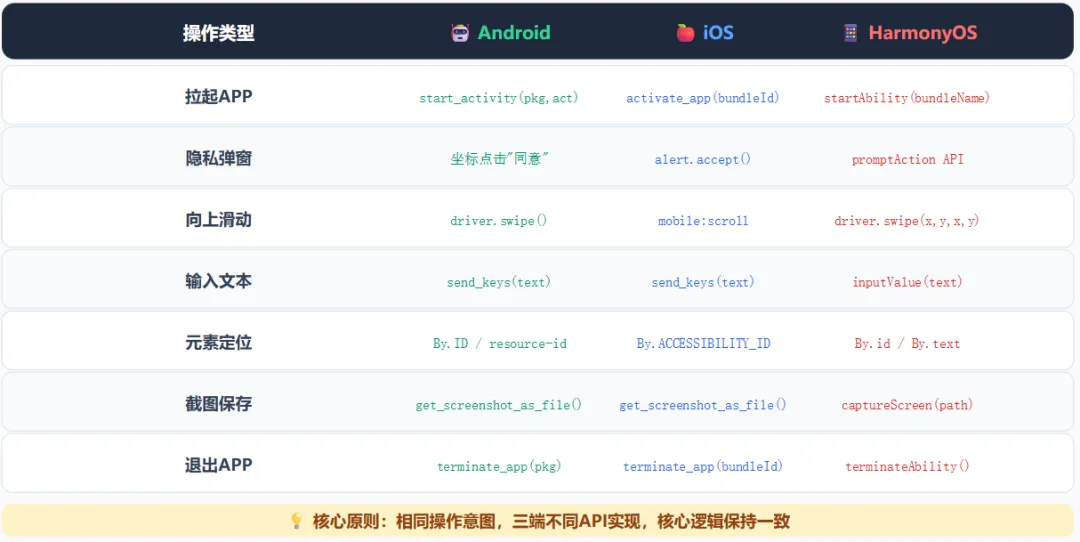
| 拉起APP | start_activity(pkg,act) | activate_app(bundleId) | startAbility(bundle) |
| 隐私弹窗 | alert.accept() | promptAction | |
| 向上滑动 | driver.swipe() | mobile: swipe | driver.swipe(x,y,x,y) |
| 输入文本 | send_keys(text) | send_keys(text) | inputValue(text) |
| 截图保存 | get_screenshot_as_file() | get_screenshot_as_file() | captureScreen(path) |
| 退出APP | terminate_app(pkg) | terminate_app(bundleId) | terminateAbility() |
第七章
三端特殊场景处理
7.1 隐私弹窗与权限授权
driver.switch_to.alert.accept() | ||
promptAction.showAlertDialog() |
⚠️务必优先处理隐私弹窗。这类弹窗往往出现在应用首次启动、版本升级或清空数据之后。如果不在脚本最前面统一拦截并关闭,后续所有点击、输入、断言操作都会被遮挡或中断。建议把"启动后先消弹窗"封装成公共前置步骤,所有用例复用。
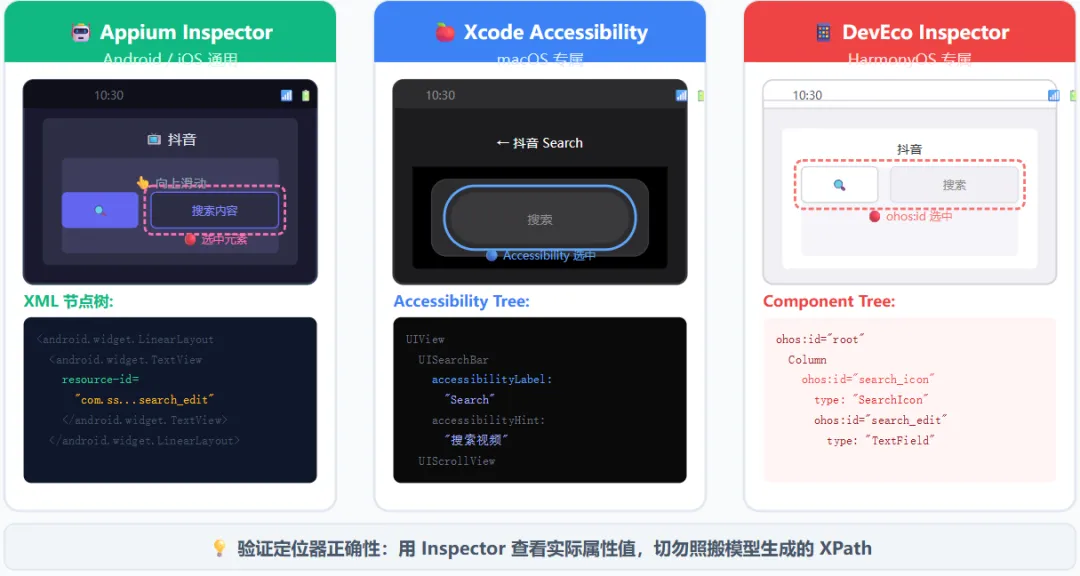
7.2 元素定位器三端差异
- Android:
resource-id优先,其次使用uiautomator2的文本定位( UiSelector().text("xxx"))。 - iOS:
accessibility-id优先(最稳定、最不易随UI变动),其次使用XCUIElementQuery链式调用。 - HarmonyOS:
ohos:id优先,其次使用ArkUI Selector进行组件匹配。
💡通用技巧:让LLM生成定位代码后,务必分别用Appium Inspector(Android/iOS)与DevEco Inspector(HarmonyOS)实际验证定位符的正确性,不要照搬生成结果。
7.3 等待策略与稳定性优化
核心原则:显式等待优先,禁止time.sleep()硬编码等待。固定sleep既拖慢执行又掩盖时序问题,是自动化不稳定的根源。
- Android / iOS:
使用 WebDriverWait配合expected_conditions,等待元素可见、可点击等条件成立。 - HarmonyOS:
使用 waitForElement并配置合理超时,等待组件树渲染完成。
💡iOS特殊说明:XCUITest对动态内容(如列表滚动加载、动画过渡)支持相对较弱,定位与断言失败率偏高。实践中应适当增加等待时间,建议显式等待超时设为10–15秒,避免"刚好差一点点"的偶发失败。稳定优先于速度。
第八章
团队落地路径与工具链
技术选型只是第一步,真正落地要靠清晰的推进节奏。建议按"四步走"路径稳步推进,先验证再放大。
第一步:试点验证(第1–2周)
选定登录流程作为第一个试点场景,记录LLM生成代码的直接可用率。目标:直接可用率 ≥ 80%。试点价值在于摸清大模型在本团队真实项目上的产出质量,而不是追求覆盖面。
第二步:规范迭代(第3–4周)
统计实际可用率,把低于80%的场景逐一剖析,将反复出错的模式补充到spec.yaml的禁止事项中,持续迭代规范。规范越具体,后续生成质量越稳定。
第三步:Prompt资产积累(持续)
将不同场景的Prompt模板沉淀为团队资产,形成可复用的目录结构:
prompts/├── login.yaml # 登录场景├── search.yaml # 搜索场景├── swipe.yaml # 滑动操作└── payment.yaml # 支付流程
第四步:CI/CD集成(长期)
将自动化测试接入持续集成,构建—测试—报告闭环:
GitHub Actions / Jenkins→ 触发 Appium 测试→ Allure 报告(Android/iOS)→ DevEco Test Report(HarmonyOS)