 夜雨聆风
夜雨聆风


“带你横跨办公自动化的数据江海”
@摸鱼
前言
关于摸鱼
(
ABOUT MOYU
)
闻道有先后,术业有专攻。
各位大佬朋友们好!
~我依旧是你们的老朋友摸鱼~
在职场摸爬滚打的这十多年里,我用Python悄悄干了不少“正事”——不知不觉攒下了一整套办公自动化的实用项目技巧。去年10月初创立了公众号 「码海听潮」 ,初衷很简单:把重复的劳动交给代码,把摸鱼的时间留给生活。
目前已经吭哧吭哧更新了120多篇原创文章,每一篇都是实操干货,不讲虚的,只聊怎么用代码真正解放双手,帮大家早点下班、准点摸鱼
好了,多了不说,少了不唠,今天给大佬们分享一款【PDF文档批量添加马赛克】,这款工具可以让你按需设定马赛克区域,自由拖拽框选任意位置,组内区域可单独调整马赛克大小,支持跨页面复用同一选区。更厉害的是,它还能批量应用到整个文件夹的PDF文件,并支持按页面范围、奇偶页、重复周期自动同步马赛克位置,一键导出全新遮挡后的PDF文件。完美解决敏感信息批量遮盖、多页文档重复标记、大量文件统一脱敏的痛点,特别适合合同脱敏、试卷遮挡、报表批量处理、证件照隐私保护等场景!

《办公工具成品展示:》
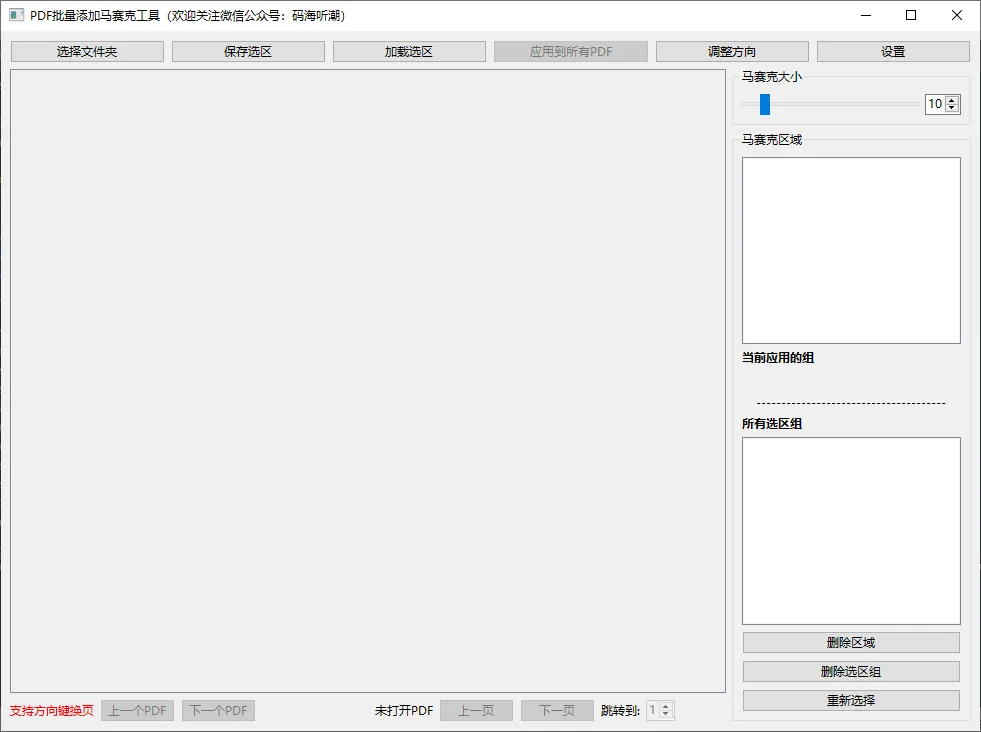

《该办公工具核心功能亮点:》
01
亮点1:批量处理能力🎯
📁 文件夹批量处理:一次性处理整个文件夹内的所有PDF文件
🔄 批量预览导航:在主界面即可前后切换PDF,实时预览效果
⚡ 一键批量应用:将当前马赛克设置自动应用到所有文件
02
亮点2:智能马赛克功能📱
🔢 可调节强度:马赛克块大小5-50像素可调
🖱️ 可视化选区:鼠标拖拽直接选择区域,实时预览
03
亮点3:灵活的选区管理⚡
💾 选区组保存:最多保存10组选区配置(含PDF路径、区域坐标、马赛克大小等)
区域独立设置:每个选区可单独设置马赛克大小
精准定位:支持跨页面、跨文档的选区复用
实时编辑:可随时删除、修改选区

《该办公工具代码展示:》
下面,我就用python代码让各位大佬见识一下,什么叫"传统文化"遇上"赛博效率"
import sysimport osfrom PyQt6.QtWidgets import (QApplication, QMainWindow, QVBoxLayout, QHBoxLayout, QWidget,QPushButton, QLabel, QGroupBox, QSlider, QSpinBox, QScrollArea,QListWidget, QListWidgetItem, QDialog)from PyQt6.QtGui import QActionfrom PyQt6.QtCore import Qtclass PDFMosaicApp(QMainWindow):def __init__(self):super().__init__()self.setWindowTitle('PDF批量添加马赛克工具(欢迎关注微信公众号:码海听潮)')self.setGeometry(100, 100, 1100, 700)self.init_ui()def init_ui(self):self.setFocusPolicy(Qt.FocusPolicy.StrongFocus)main_layout = QVBoxLayout()# 工具栏toolbar = QHBoxLayout()self.batch_btn = QPushButton('选择文件夹')toolbar.addWidget(self.batch_btn)self.save_btn = QPushButton('保存选区')toolbar.addWidget(self.save_btn)self.load_btn = QPushButton('加载选区')toolbar.addWidget(self.load_btn)self.batch_apply_all_btn = QPushButton('应用到所有PDF')self.batch_apply_all_btn.setEnabled(False)toolbar.addWidget(self.batch_apply_all_btn)self.adjust_direction_btn = QPushButton('调整方向')toolbar.addWidget(self.adjust_direction_btn)self.mosaic_settings_btn = QPushButton('设置')toolbar.addWidget(self.mosaic_settings_btn)main_layout.addLayout(toolbar)# 主内容区域 - 左右布局content_layout = QHBoxLayout()# 左侧:PDF预览区域preview_layout = QVBoxLayout()self.scroll_area = QScrollArea()self.scroll_area.setFocusPolicy(Qt.FocusPolicy.NoFocus)self.pdf_label = QLabel()self.pdf_label.setAlignment(Qt.AlignmentFlag.AlignTop | Qt.AlignmentFlag.AlignLeft)self.pdf_label.setFocusPolicy(Qt.FocusPolicy.StrongFocus)self.scroll_area.setWidget(self.pdf_label)self.scroll_area.setWidgetResizable(True)preview_layout.addWidget(self.scroll_area)# 页面导航page_layout = QHBoxLayout()hint_label = QLabel('支持方向键换页')hint_label.setStyleSheet('color: red; font-size: 12px;')page_layout.addWidget(hint_label)self.prev_pdf_btn = QPushButton('上一个PDF')self.prev_pdf_btn.setEnabled(False)page_layout.addWidget(self.prev_pdf_btn)self.next_pdf_btn = QPushButton('下一个PDF')self.next_pdf_btn.setEnabled(False)page_layout.addWidget(self.next_pdf_btn)page_layout.addStretch()self.file_info_label = QLabel('')self.file_info_label.setStyleSheet('color: blue; font-weight: bold;')page_layout.addWidget(self.file_info_label)page_layout.addStretch()self.page_label = QLabel('未打开PDF')page_layout.addWidget(self.page_label)self.prev_btn = QPushButton('上一页')self.prev_btn.setEnabled(False)page_layout.addWidget(self.prev_btn)self.next_btn = QPushButton('下一页')self.next_btn.setEnabled(False)page_layout.addWidget(self.next_btn)jump_label = QLabel('跳转到:')page_layout.addWidget(jump_label)self.page_jump_spinbox = QSpinBox()self.page_jump_spinbox.setMinimum(1)self.page_jump_spinbox.setMaximum(1)self.page_jump_spinbox.setValue(1)self.page_jump_spinbox.setEnabled(False)page_layout.addWidget(self.page_jump_spinbox)page_layout.addStretch()preview_layout.addLayout(page_layout)content_layout.addLayout(preview_layout, 3)# 右侧:马赛克设置面板settings_panel = QVBoxLayout()# 马赛克大小设置tile_size_group = QGroupBox('马赛克大小')tile_size_layout = QHBoxLayout()self.tile_slider = QSlider(Qt.Orientation.Horizontal)self.tile_slider.setMinimum(5)self.tile_slider.setMaximum(50)tile_size_layout.addWidget(self.tile_slider)self.tile_spinbox = QSpinBox()self.tile_spinbox.setMinimum(5)self.tile_spinbox.setMaximum(50)tile_size_layout.addWidget(self.tile_spinbox)tile_size_group.setLayout(tile_size_layout)settings_panel.addWidget(tile_size_group)# 马赛克区域列表areas_group = QGroupBox('马赛克区域')areas_layout = QVBoxLayout()self.areas_list = QListWidget()self.areas_list.setSelectionMode(QListWidget.SelectionMode.SingleSelection)areas_layout.addWidget(self.areas_list)self.current_group_label = QLabel('当前应用的组')self.current_group_label.setStyleSheet('font-weight: bold;')areas_layout.addWidget(self.current_group_label)self.current_group_container = QWidget()self.current_group_layout = QVBoxLayout(self.current_group_container)areas_layout.addWidget(self.current_group_container)separator = QLabel('--------------------------------------')separator.setAlignment(Qt.AlignmentFlag.AlignCenter)areas_layout.addWidget(separator)groups_label = QLabel('所有选区组')groups_label.setStyleSheet('font-weight: bold;')areas_layout.addWidget(groups_label)self.groups_list = QListWidget()self.groups_list.setSelectionMode(QListWidget.SelectionMode.SingleSelection)areas_layout.addWidget(self.groups_list)remove_btn = QPushButton('删除区域')areas_layout.addWidget(remove_btn)delete_group_btn = QPushButton('删除选区组')areas_layout.addWidget(delete_group_btn)clear_btn = QPushButton('重新选择')areas_layout.addWidget(clear_btn)areas_group.setLayout(areas_layout)settings_panel.addWidget(areas_group)content_layout.addLayout(settings_panel, 1)main_layout.addLayout(content_layout)central_widget = QWidget()central_widget.setLayout(main_layout)self.setCentralWidget(central_widget)class MosaicSettingsDialog(QDialog):def __init__(self, parent=None):super().__init__(parent)self.parent = parentself.setWindowTitle('设置')self.setGeometry(200, 200, 500, 450)self.setWindowFlags(self.windowFlags() & ~Qt.WindowType.WindowContextHelpButtonHint)main_layout = QVBoxLayout(self)# 颜色设置title_label = QLabel('颜色设置')title_label.setStyleSheet('font-weight: bold;')main_layout.addWidget(title_label)from PyQt6.QtWidgets import QButtonGroup, QRadioButton, QHBoxLayout, QSpinBoxself.button_group = QButtonGroup(self)color_options_layout = QHBoxLayout()self.default_radio = QRadioButton('1. 黑白马赛克')self.button_group.addButton(self.default_radio, 1)color_options_layout.addWidget(self.default_radio)self.black_radio = QRadioButton('2. 黑色')self.button_group.addButton(self.black_radio, 2)color_options_layout.addWidget(self.black_radio)self.white_radio = QRadioButton('3. 白色')self.button_group.addButton(self.white_radio, 3)color_options_layout.addWidget(self.white_radio)color_options_layout.addStretch()main_layout.addLayout(color_options_layout)other_color_layout = QHBoxLayout()self.other_radio = QRadioButton('4. 其他颜色')self.button_group.addButton(self.other_radio, 4)other_color_layout.addWidget(self.other_radio)self.color_button = QPushButton('选择')self.color_button.setFixedWidth(80)self.color_button.setEnabled(False)other_color_layout.addWidget(self.color_button)self.color_preview = QLabel()self.color_preview.setFixedSize(50, 25)other_color_layout.addWidget(self.color_preview)other_color_layout.addStretch()main_layout.addLayout(other_color_layout)# 重复模式repeat_title = QLabel('重复模式')repeat_title.setStyleSheet('font-weight: bold;')main_layout.addWidget(repeat_title)repeat_layout = QHBoxLayout()self.no_repeat_radio = QRadioButton('不重复')self.repeat_radio = QRadioButton('重复')self.no_repeat_radio.setChecked(True)repeat_page_label = QLabel('重复页面数:')self.repeat_page_spinbox = QSpinBox()self.repeat_page_spinbox.setMinimum(1)self.repeat_page_spinbox.setMaximum(100)self.repeat_page_spinbox.setValue(1)self.repeat_page_spinbox.setEnabled(False)repeat_layout.addWidget(self.no_repeat_radio)repeat_layout.addWidget(self.repeat_radio)repeat_layout.addWidget(repeat_page_label)repeat_layout.addWidget(self.repeat_page_spinbox)main_layout.addLayout(repeat_layout)# 页面范围page_range_title = QLabel('页面范围')page_range_title.setStyleSheet('font-weight: bold;')main_layout.addWidget(page_range_title)range_layout = QHBoxLayout()from PyQt6.QtWidgets import QButtonGroupself.range_type_group = QButtonGroup(self)self.all_pages_radio = QRadioButton('全部页面')self.specific_range_radio = QRadioButton('指定范围')self.range_type_group.addButton(self.all_pages_radio)self.range_type_group.addButton(self.specific_range_radio)self.all_pages_radio.setChecked(True)start_label = QLabel('起始页:')self.start_page_spinbox = QSpinBox()self.start_page_spinbox.setMinimum(1)self.start_page_spinbox.setMaximum(999)self.start_page_spinbox.setValue(1)self.start_page_spinbox.setEnabled(False)end_label = QLabel('截止页:')self.end_page_spinbox = QSpinBox()self.end_page_spinbox.setMinimum(1)self.end_page_spinbox.setMaximum(999)self.end_page_spinbox.setValue(1)self.end_page_spinbox.setEnabled(False)range_layout.addWidget(self.all_pages_radio)range_layout.addWidget(self.specific_range_radio)range_layout.addWidget(start_label)range_layout.addWidget(self.start_page_spinbox)range_layout.addWidget(end_label)range_layout.addWidget(self.end_page_spinbox)main_layout.addLayout(range_layout)# 奇偶页parity_layout = QHBoxLayout()self.parity_group = QButtonGroup(self)self.odd_pages_radio = QRadioButton('奇数页')self.even_pages_radio = QRadioButton('偶数页')self.all_parity_radio = QRadioButton('全部')self.parity_group.addButton(self.odd_pages_radio)self.parity_group.addButton(self.even_pages_radio)self.parity_group.addButton(self.all_parity_radio)self.all_parity_radio.setChecked(True)parity_layout.addWidget(self.odd_pages_radio)parity_layout.addWidget(self.even_pages_radio)parity_layout.addWidget(self.all_parity_radio)main_layout.addLayout(parity_layout)# 按钮button_layout = QHBoxLayout()ok_button = QPushButton('确定')cancel_button = QPushButton('取消')button_layout.addStretch()button_layout.addWidget(ok_button)button_layout.addWidget(cancel_button)main_layout.addLayout(button_layout)ok_button.clicked.connect(self.accept)cancel_button.clicked.connect(self.reject)if __name__ == '__main__':app = QApplication(sys.argv)window = PDFMosaicApp()window.show()sys.exit(app.exec())
通过上面Python自动化脚本,仅用几分钟的时间就完成原需手动操作数小时甚至数天的工作任务。从最初准备手动人工机械操作的麻木到用python实现高效自动化的畅快,工作效率获得指数级提升,终于实现了不加班熬夜的自由!
大佬们也可以举一反三,参照上面的代码思路根据自己工作中的实际情况来具体问题具体分析,实现自己定制化的需求。

《该办公工具的应用场景:》
PDF手动逐页截图打码太慢 | 批量自动应用,一键处理整个文件夹 |
每页遮挡位置不一致 | 选区保存复用,跨页面精准同步 |
不同文档需重复操作 | 选区组保存,跨PDF文件加载使用 |
结语
当Python遇见办公,牛马打工人终于笑出了猪叫声
【职场人必看】每天早上一睁眼,想到又要面对:
1.📊 堆积如山的Excel表格
2.📑 机械重复的复制粘贴
3.✍️ 永远改不完的各类文档
4.诸如此类的更多........
是不是连Ctrl+Alt+Delete的心都有了?
别慌!别急,摸鱼这位“职场外挂”已经带着Python代码来拯救你了!
感谢各位大佬观看,还望各位大佬抬抬贵手一键三连,多多关注点赞转发评论,大佬们的支持才是摸鱼孜孜不倦更新原创干货的动力!
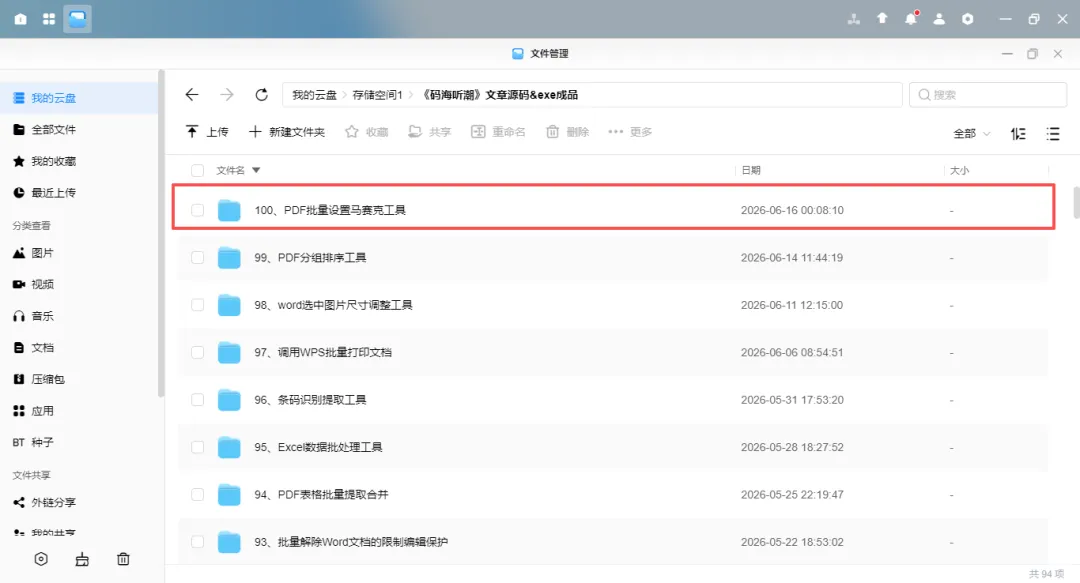
另外,本篇文章的exe已上传nas私有云盘,有需要的大佬私信摸鱼君获取