夜雨聆风
夜雨聆风你好呀,我是五竹。
命令行是OpenClaw的核心管理工具,掌握命令行操作是高效使用OpenClaw的关键。今天给大家整理一些OpenClaw常用的命令行工具和实用技巧。
4.1.1 基础命令
1. 帮助命令
# 查看所有可用命令openclaw --help# 或openclaw -h# 查看特定命令的帮助openclaw start --helpopenclaw gateway --help
2. 版本信息
# 查看OpenClaw版本openclaw --version# 或openclaw -v# 输出示例:# OpenClaw v1.0.0# Node.js v18.17.0# Platform: linux x64
3. 状态检查
# 检查OpenClaw运行状态openclaw status# 输出示例:# ✅ OpenClaw is running# PID: 12345# Uptime: 2 hours 30 minutes# Version: 1.0.0# URL: http://localhost:3000
4.1.2 服务管理命令
1. 启动服务
# 启动OpenClaw服务openclaw start# 指定端口启动openclaw start --port 8080# 后台运行(daemon模式)openclaw start --daemon# 指定配置文件openclaw start --config /path/to/config.yaml
2. 停止服务
# 停止OpenClaw服务openclaw stop# 强制停止openclaw stop --force# 停止特定进程openclaw stop --pid 12345
3. 重启服务
# 重启OpenClaw服务openclaw restart# 优雅重启(等待当前请求完成)openclaw restart --graceful# 重启并重新加载配置openclaw restart --reload-config
4. 服务日志
# 查看实时日志openclaw logs# 查看最后N行日志openclaw logs --tail 100# 查看特定时间的日志openclaw logs --since "2024-01-15"openclaw logs --until"2024-01-16"# 过滤日志内容openclaw logs --grep "error"openclaw logs --grep "user.*login"
4.1.3 配置管理命令
1. 查看配置
# 查看当前配置openclaw config list# 查看特定配置项openclaw config get gateway.portopenclaw config get security.jwt_secret# 以JSON格式输出openclaw config list --json
2. 修改配置
# 设置配置项openclaw config set gateway.port 8080openclaw config set security.enabled true# 从文件导入配置openclaw config import/path/to/config.yaml# 导出当前配置openclaw config export/path/to/backup.yaml
3. 重置配置
# 重置为默认配置openclaw config reset# 重置特定配置项openclaw config reset gateway.port# 确认重置(避免误操作)openclaw config reset --confirm
4.1.4 工作空间管理
1. 工作空间初始化
# 初始化新的工作空间openclaw workspace init /path/to/workspace# 使用模板初始化openclaw workspace init --template basicopenclaw workspace init --template advanced# 初始化并设置默认配置openclaw workspace init --set-default
2. 工作空间切换
# 切换到指定工作空间openclaw workspace use/path/to/workspace# 列出所有工作空间openclaw workspace list# 查看当前工作空间openclaw workspace current
3. 工作空间备份
# 备份当前工作空间openclaw workspace backup# 备份到指定位置openclaw workspace backup --output /backup/workspace.tar.gz# 包含/排除特定文件openclaw workspace backup --include "*.md"--exclude "temp/*"
4.1.5 实用工具命令
1. 健康检查
# 运行全面健康检查openclaw healthcheck# 检查特定组件openclaw healthcheck --component gatewayopenclaw healthcheck --component storageopenclaw healthcheck --component network# 生成健康报告openclaw healthcheck --report /path/to/report.html
2. 性能测试
# 运行性能测试openclaw benchmark# 测试特定端点openclaw benchmark --endpoint /api/chatopenclaw benchmark --endpoint /api/files# 设置测试参数openclaw benchmark --concurrent 10--requests 1000
3. 诊断工具
# 运行系统诊断openclaw diagnose# 诊断特定问题openclaw diagnose --issue "slow_response"openclaw diagnose --issue "memory_leak"# 生成诊断报告openclaw diagnose --output /path/to/diagnose.log
4.2 通道管理
通道(Channels)是OpenClaw与外部世界通信的桥梁。掌握通道管理是扩展OpenClaw功能的关键。
4.2.1 通道基础概念
什么是通道?
通道是OpenClaw与外部服务(如Telegram、Discord、微信等)通信的接口。每个通道负责:
通道类型:
4.2.2 通道管理命令
1. 查看通道
# 列出所有通道openclaw channels list# 查看通道详情openclaw channels info telegramopenclaw channels info discord# 查看通道状态openclaw channels status
2. 添加通道
# 添加Telegram通道openclaw channels add telegram \--name "my-telegram-bot" \--token "YOUR_BOT_TOKEN" \--webhook-url "https://your-domain.com/webhook/telegram"# 添加Discord通道openclaw channels add discord \--name "my-discord-bot" \--token "YOUR_DISCORD_TOKEN" \--client-id "YOUR_CLIENT_ID"# 添加HTTP API通道openclaw channels add http \--name "web-api" \--port 8081 \--path "/api/webhook"
3. 配置通道
# 更新通道配置openclaw channels update telegram \--set webhook-url="https://new-domain.com/webhook"# 启用/禁用通道openclaw channels enable telegramopenclaw channels disable discord# 设置通道优先级openclaw channels set-priority telegram --priority 10
4. 删除通道
# 删除通道openclaw channels remove telegram# 强制删除(不确认)openclaw channels remove discord --force# 删除所有通道openclaw channels remove-all --confirm
4.2.3 通道配置示例
Telegram通道配置:
# telegram-config.yamltelegram:enabled:truename:"my-telegram-bot"token:"123456:ABC-DEF1234ghIkl-zyx57W2v1u123ew11"webhook:url:"https://your-domain.com/webhook/telegram"port:8443certificate:"/path/to/cert.pem"settings:parse_mode:"Markdown"disable_web_page_preview:truedisable_notification:falsesecurity:allowed_users:["user1","user2"]admin_users:["admin1"]rate_limit:30# 消息/分钟
Discord通道配置:
# discord-config.yamldiscord:enabled:truename:"my-discord-bot"token:"MTE4MjQ0NzYxODUwNDI5NDQ4.GA5b8e.abcdefghijklmnopqrstuvwxyz123456"client_id:"118244761850429448"settings:prefix:"!"activity:"Helping users"status:"online"permissions:read_messages:truesend_messages:truemanage_messages:falseembed_links:truesecurity:allowed_guilds:["guild_id_1","guild_id_2"]admin_roles:["Admin","Moderator"]
HTTP API通道配置:
# http-config.yamlhttp:enabled:truename:"web-api"server:host:"0.0.0.0"port:8081ssl:enabled:truecert:"/path/to/cert.pem"key:"/path/to/key.pem"endpoints:- path:"/api/webhook"method:"POST"auth:type:"bearer"token:"your-api-token"- path:"/api/status"method:"GET"auth:falsesecurity:cors:enabled:trueorigin:["https://your-domain.com"]rate_limit:enabled:truewindow_ms:60000max_requests:100
4.2.4 通道监控与调试
1. 监控通道流量
# 实时监控通道消息openclaw channels monitor# 监控特定通道openclaw channels monitor telegram# 过滤监控内容openclaw channels monitor --filter "error"openclaw channels monitor --filter "user:12345"
2. 测试通道连接
# 测试通道连接性openclaw channels test telegram# 测试发送消息openclaw channels test telegram --send "测试消息"# 测试接收消息openclaw channels test telegram --receive --timeout 30
3. 通道日志
# 查看通道日志openclaw channels logs# 查看特定通道日志openclaw channels logs telegram# 查看错误日志openclaw channels logs --level error# 导出日志到文件openclaw channels logs --output /path/to/channels.log
4.3 节点配对与移动端使用
节点配对允许你将多个设备连接到同一个OpenClaw实例,实现多端同步使用。
4.3.1 节点基础概念
什么是节点?
节点是连接到OpenClaw网关的设备或客户端。每个节点可以:
节点类型:
4.3.2 节点管理命令
1. 查看节点
# 列出所有节点openclaw nodes list# 查看节点详情openclaw nodes info node-123# 查看节点状态openclaw nodes status
2. 生成配对码
# 生成新的配对码openclaw nodes pair-code# 生成特定类型的配对码openclaw nodes pair-code --type mobileopenclaw nodes pair-code --type desktop# 设置配对码有效期openclaw nodes pair-code --expires 300# 5分钟
3. 管理节点连接
# 批准节点连接请求openclaw nodes approve node-123# 拒绝节点连接openclaw nodes reject node-456# 断开节点连接openclaw nodes disconnect node-789# 移除节点openclaw nodes remove node-abc
4. 节点配置
# 设置节点权限openclaw nodes set-permission node-123--permission read-onlyopenclaw nodes set-permission node-456--permission read-writeopenclaw nodes set-permission node-789--permission admin# 限制节点访问openclaw nodes restrict node-123--workspace /limited/workspaceopenclaw nodes restrict node-456--commands "status,help"
4.3.3 移动端使用指南
1. 准备工作
在手机上使用OpenClaw前,需要:
2. 配对流程
步骤1:在服务器生成配对码
# 在OpenClaw服务器上执行openclaw nodes pair-code --type mobile --expires 600# 输出:配对码:ABC123-XYZ789
步骤2:在手机端输入配对码
步骤3:验证连接
# 在服务器上查看新节点openclaw nodes list# 应该能看到新的移动节点
3. 移动端配置
基本配置:
# mobile-config.yamlmobile:enabled:truepairing:require_confirmation:truecode_length:12expires_seconds:600security:require_ssl:trueallowed_ips:[]# 空数组表示允许所有IPmax_devices_per_user:5features:file_access:truecamera_access:falselocation_access:falsenotifications:true
推送通知配置:
notifications:enabled:trueproviders:- name:"firebase"config:api_key:"your-firebase-api-key"project_id:"your-project-id"- name:"apns"# Apple Push Notification Serviceconfig:key:"/path/to/apns-key.p8"key_id:"KEY_ID"team_id:"TEAM_ID"topic:"com.yourapp.bundle"settings:sound:truebadge:truepriority:"high"
4. 移动端功能
支持的功能:
限制的功能:
4.3.4 多节点协同工作
1. 任务分配
356357358359360361362363# 将任务分配给特定节点openclaw tasks assign "备份文件"--node mobile-123# 查看节点任务openclaw tasks list --node mobile-123# 转移任务openclaw tasks transfer task-456--from desktop-789--to mobile-123
2. 数据同步
364365366367368369370371# 同步工作空间到节点openclaw sync workspace --node mobile-123# 同步配置openclaw sync config --node desktop-456# 强制同步(覆盖本地更改)openclaw sync all --node edge-789--force
3. 节点间通信
372373374375376377378379# 发送消息到节点openclaw nodes send mobile-123--message "请处理这个文件"# 广播消息到所有节点openclaw nodes broadcast --message "系统即将维护"# 建立节点间直接连接openclaw nodes connect mobile-123 desktop-456
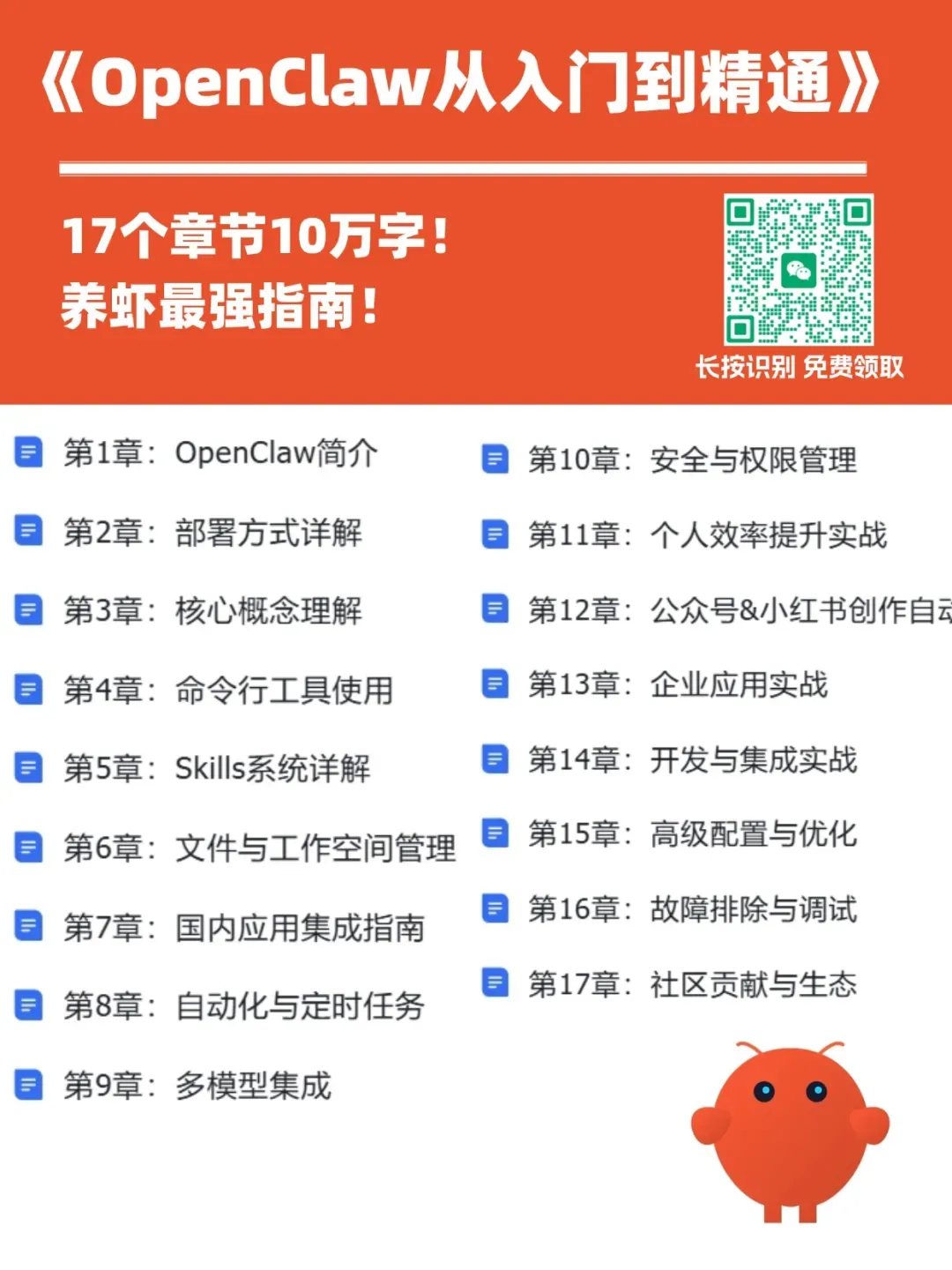
最近整理一份《OpenClaw从入门到精通》的白皮书,目前已更新17个章节,10万+字,养虾最强指南!需要的🔍:wuzhuv2