 夜雨聆风
夜雨聆风✍️ 类 Notion 编辑体验 — 块编辑、协作实时编辑、强大的富文本 🔗 开放 API — 可接入任意应用,打造你的工具生态 🔒 私有化部署 — 数据完全在自己手里,安全感拉满 🐳 Docker 一键部署 — 官方推荐方式,5 分钟跑起来
1.系统安装
本次安装outline应用部署在阿里云服务器中,采用docker部署,这也是outline官方最推荐的部署方式,目前配置4G内存/4核心CPU.
1.1完整部署流程
前置准备
服务器:4 核 8G 及以上(最低 2 核 4G)
系统:Ubuntu 20.04+/CentOS 7+
已安装 Docker & Docker Compose【参考1.2安装或问AI都可以】
(离线环境需提前导入镜像:
outlinewiki/outline:latest、postgres:14、redis:7)【参考1.3节,提前离线导入并加载镜像】防火墙开放端口:3000/TCP
公网 IP:
47.98.235.X(替换为你的实际 IP)
一键部署脚本(复制直接执行)
步骤 1:进入部署目录并清理旧环境
# 创建并进入目录mkdir -p /outline && cd /outline# 清理旧容器/数据(避免冲突)docker-compose down -v 2>/dev/nullrm -rf postgres .env docker-compose.ymldocker system prune -f 2>/dev/null步骤2:生成 docker-compose.yml(核心配置)
cat > docker-compose.yml <<'EOF'version: '3'services: outline: image: outlinewiki/outline:latest env_file: .env ports: - "3000:3000" depends_on: - postgres - redis restart: always logging: driver: "json-file" options: max-size: "100m" max-file: "3" postgres: image: postgres:14 environment: POSTGRES_USER: outline POSTGRES_PASSWORD: outline123 POSTGRES_DB: outline # 关闭数据库SSL(关键!避免连接失败) PGSSLMODE: disable volumes: - ./postgres:/var/lib/postgresql/data restart: always healthcheck: test: ["CMD-SHELL", "pg_isready -U outline"] interval: 5s timeout: 5s retries: 5 redis: image: redis:7 restart: always healthcheck: test: ["CMD", "redis-cli", "ping"] interval: 5s timeout: 5s retries: 5EOF【已成功部署的docker-compose.yml配置】
root@iZbp142fio164aasvak4qsZ:~# cat /outline/docker-compose.ymlversion: '3'services: outline: image: outlinewiki/outline:latest env_file: .env ports: - "3000:3000" depends_on: - postgres - redis restart: always postgres: image: postgres:14 environment: POSTGRES_USER: outline POSTGRES_PASSWORD: outline123 POSTGRES_DB: outline volumes: - ./postgres:/var/lib/postgresql/data restart: always redis: image: redis:7 restart: alwaysroot@iZbp142fio164aasvak4qsZ:~# 步骤 3:生成合规 .env 配置(含所有关键修复)
# 生成官方标准密钥(64位十六进制)SECRET=$(openssl rand -hex 32)UTILS=$(openssl rand -hex 32)# 写入配置文件cat > .env <<EOF# 核心密钥(官方强制要求)SECRET_KEY=$SECRETUTILS_SECRET=$UTILS# 基础网络配置URL=http://your server ip:3000PORT=3000# 数据库连接(已修复SSL问题)DATABASE_URL=postgres://outline:outline123@postgres:5432/outlineREDIS_URL=redis://redis:6379PGSSLMODE=disable# 运行环境NODE_ENV=productionALLOWED_DOMAINS=*DOMAIN_ALLOW_LIST=*FORCE_HTTPS=false# 登录修复(强制显示邮箱密码登录框)ENABLE_EMAIL_PASSWORD_LOGIN=trueDISABLE_SECURITY_STAMP=true# 图片存储配置(本地存储,避免粘贴失败)FILE_STORAGE=localLOCAL_STORAGE_PATH=/var/lib/outline/storageMAX_FILE_SIZE=52428800EOF【已部署成功的.env配置】
root@iZbp142fio164aasvak4qsZ:~# cat /outline/.env# 核心密钥(官方标准)SECRET_KEY=67613ae4c32e6a373ee982d06a0d95d2e5e4d5f02ca19fc7394cbb49e47e318aUTILS_SECRET=42d95d962f771f052fff96c4441cf9d4a18c51b6df3033fd9e1a55ec48a210be# 基础配置URL=http://47.98.X.X:3000PORT=3000DATABASE_URL=postgres://outline:outline123@postgres:5432/outlineREDIS_URL=redis://redis:6379NODE_ENV=productionALLOWED_DOMAINS=*FORCE_HTTPS=false# 修复数据库SSL问题PGSSLMODE=disable# 强制启用邮箱密码登录(解决登录页问题)ENABLE_EMAIL_PASSWORD_LOGIN=trueDOMAIN_ALLOW_LIST=*# ====================== SMTP 邮件服务配置(方案A核心)====================== SMTP # 服务器地址(QQ邮箱为 smtp.qq.com,企业邮为 smtp.exmail.qq.com)SMTP_HOST=smtp.qq.com# SMTP 端口(TLS用587,SSL用465,推荐587)SMTP_PORT=465# SMTP 用户名(你的邮箱地址)SMTP_USERNAME=49443xxxxx@qq.com# SMTP 授权码SMTP_PASSWORD=jzvdxxxxxxxxxxxx# 发件人邮箱(和用户名一致即可,或自定义 noreply@your-domain.com)SMTP_FROM=4944xxxxxx@qq.com# 回复邮箱(可自定义)SMTP_REPLY_TO=4944xxxxxxx@qq.com# 是否开启 TLS(必须开启,对应端口587)SMTP_TLS_ENABLED=false# 是否拒绝未认证的TLS(内网环境可设为false,公网建议true)SMTP_TLS_REJECT_UNAUTHORIZED=false# 强制开启邮箱登录(部分旧版本需手动开启,新版本默认true,建议加上)ENABLE_EMAIL_LOGIN=trueSMTP_FROM_EMAIL=494xxxxxxxx@qq.comSMTP_SECURE=true# picture sizeFILE_STORAGE=localAWS_REGION=us-east-1AWS_S3_REGION=us-east-1MAX_UPLOAD_SIZE=20971520步骤 4:启动服务
# 启动所有服务docker-compose up -d# 查看启动状态(等待30秒,确保容器不重启)docker ps部署成功验证
CONTAINER ID IMAGE STATUS PORTSxxxxxxx outlinewiki/outline:latest Up 30 seconds 0.0.0.0:3000->3000/tcpxxxxxxx postgres:14 Up 30 seconds 5432/tcpxxxxxxx redis:7 Up 30 seconds 6379/tcp❌ 异常处理:仍无法访问outline,后台查原因【outline-outline-1容器反复无限重启】
root@iZbp142fio164aasvak4qsZ:/outline# docker psCONTAINER ID IMAGE COMMAND CREATED STATUS PORTS NAMESc72a274333f1 outlinewiki/outline:latest "docker-entrypoint.s…" 16 seconds ago Restarting (1) Less than a second ago outline_outline_1dd76dd66966d postgres:14 "docker-entrypoint.s…" 17 seconds ago Up 16 seconds 5432/tcp outline_postgres_1e0033cc0271d redis:7 "docker-entrypoint.s…" 17 seconds ago Up 16 seconds 6379/tcp outline_redis_1显示 Restarting,立即执行日志排查:
# 查看Outline错误日志docker logs --tail 50 outline_outline_1查看当前日志,主要输出:"error":"TheserverdoesnotsupportSSLconnections"
日志清清楚楚写死:PostgreSQL 数据库 SSL 连接被强制开启,但数据库没开 SSL → 直接崩溃重启!
这就是 Outline 无限重启的唯一、真正、最终原因!
root@iZbp142fio164aasvak4qsZ:/outline# docker psCONTAINER ID IMAGE COMMAND CREATED STATUS PORTS NAMESc72a274333f1 outlinewiki/outline:latest "docker-entrypoint.s…" 15 seconds ago Up 3 seconds (health: starting) 0.0.0.0:3000->3000/tcp, [::]:3000->3000/tcp outline_outline_1dd76dd66966d postgres:14 "docker-entrypoint.s…" 16 seconds ago Up 15 seconds 5432/tcp outline_postgres_1e0033cc0271d redis:7 "docker-entrypoint.s…" 16 seconds ago Up 15 seconds 6379/tcp outline_redis_1root@iZbp142fio164aasvak4qsZ:/outline# docker psCONTAINER ID IMAGE COMMAND CREATED STATUS PORTS NAMESc72a274333f1 outlinewiki/outline:latest "docker-entrypoint.s…" 16 seconds ago Restarting (1) Less than a second ago outline_outline_1dd76dd66966d postgres:14 "docker-entrypoint.s…" 17 seconds ago Up 16 seconds 5432/tcp outline_postgres_1e0033cc0271d redis:7 "docker-entrypoint.s…" 17 seconds ago Up 16 seconds 6379/tcp outline_redis_1root@iZbp142fio164aasvak4qsZ:/outline# docker logs --tail 30 outline_outline_1{"label":"lifecycle","level":"info","message":"Note: Restricting process count to 1 due to use of collaborative service without REDIS_COLLABORATION_URL"}{"error":"The server does not support SSL connections","level":"error","message":"The database does not support SSL connections. Set the `PGSSLMODE` environment variable to `disable` or enable SSL on your database server.","stack":"SequelizeConnectionError: The server does not support SSL connections\n at Client._connectionCallback (/opt/outline/node_modules/sequelize/lib/dialects/postgres/connection-manager.js:149:20)\n at Client._handleErrorWhileConnecting (/opt/outline/node_modules/pg/lib/client.js:336:19)\n at Client._handleErrorEvent (/opt/outline/node_modules/pg/lib/client.js:346:19)\n at Connection.emit (node:events:519:28)\n at Connection.emit (node:domain:489:12)\n at Socket.<anonymous> (/opt/outline/node_modules/pg/lib/connection.js:76:23)\n at Object.onceWrapper (node:events:634:26)\n at Socket.emit (node:events:519:28)\n at Socket.emit (node:domain:489:12)\n at addChunk (node:internal/streams/readable:561:12)\n at readableAddChunkPushByteMode (node:internal/streams/readable:512:3)\n at Readable.push (node:internal/streams/readable:392:5)\n at TCP.onStreamRead (node:internal/stream_base_commons:189:23)"}{"label":"lifecycle","level":"info","message":"Gracefully quitting"}{"label":"lifecycle","level":"info","message":"Note: Restricting process count to 1 due to use of collaborative service without REDIS_COLLABORATION_URL"}{"error":"The server does not support SSL connections","level":"error","message":"The database does not support SSL connections. Set the `PGSSLMODE` environment variable to `disable` or enable SSL on your database server.","stack":"SequelizeConnectionError: The server does not support SSL connections\n at Client._connectionCallback (/opt/outline/node_modules/sequelize/lib/dialects/postgres/connection-manager.js:149:20)\n at Client._handleErrorWhileConnecting (/opt/outline/node_modules/pg/lib/client.js:336:19)\n at Client._handleErrorEvent (/opt/outline/node_modules/pg/lib/client.js:346:19)\n at Connection.emit (node:events:519:28)\n at Connection.emit (node:domain:489:12)\n at Socket.<anonymous> (/opt/outline/node_modules/pg/lib/connection.js:76:23)\n at Object.onceWrapper (node:events:634:26)\n at Socket.emit (node:events:519:28)\n at Socket.emit (node:domain:489:12)\n at addChunk (node:internal/streams/readable:561:12)\n at readableAddChunkPushByteMode (node:internal/streams/readable:512:3)\n at Readable.push (node:internal/streams/readable:392:5)\n at TCP.onStreamRead (node:internal/stream_base_commons:189:23)"}{"label":"lifecycle","level":"info","message":"Gracefully quitting"}{"label":"lifecycle","level":"info","message":"Note: Restricting process count to 1 due to use of collaborative service without REDIS_COLLABORATION_URL"}{"error":"The server does not support SSL connections","level":"error","message":"The database does not support SSL connections. Set the `PGSSLMODE` environment variable to `disable` or enable SSL on your database server.","stack":"SequelizeConnectionError: The server does not support SSL connections\n at Client._connectionCallback (/opt/outline/node_modules/sequelize/lib/dialects/postgres/connection-manager.js:149:20)\n at Client._handleErrorWhileConnecting (/opt/outline/node_modules/pg/lib/client.js:336:19)\n at Client._handleErrorEvent (/opt/outline/node_modules/pg/lib/client.js:346:19)\n at Connection.emit (node:events:519:28)\n at Connection.emit (node:domain:489:12)\n at Socket.<anonymous> (/opt/outline/node_modules/pg/lib/connection.js:76:23)\n at Object.onceWrapper (node:events:634:26)\n at Socket.emit (node:events:519:28)\n at Socket.emit (node:domain:489:12)\n at addChunk (node:internal/streams/readable:561:12)\n at readableAddChunkPushByteMode (node:internal/streams/readable:512:3)\n at Readable.push (node:internal/streams/readable:392:5)\n at TCP.onStreamRead (node:internal/stream_base_commons:189:23)"}{"label":"lifecycle","level":"info","message":"Gracefully quitting"}{"label":"lifecycle","level":"info","message":"Note: Restricting process count to 1 due to use of collaborative service without REDIS_COLLABORATION_URL"}{"error":"The server does not support SSL connections","level":"error","message":"The database does not support SSL connections. Set the `PGSSLMODE` environment variable to `disable` or enable SSL on your database server.","stack":"SequelizeConnectionError: The server does not support SSL connections\n at Client._connectionCallback (/opt/outline/node_modules/sequelize/lib/dialects/postgres/connection-manager.js:149:20)\n at Client._handleErrorWhileConnecting (/opt/outline/node_modules/pg/lib/client.js:336:19)\n at Client._handleErrorEvent (/opt/outline/node_modules/pg/lib/client.js:346:19)\n at Connection.emit (node:events:519:28)\n at Connection.emit (node:domain:489:12)\n at Socket.<anonymous> (/opt/outline/node_modules/pg/lib/connection.js:76:23)\n at Object.onceWrapper (node:events:634:26)\n at Socket.emit (node:events:519:28)\n at Socket.emit (node:domain:489:12)\n at addChunk (node:internal/streams/readable:561:12)\n at readableAddChunkPushByteMode (node:internal/streams/readable:512:3)\n at Readable.push (node:internal/streams/readable:392:5)\n at TCP.onStreamRead (node:internal/stream_base_commons:189:23)"}{"label":"lifecycle","level":"info","message":"Gracefully quitting"}root@iZbp142fio164aasvak4qsZ:/outline#加了一行官方要求的关键配置:
PGSSLMODE=disable作用:强制关闭 PostgreSQL SSL 连接,和现在的数据库匹配,不再报错!
root@iZbp142fio164aasvak4qsZ:~# docker psCONTAINER ID IMAGE COMMAND CREATED STATUS PORTS NAMES0c322b838ca8 outlinewiki/outline:latest "docker-entrypoint.s…" 11 hours ago Up 11 hours (healthy) 0.0.0.0:3000->3000/tcp, [::]:3000->3000/tcp outline-outline-1305f5b4e581e postgres:14 "docker-entrypoint.s…" 11 hours ago Up 11 hours 5432/tcp outline-postgres-1e6459a9ed48d redis:7 "docker-entrypoint.s…" 11 hours ago Up 11 hours 6379/tcp outline-redis-1root@iZbp142fio164aasvak4qsZ:~# 1.2初尝试:采用在线安装
PS:本节在线安装最后并未安装成功,仅做安装记录以及经验总结,如需直接安装,请跳过此节
docker和docker-compose安装都无问题,但是在拉去outline镜像的时候,发现无法从docker上下载下来,具体原因是:docker无法直接访问下载且国内的镜像源都挂了,无法使用。
部署过程:
1.部署docker-compose
sudo curl -L "https://github.com/docker/compose/releases/download/$(curl -s https://api.github.com/repos/docker/compose/releases/latest | grep -Po '"tag_name": "\K.*\d')/docker-compose-linux-x86_64" -o /usr/local/bin/docker-compose# 添加执行权限sudo chmod +x /usr/local/bin/docker-compose# 测试是否安装成功docker-compose --version这一段的作用:自动获取 Docker Compose 最新版本号(比如 v2.29.1)
/usr/local/bin/docker-compose:把下载的文件,安装到系统可执行目录,让你全局能用 docker-compose 命令
这里我犯了一个错误,还未安装docker就直接安装docker-compose了,因为对docker不是很熟悉,所以在执行docker-compose up -d
root@iZkk02hybu54hvZ:/outline# docker compose up -dCommand 'docker' not found, but can be installed with:apt install docker.ioDocker 根本没安装,所以 docker 命令找不到。
2.安装docker
因为可以直接连接互联网,所以直接采用apt安装
apt update && apt install docker.io -y#启动 Docker 并设置开机自启systemctl start docker && systemctl enable docker3.验证安装成功
docker --versiondocker-compose --version4.创建并进入项目目录。
mkdir outline && cd outline5.用命令 sudo vim docker-compose.yml 创建 docker-compose.yml 文件并填入以下内容。
version: '3.8'services: outline: image: outlinewiki/outline:0.84.0 ports: ["3001:3000"] env_file: .env environment: - URL=http://你的服务器 IP:3001 - DATABASE_URL=postgres://postgres:postgres@db/outline - REDIS_URL=redis://redis:6379 - NODE_ENV=production - FORCE_HTTPS=false - PGSSLMODE=disable depends_on: db: condition: service_healthy redis: condition: service_started db: image: postgres:16 environment: POSTGRES_USER: postgres POSTGRES_PASSWORD: postgres POSTGRES_DB: outline healthcheck: test: ["CMD-SHELL", "pg_isready -U postgres"] volumes: - pgdata:/var/lib/postgresql/data redis: image: redis:7 healthcheck: test: ["CMD", "redis-cli", "ping"]volumes: pgdata:6.生成密钥
echo "SECRET_KEY=$(openssl rand -hex 32)" > .envecho "UTILS_SECRET=$(openssl rand -hex 32)" >> .env7.启动outline服务,发现报错
docker compose up -dWARN[0000] /outline/docker-compose.yml: the attribute `version` is obsolete, it will be ignored, please remove it to avoid potential confusion [+] up 3/3 ✘ Image postgres:16 Error Get "https://registry-1.docker.io/v2/... 15.0s ! Image redis:7 Interrupted 15.0s ! Image outlinewiki/outline:0.84.0 Interrupted 15.0sError response from daemon: Get "https://registry-1.docker.io/v2/": net/http: request canceled while waiting for connection (Client.Timeout exceeded while awaiting headers)现在Docker 和 Docker Compose 都已经装好了! 报错是因为:从官方仓库拉取 Docker 镜像超时(网络问题)
测试一下官方仓库是否能访问,仍报错。
root@iZkk02hybu54hvZ:/outline# docker pull hello-worldUsing default tag: latestError response from daemon: Get "https://registry-1.docker.io/v2/": net/http: request canceled while waiting for connection (Client.Timeout exceeded while awaiting headers)采用解决国内镜像加速,来解决问题!
cat > /etc/docker/daemon.json << EOF{ "registry-mirrors": [ "https://docker.mirrors.ustc.edu.cn", "https://hub-mirror.c.163.com", "https://mirror.baidubce.com" ]}EOF重启docker生效
systemctl daemon-reloadsystemctl restart docker修改国内镜像源后,再次尝试,仍然报错!!!
root@iZkk02hybu54hvZ:/outline# docker-compose up -dWARN[0000] /outline/docker-compose.yml: the attribute `version` is obsolete, it will be ignored, please remove it to avoid potential confusion [+] up 3/3 ! Image docker.registry.docker-cn.com/library/postgres:16 Interrupted 0.0s ! Image docker.registry.docker-cn.com/library/redis:7 Interrupted 0.0s ✘ Image docker.mirrors.ustc.edu.cn/outlinewiki/outline:0.84.0 Error 0.0sError response from daemon: Get "https://docker.mirrors.ustc.edu.cn/v2/": dial tcp: lookup docker.mirrors.ustc.edu.cn on 127.0.0.53:53: no such host现在的状态
Docker 装好了 ✅
Docker Compose 装好了 ✅
服务器环境没问题 ✅
但是:国内服务器完全无法拉取 Docker 镜像,这是硬性限制,无解!❌
!!!我的阿里云服务器(国内)能ping通www.docker.com为什么不能直接在线拉取docker?
root@iZkk02hybu54hvZ:/outline# ping www.docker.comPING fe4.edge.pantheon.io (23.185.0.4) 56(84) bytes of data.64 bytes from 23.185.0.4 (23.185.0.4): icmp_seq=1 ttl=50 time=204 ms64 bytes from 23.185.0.4 (23.185.0.4): icmp_seq=2 ttl=50 time=204 ms64 bytes from 23.185.0.4 (23.185.0.4): icmp_seq=3 ttl=50 time=203 ms64 bytes from 23.185.0.4 (23.185.0.4): icmp_seq=4 ttl=50 time=204 ms64 bytes from 23.185.0.4 (23.185.0.4): icmp_seq=5 ttl=50 time=204 ms64 bytes from 23.185.0.4 (23.185.0.4): icmp_seq=6 ttl=50 time=204 ms豆包给我的回复:
你 ping 的是:www.docker.com(官网) 这个是介绍 Docker 的网站,相当于 「苹果官网」 能打开,不代表你能下载 APP!
Docker 下载镜像的地址是:registry-1.docker.io 这个是应用商店,国内被防火墙严格限制!
真实区别
www.docker.com → 你能访问 ✅
registry-1.docker.io → 国内服务器无法访问 ❌
你 ping 通的是前者,下载镜像用的是后者!
这就是为什么:
你能 ping 通百度 ✅
能 ping 通 docker.com ✅
但下载镜像一直超时 / 失败 ❌
再给你打个最形象的比方
ping www.docker.com = 你能看到苹果官网
下载镜像 = 你想从美国 App Store 下载微信
国内网络不让你直接连美国应用商店,但允许你看苹果官网!
然后无路可走了,====选择离线安装=====
1.3再尝试:采用离线安装
离线安装总共就 4 步
在你自己的电脑(Windows/Mac)下载 3 个镜像
导出成文件
传到你的阿里云服务器
在服务器导入 → 直接启动!
第一步:在你电脑上安装 Docker(免费、5 分钟)
你电脑必须装 Docker,才能下载镜像文件。
下载地址(官方免费):
https://www.docker.com/products/docker-desktop/
安装好 → 打开 → 保持运行(右下角有鲸鱼图标就对了)。
【这里又要展开长篇大论了,因为安装docker-desktop并下载镜像也不是一个容易的事!】
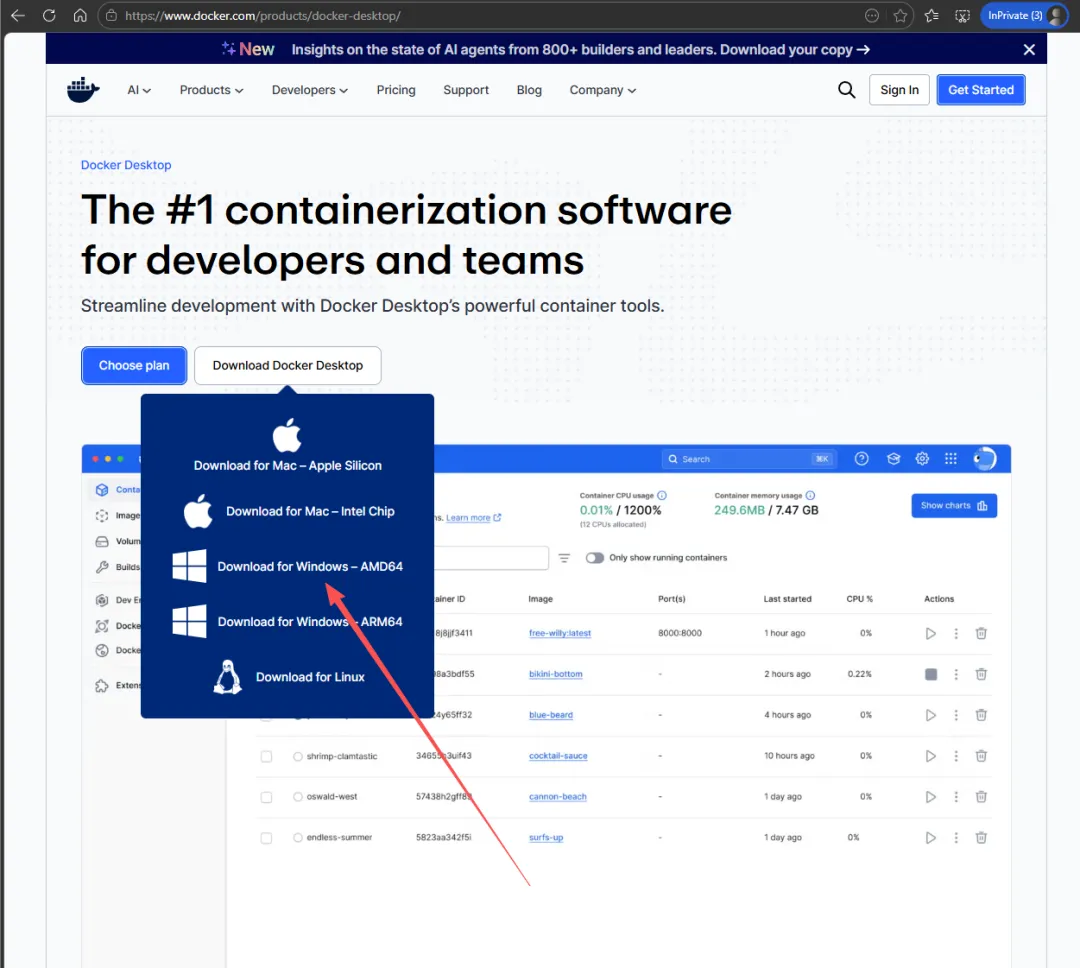
首先到官网的desktop中下载安装包;
下载下来后,还不能直接使用,打开docker desktop后,提示wsl版本有问题,要下载最新的wsl;
报错提示如下:
WSL needs updating Your version of Windows Subsystem for Linux (WSL) is too old. Run the command below to update or for more information, visit .the Microsoft WSL documentation wsl --update
尝试过在CMD中输入,wsl --update 不生效;
如何下载最新的wsl呢,可以在github上下载,但由于网络原因一直无法下载,通过寻找其他方式解决;
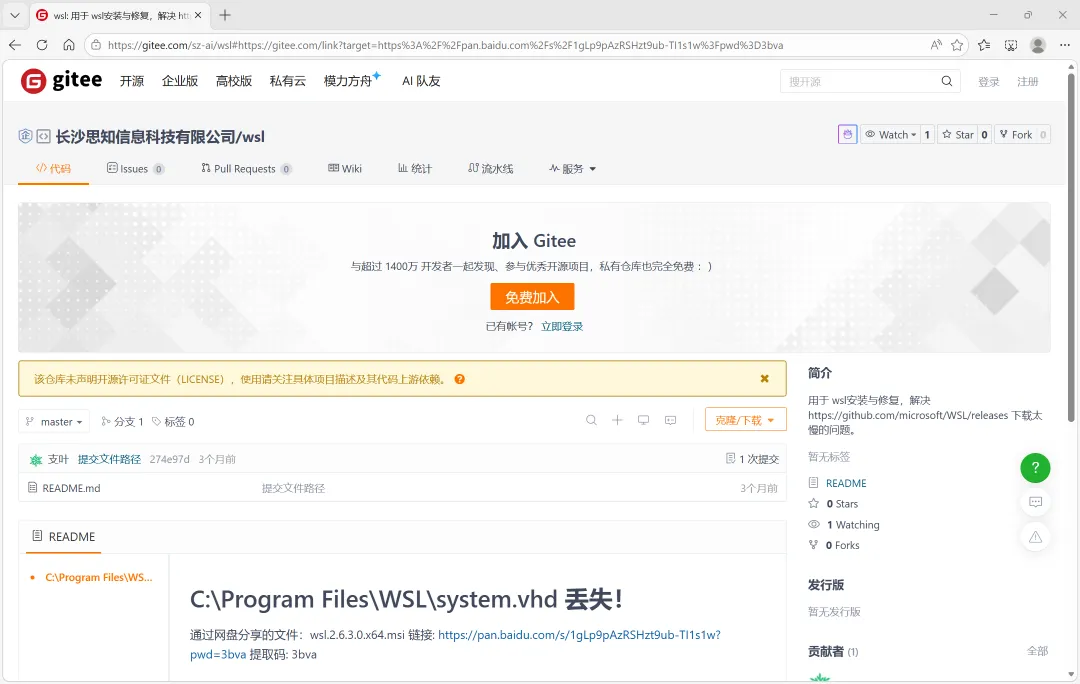
通过网盘分享的文件:wsl.2.6.3.0.x64.msi 链接: https://pan.baidu.com/s/1gLp9pAzRSHzt9ub-TI1s1w?pwd=3bva 提取码: 3bva
下载后是一个MSI程序,直接运行安装即可,然后CMD可以验证wsl版本
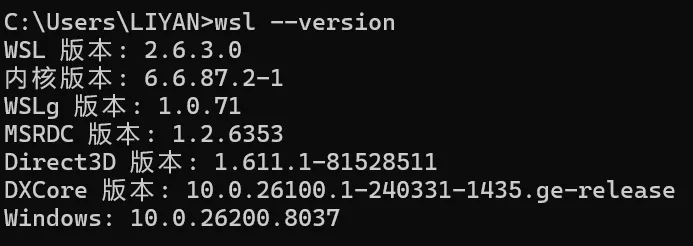
最终才正常↓
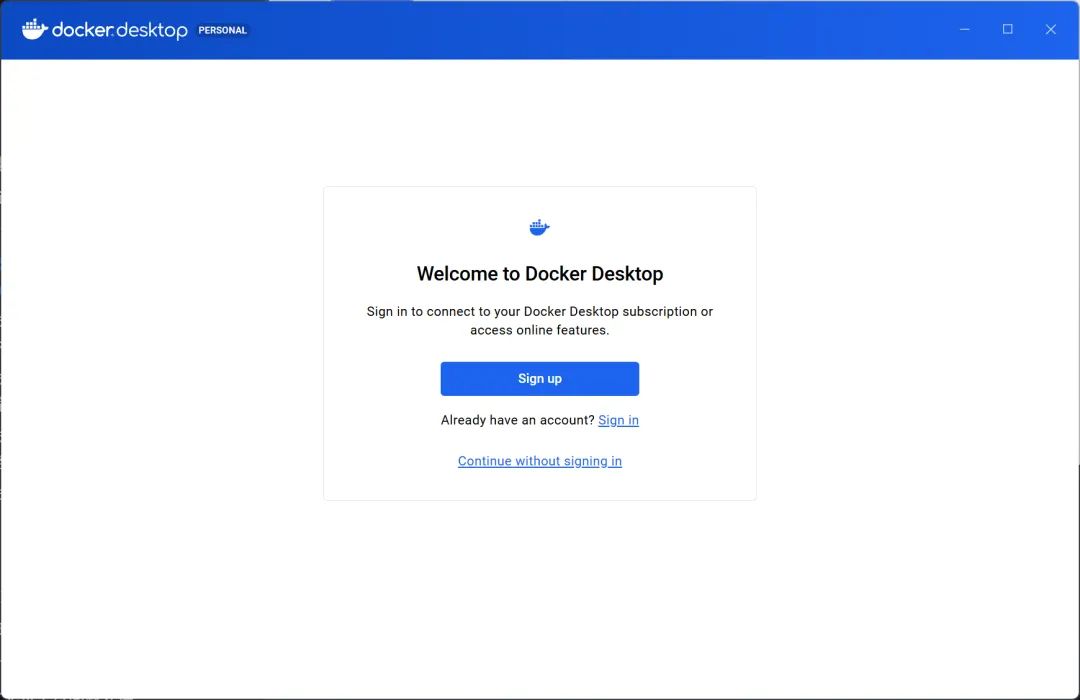
到这一步是不是觉得OK了,可以去下载docker镜像了?
NO!
还需要修改Docker Engine里面的配置;
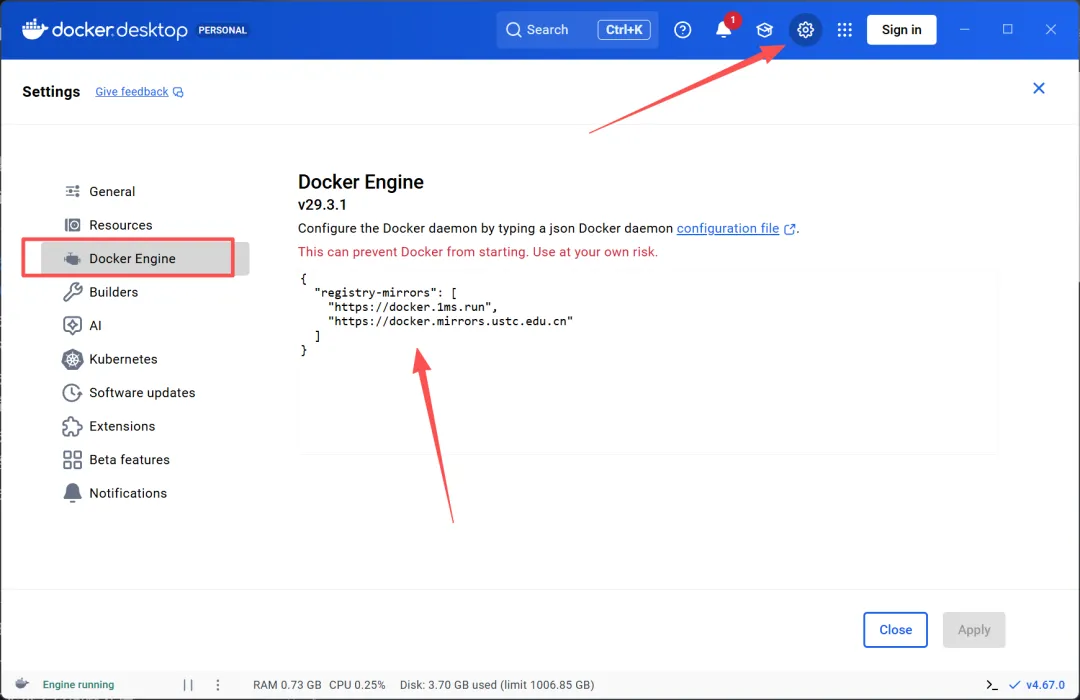
默认配置:
{ "builder": { "gc": { "defaultKeepStorage": "20GB", "enabled": true } }, "experimental": false}可用配置:
{ "registry-mirrors": [ "https://docker.1ms.run", "https://docker.mirrors.ustc.edu.cn" ]}至此,电脑上安装docker desktop才完成!
第二步:在你电脑下载 3 个镜像(国内能下)
无需登录,即可通过命令下载对应的docker镜像
打开你电脑的 CMD(命令提示符),分别运行这 3 行:
docker pull postgres:14docker pull redis:7docker pull outlinewiki/outline:latest这 3 个就是 Outline 必须的软件!
第三步:把镜像导出成文件(变成压缩包)
继续在电脑 CMD 里输入:
docker save -o postgres14.tar postgres:14docker save -o redis7.tar redis:7docker save -o outline.tar outlinewiki/outline:latest第四步:把这 3 个文件传到阿里云服务器
你用任意传输工具都行:
Xshell
FinalShell
宝塔面板
scp 命令
传到服务器的这个目录:/outline/
第五步:安装docker镜像
然后依次导入 3 个文件:
docker load -i postgres14.tar docker load -i redis7.tar docker load -i outline.tar第六步:直接启动 Outline!
docker-compose up -ddocker ps✅ 恭喜!部署成功!
打开浏览器访问:
http://ip:3000
2.基本使用
首次登录时,会要求输入【工作区】【邮箱】【管理员名称】这三个信息,输入后即可进入管理界面
坑来了!如果你建立账户后,退出登录了,就再也登录不上了(显示登录到工作区,但是没有任何认证方式),在这种情况下,我至今没找到解决办法;

无法登录时显示,无任何认证方式
我是如何处理的呢?
我直接重新安装了一遍; 重新建立工作区以及管理员账户,登入后,立马对接邮箱认证,这时候才会出现邮箱认证; 用当前管理员账户,邀请另外一个账号,然后会发送邀请到邮箱,在邮箱里面验证后,即可用新账号登录
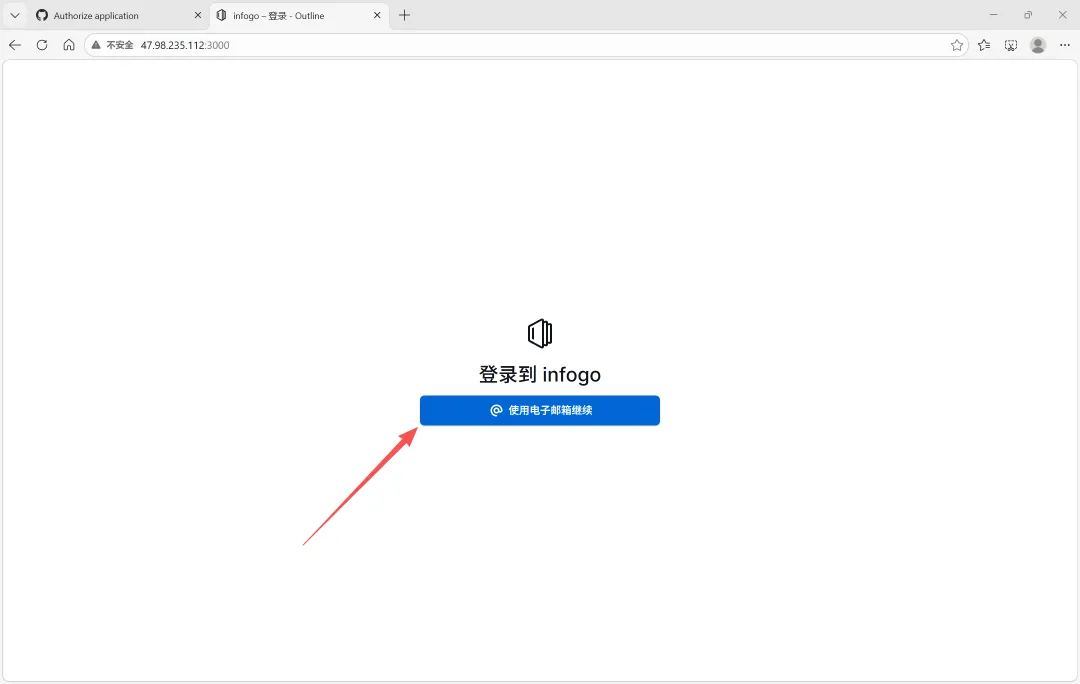
邮件认证对接成功后,显示有认证方式
所以,在初次私有化部署后,切记,一定要先对接认证方式,可以是邮箱、也可以是github等
2.1对接邮件认证
在“偏好设置中,找到工作区--认证”,打开电子邮件认证
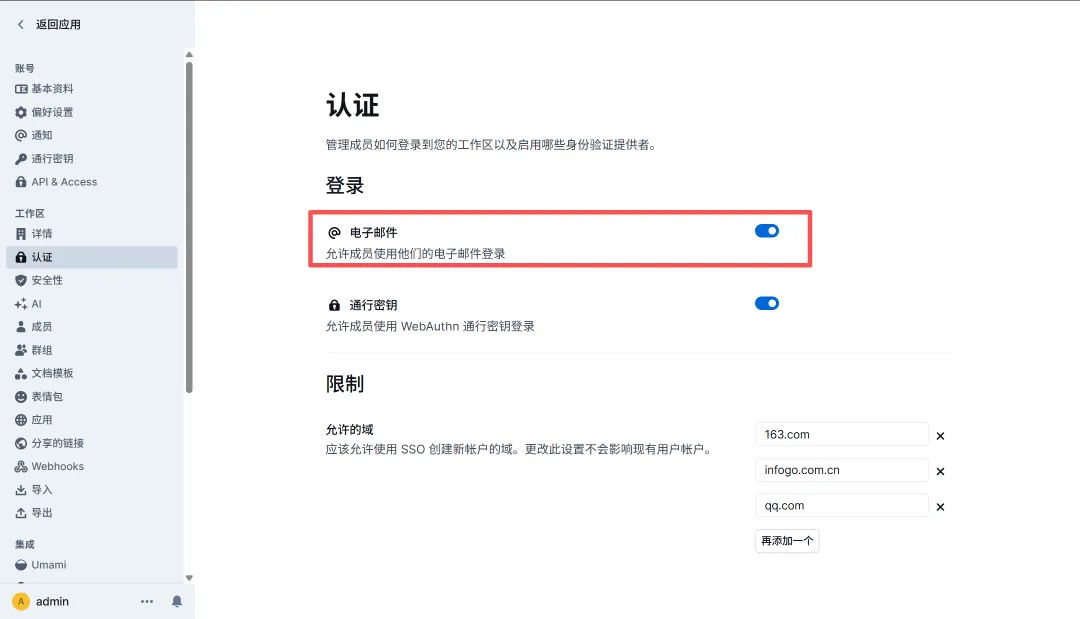
这时候,会发现电子邮件认证的开关点不动!
需要进入后台修改.env的配置环境,我的修改主要在21-41
root@iZbp142fio164aasvak4qsZ:/outline# cat .env# 核心密钥(官方标准)SECRET_KEY=67613ae4c32e6a373ee982d06a0d95d2e5e4d5f02ca19fc7394cbb49e47e318aUTILS_SECRET=42d95d962f771f052fff96c4441cf9d4a18c51b6df3033fd9e1a55ec48a210be# 基础配置URL=http://47.98.235.112:3000PORT=3000DATABASE_URL=postgres://outline:outline123@postgres:5432/outlineREDIS_URL=redis://redis:6379NODE_ENV=productionALLOWED_DOMAINS=*FORCE_HTTPS=false# 修复数据库SSL问题PGSSLMODE=disable# 强制启用邮箱密码登录(解决登录页问题)ENABLE_EMAIL_PASSWORD_LOGIN=trueDOMAIN_ALLOW_LIST=*# ====================== SMTP 邮件服务配置(方案A核心)====================== SMTP # 服务器地址(QQ邮箱为 smtp.qq.com,企业邮为 smtp.exmail.qq.com)SMTP_HOST=smtp.qq.com# SMTP 端口(TLS用587,SSL用465,推荐587)SMTP_PORT=465# SMTP 用户名(你的邮箱地址)SMTP_USERNAME=49443030*@qq.com# SMTP 授权码(需要去邮箱设置里面生成,如果是163企业邮箱直接就是密码)SMTP_PASSWORD=jzvdozhxrjlzcage# 发件人邮箱(和用户名一致即可,或自定义 noreply@your-domain.com)SMTP_FROM=49443030*@qq.com# 回复邮箱(可自定义,基本保持一致即可)SMTP_REPLY_TO=49443030*@qq.com# 是否开启 TLS(必须开启,对应端口587)SMTP_TLS_ENABLED=false# 是否拒绝未认证的TLS(内网环境可设为false,公网建议true)SMTP_TLS_REJECT_UNAUTHORIZED=false# 强制开启邮箱登录(部分旧版本需手动开启,新版本默认true,建议加上)ENABLE_EMAIL_LOGIN=trueSMTP_FROM_EMAIL=49443030*@qq.comSMTP_SECURE=true# picture sizeFILE_STORAGE=localAWS_REGION=us-east-1AWS_S3_REGION=us-east-1MAX_UPLOAD_SIZE=20971520如果是追加这些内容,可以使用以下命令:
nano .env把光标移到文件最后一行,粘贴完整的 SMTP 配置块
按 Ctrl+O → 按回车确认保存 → 按 Ctrl+X 退出 nano
邮箱配置以及获取授权码:
QQ 邮箱:SMTP 服务器 smtp.qq.com,端口 587,授权码需在邮箱设置中开启。
3.问题处理
3.1邮箱认证按钮无法打开
因为后台.env里面没有邮箱的配置,因此无法打开
按照2.1完成邮箱配置后,即可以打开,并使用邮箱魔法验证
3.2图片无法上传问题处理
截图后想粘贴到文档中,发现报错了,无法上传,报错代码:error 500
寻找解决方案:
Outline 粘贴图片报 500 错误,核心多为存储权限、MinIO 配置、文件系统权限或服务异常,按以下步骤排查即可解决。
尝试修改添加图片大小配置,在.env配置文件中添加
MAX_UPLOAD_SIZE=10485760先看真正的上传错误日志(必做)
执行这条命令,只看图片上传相关的错误: bash 运行
docker logs outline 2>&1 | grep -i "file|upload|500|s3|storage"报错日志详细输出:
root@iZbp142fio164aasvak4qsZ:/outline# docker logs outline --tail 50Error response from daemon: No such container: outline#注意,这里容器的名称不是outline,而是outline-outline-1通过docker ps 查看容器名称:NAMESroot@iZbp142fio164aasvak4qsZ:/outline# docker psCONTAINER ID IMAGE COMMAND CREATED STATUS PORTS NAMES3fdae8d34399 outlinewiki/outline:latest "docker-entrypoint.s…" About an hour ago Up About an hour (healthy) 0.0.0.0:3000->3000/tcp, [::]:3000->3000/tcp outline-outline-148e5ace50fc2 postgres:14 "docker-entrypoint.s…" About an hour ago Up About an hour 5432/tcp outline-postgres-1a736791fdc18 redis:7 "docker-entrypoint.s…" About an hour ago Up About an hour 6379/tcproot@iZbp142fio164aasvak4qsZ:/outline# docker logs outline-outline-1 --tail 50{"label":"lifecycle","level":"info","message":"Note: Restricting process count to 1 due to use of collaborative service without REDIS_COLLABORATION_URL"}{"label":"lifecycle","level":"info","message":"\nIs your team enjoying Outline? Consider supporting future development by sponsoring the project:\n\nhttps://github.com/sponsors/outline\n"}{"label":"lifecycle","level":"info","message":"Note: Restricting process count to 1 due to use of collaborative service without REDIS_COLLABORATION_URL"}{"label":"lifecycle","level":"info","message":"Starting collaboration service"}{"label":"lifecycle","level":"info","message":"Starting websockets service"}{"label":"lifecycle","level":"info","message":"Starting worker service"}{"label":"lifecycle","level":"info","message":"Starting web service"}{"level":"warn","message":"Enforced https was disabled with FORCE_HTTPS env variable"}{"label":"lifecycle","level":"info","message":"Listening on http://localhost:3000 / http://47.98.235.112:3000"}{"label":"multiplayer","level":"info","message":"New connection to \"document.f547f888-84d5-43b0-ac79-8801e96d1edd\""}{"label":"database","level":"info","message":"Document f547f888-84d5-43b0-ac79-8801e96d1edd is in database state"}{"label":"multiplayer","level":"info","message":"Loaded document \"document.f547f888-84d5-43b0-ac79-8801e96d1edd\"","userId":"5cb10515-a2ed-442b-a295-a4d468a1499d"}{"label":"multiplayer","level":"info","message":"Authenticated connection to \"document.f547f888-84d5-43b0-ac79-8801e96d1edd\""}{"label":"multiplayer","level":"info","message":"Closed connection to \"document.f547f888-84d5-43b0-ac79-8801e96d1edd\"","userId":"5cb10515-a2ed-442b-a295-a4d468a1499d"}{"label":"multiplayer","level":"info","message":"New connection to \"document.f547f888-84d5-43b0-ac79-8801e96d1edd\""}{"label":"database","level":"info","message":"Document f547f888-84d5-43b0-ac79-8801e96d1edd is in database state"}{"label":"multiplayer","level":"info","message":"Loaded document \"document.f547f888-84d5-43b0-ac79-8801e96d1edd\"","userId":"5cb10515-a2ed-442b-a295-a4d468a1499d"}{"label":"multiplayer","level":"info","message":"Authenticated connection to \"document.f547f888-84d5-43b0-ac79-8801e96d1edd\""}{"attempt":0,"event":{"actorId":"5cb10515-a2ed-442b-a295-a4d468a1499d","authType":"app","changes":null,"collectionId":null,"createdAt":"2026-03-31T16:00:58.717Z","data":null,"documentId":"f547f888-84d5-43b0-ac79-8801e96d1edd","id":"fa54c065-4d42-4a77-8437-06bb8d4b50fb","ip":"113.247.183.219","modelId":"c4854297-2808-4287-ad11-a0a6fe0ef368","name":"views.create","teamId":"4acd7452-6049-4185-b42d-09b1f3339fb8","userId":"5cb10515-a2ed-442b-a295-a4d468a1499d"},"label":"worker","level":"info","message":"Processing views.create"}{"event":{"actorId":"5cb10515-a2ed-442b-a295-a4d468a1499d","authType":"app","changes":null,"collectionId":null,"createdAt":"2026-03-31T16:00:58.717Z","data":null,"documentId":"f547f888-84d5-43b0-ac79-8801e96d1edd","id":"fa54c065-4d42-4a77-8437-06bb8d4b50fb","ip":"113.247.183.219","modelId":"c4854297-2808-4287-ad11-a0a6fe0ef368","name":"views.create","teamId":"4acd7452-6049-4185-b42d-09b1f3339fb8","userId":"5cb10515-a2ed-442b-a295-a4d468a1499d"},"label":"worker","level":"info","message":"WebhookProcessor running views.create"}{"label":"multiplayer","level":"info","message":"Persisting f547f888-84d5-43b0-ac79-8801e96d1edd, attributed to 5cb10515-a2ed-442b-a295-a4d468a1499d"}{"attempt":0,"event":{"actorId":"5cb10515-a2ed-442b-a295-a4d468a1499d","authType":"app","collectionId":"6721cb41-3819-45c3-bece-e65d2186dc54","createdAt":"2026-03-31T16:00:59.063Z","data":{"done":false,"multiplayer":true,"title":"outline-安装教程"},"documentId":"f547f888-84d5-43b0-ac79-8801e96d1edd","id":"39d68a08-2e47-440f-8847-437f00a199a1","name":"documents.update","teamId":"4acd7452-6049-4185-b42d-09b1f3339fb8"},"label":"worker","level":"info","message":"Processing documents.update"}{"event":{"actorId":"5cb10515-a2ed-442b-a295-a4d468a1499d","authType":"app","collectionId":"6721cb41-3819-45c3-bece-e65d2186dc54","createdAt":"2026-03-31T16:00:59.063Z","data":{"done":false,"multiplayer":true,"title":"outline-安装教程"},"documentId":"f547f888-84d5-43b0-ac79-8801e96d1edd","id":"39d68a08-2e47-440f-8847-437f00a199a1","name":"documents.update","teamId":"4acd7452-6049-4185-b42d-09b1f3339fb8"},"label":"worker","level":"info","message":"BacklinksProcessor running documents.update"}{"event":{"actorId":"5cb10515-a2ed-442b-a295-a4d468a1499d","authType":"app","collectionId":"6721cb41-3819-45c3-bece-e65d2186dc54","createdAt":"2026-03-31T16:00:59.063Z","data":{"done":false,"multiplayer":true,"title":"outline-安装教程"},"documentId":"f547f888-84d5-43b0-ac79-8801e96d1edd","id":"39d68a08-2e47-440f-8847-437f00a199a1","name":"documents.update","teamId":"4acd7452-6049-4185-b42d-09b1f3339fb8"},"label":"worker","level":"info","message":"DebounceProcessor running documents.update"}{"event":{"actorId":"5cb10515-a2ed-442b-a295-a4d468a1499d","authType":"app","collectionId":"6721cb41-3819-45c3-bece-e65d2186dc54","createdAt":"2026-03-31T16:00:59.063Z","data":{"done":false,"multiplayer":true,"title":"outline-安装教程"},"documentId":"f547f888-84d5-43b0-ac79-8801e96d1edd","id":"39d68a08-2e47-440f-8847-437f00a199a1","name":"documents.update","teamId":"4acd7452-6049-4185-b42d-09b1f3339fb8"},"label":"worker","level":"info","message":"RevisionsProcessor running documents.update"}{"event":{"actorId":"5cb10515-a2ed-442b-a295-a4d468a1499d","authType":"app","collectionId":"6721cb41-3819-45c3-bece-e65d2186dc54","createdAt":"2026-03-31T16:00:59.063Z","data":{"done":false,"multiplayer":true,"title":"outline-安装教程"},"documentId":"f547f888-84d5-43b0-ac79-8801e96d1edd","id":"39d68a08-2e47-440f-8847-437f00a199a1","name":"documents.update","teamId":"4acd7452-6049-4185-b42d-09b1f3339fb8"},"label":"worker","level":"info","message":"WebhookProcessor running documents.update"}Error: Region is missing at default (/opt/outline/node_modules/@smithy/config-resolver/dist-cjs/index.js:70:15) at /opt/outline/node_modules/@smithy/node-config-provider/dist-cjs/index.js:54:83 at /opt/outline/node_modules/@smithy/property-provider/dist-cjs/index.js:50:39 at process.processTicksAndRejections (node:internal/process/task_queues:105:5) at async coalesceProvider (/opt/outline/node_modules/@smithy/property-provider/dist-cjs/index.js:76:24) at async /opt/outline/node_modules/@smithy/property-provider/dist-cjs/index.js:88:28 at async Object.region (/opt/outline/node_modules/@smithy/config-resolver/dist-cjs/index.js:107:67) at async createPresignedPost (/opt/outline/node_modules/@aws-sdk/s3-presigned-post/dist-cjs/index.js:22:26) at async /opt/outline/build/server/routes/api/attachments/attachments.js:132:25 at async /opt/outline/node_modules/sequelize/lib/sequelize.js:507:18 at async transactionMiddleware (/opt/outline/build/server/middlewares/transaction.js:17:5) at async verifyCSRFTokenMiddleware (/opt/outline/build/server/middlewares/csrf.js:106:5) at async apiErrorHandlerMiddleware (/opt/outline/build/server/routes/api/middlewares/apiErrorHandler.js:12:7) at async apiResponseMiddleware (/opt/outline/build/server/routes/api/middlewares/apiResponse.js:12:5) at async requestTracerMiddleware (/opt/outline/build/server/middlewares/requestTracer.js:21:5) at async userAgent (/opt/outline/node_modules/koa-useragent/dist/index.js:12:5) at async /opt/outline/node_modules/koa-mount/index.js:62:7 at async compressMiddleware (/opt/outline/node_modules/koa-compress/lib/index.js:56:5) at async userAgent (/opt/outline/node_modules/koa-useragent/dist/index.js:12:5)root@iZbp142fio164aasvak4qsZ:/outlin终于找到报错根源了!
日志里明确写着:
🟥 Error: Region is missing(缺少区域配置)
这就是导致图片上传 500 错误 的直接原因!
10 秒修复方法(复制粘贴即可)
第一步:编辑 .env 配置文件
bash
运行
cd/outlinevi.env
第二步:添加 / 修改这 3 行配置(必须加)
找到文件里的存储配置,确保有这 3 行:
ini
FILE_STORAGE=local
AWS_REGION=us-east-1
AWS_S3_REGION=us-east-1
第三步:重启服务生效
bash
运行
dockercomposedown&&dockercomposeup-d
第四步:刷新网页
现在去粘贴图片 → 立刻正常!
为什么会报错?
你用的是 本地文件存储,但 Outline 1.6.1 有个小强制要求:
就算不用 S3/MinIO,也必须填写一个默认的 Region 区域配置,否则就会报 Regionismissing → 500 错误。
加 us-east-1 只是填一个默认值,不会影响你的本地存储。
总结
报错根因:缺少 Region 配置项
修复方法:
.env加AWS_REGION=us-east-1重启服务 → 图片上传恢复正常