ARTICLE · 1145929
EXCEL VBA ——标记匹配行

成
果
要求:根据两张表的第一列匹配,并标记匹配的行
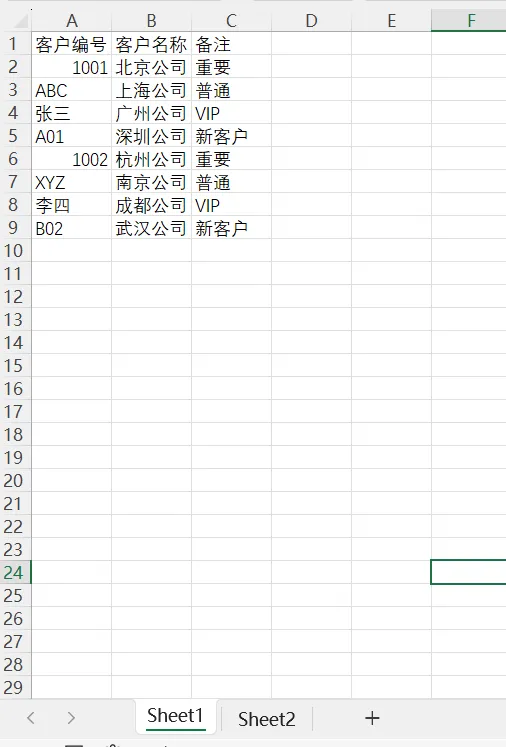
步骤:开发工具选项卡——Visual Basic——右键——插入——模块--粘贴宏——点击运行——选择匹配优先级
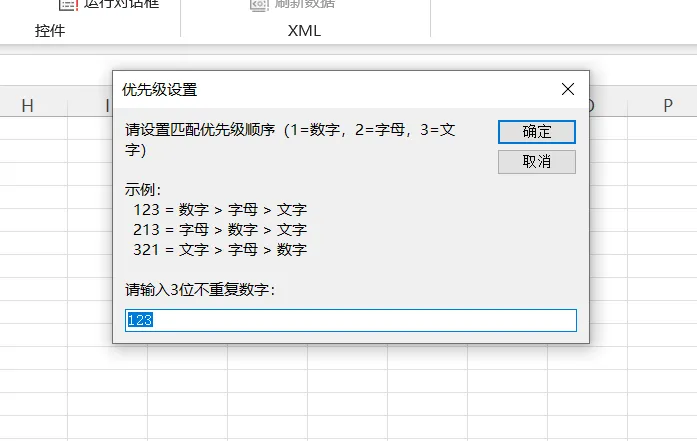
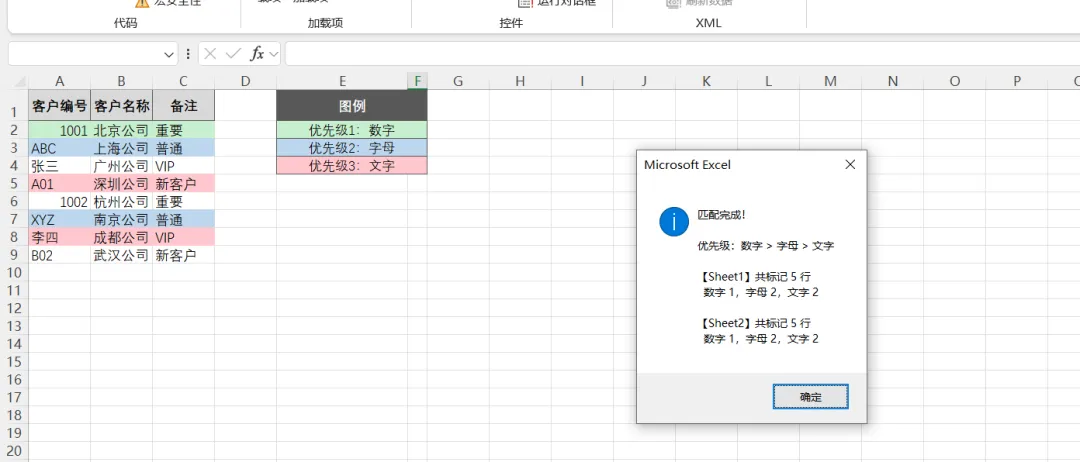
粘贴:
Sub HighlightMatchesByPriority()
' ========== 可配置区 ==========
Dim WS1_NAME As String: WS1_NAME = "Sheet1"
Dim WS2_NAME As String: WS2_NAME = "Sheet2"
Dim MARK_WS1 As Boolean: MARK_WS1 = True
Dim MARK_WS2 As Boolean: MARK_WS2 = True
Const START_ROW As Long = 2
Const MATCH_COL As Long = 1
Dim COLOR_P1 As Long: COLOR_P1 = RGB(198, 239, 206) ' 浅绿
Dim COLOR_P2 As Long: COLOR_P2 = RGB(189, 215, 238) ' 浅蓝
Dim COLOR_P3 As Long: COLOR_P3 = RGB(255, 199, 206) ' 浅红
' ==============================
Dim ws1 As Worksheet, ws2 As Worksheet
On Error Resume Next
Set ws1 = ThisWorkbook.Sheets(WS1_NAME)
Set ws2 = ThisWorkbook.Sheets(WS2_NAME)
On Error GoTo 0
If ws1 Is Nothing Then MsgBox "找不到工作表:" & WS1_NAME: Exit Sub
If ws2 Is Nothing Then MsgBox "找不到工作表:" & WS2_NAME: Exit Sub
' ========== 弹窗设置优先级 ==========
Dim inputStr As String
inputStr = InputBox( _
"请设置匹配优先级顺序(1=数字,2=字母,3=文字)" & vbCrLf & vbCrLf & _
"示例:" & vbCrLf & _
" 123 = 数字 > 字母 > 文字" & vbCrLf & _
" 213 = 字母 > 数字 > 文字" & vbCrLf & _
" 321 = 文字 > 字母 > 数字" & vbCrLf & vbCrLf & _
"请输入3位不重复数字:", "优先级设置", "123")
If inputStr = "" Then Exit Sub
inputStr = Trim(inputStr)
If Len(inputStr) <> 3 Then MsgBox "必须输入3位数字!": Exit Sub
Dim p1 As String, p2 As String, p3 As String
p1 = Mid(inputStr, 1, 1)
p2 = Mid(inputStr, 2, 1)
p3 = Mid(inputStr, 3, 1)
Dim validSet As Object
Set validSet = CreateObject("Scripting.Dictionary")
validSet("1") = 1: validSet("2") = 1: validSet("3") = 1
If Not (validSet.Exists(p1) And validSet.Exists(p2) And validSet.Exists(p3)) Then
MsgBox "只能输入1、2、3!": Exit Sub
End If
If p1 = p2 Or p1 = p3 Or p2 = p3 Then
MsgBox "1、2、3不能重复!": Exit Sub
End If
Dim typeName As Object
Set typeName = CreateObject("Scripting.Dictionary")
typeName("1") = "数字"
typeName("2") = "字母"
typeName("3") = "文字"
Dim colorMap As Object
Set colorMap = CreateObject("Scripting.Dictionary")
colorMap(p1) = COLOR_P1
colorMap(p2) = COLOR_P2
colorMap(p3) = COLOR_P3
Application.ScreenUpdating = False
Dim lastRow1 As Long, lastRow2 As Long
Dim lastCol1 As Long, lastCol2 As Long
lastRow1 = ws1.Cells(ws1.Rows.Count, MATCH_COL).End(xlUp).Row
lastRow2 = ws2.Cells(ws2.Rows.Count, MATCH_COL).End(xlUp).Row
lastCol1 = GetLastCol(ws1)
lastCol2 = GetLastCol(ws2)
' ========== 按类型建立字典 ==========
Dim dictN1 As Object, dictN2 As Object
Dim dictA1 As Object, dictA2 As Object
Dim dictT1 As Object, dictT2 As Object
Set dictN1 = CreateObject("Scripting.Dictionary")
Set dictN2 = CreateObject("Scripting.Dictionary")
Set dictA1 = CreateObject("Scripting.Dictionary")
Set dictA2 = CreateObject("Scripting.Dictionary")
Set dictT1 = CreateObject("Scripting.Dictionary")
Set dictT2 = CreateObject("Scripting.Dictionary")
Dim i As Long, key As String, t As String
For i = START_ROW To lastRow1
key = Trim(CStr(ws1.Cells(i, MATCH_COL).Value))
If key <> "" Then
t = GetCellType(key)
Select Case t
Case "1": If Not dictN1.Exists(key) Then dictN1.Add key, 1
Case "2": If Not dictA1.Exists(key) Then dictA1.Add key, 1
Case "3": If Not dictT1.Exists(key) Then dictT1.Add key, 1
End Select
End If
Next i
For i = START_ROW To lastRow2
key = Trim(CStr(ws2.Cells(i, MATCH_COL).Value))
If key <> "" Then
t = GetCellType(key)
Select Case t
Case "1": If Not dictN2.Exists(key) Then dictN2.Add key, 1
Case "2": If Not dictA2.Exists(key) Then dictA2.Add key, 1
Case "3": If Not dictT2.Exists(key) Then dictT2.Add key, 1
End Select
End If
Next i
' ========== 清除旧填充色(数据区,不动表头)==========
If lastRow1 >= START_ROW And lastCol1 >= 1 Then
ws1.Range(ws1.Cells(START_ROW, 1), ws1.Cells(lastRow1, lastCol1)).Interior.ColorIndex = xlNone
End If
If lastRow2 >= START_ROW And lastCol2 >= 1 Then
ws2.Range(ws2.Cells(START_ROW, 1), ws2.Cells(lastRow2, lastCol2)).Interior.ColorIndex = xlNone
End If
' ========== 标记 ==========
Dim cnt1 As Long, cnt2 As Long
Dim cntN1 As Long, cntA1 As Long, cntT1 As Long
Dim cntN2 As Long, cntA2 As Long, cntT2 As Long
Dim oppDict As Object
If MARK_WS1 Then
For i = START_ROW To lastRow1
key = Trim(CStr(ws1.Cells(i, MATCH_COL).Value))
If key <> "" Then
t = GetCellType(key)
Select Case t
Case "1": Set oppDict = dictN2
Case "2": Set oppDict = dictA2
Case "3": Set oppDict = dictT2
End Select
If oppDict.Exists(key) Then
ws1.Range(ws1.Cells(i, 1), ws1.Cells(i, lastCol1)).Interior.Color = colorMap(t)
cnt1 = cnt1 + 1
Select Case t
Case "1": cntN1 = cntN1 + 1
Case "2": cntA1 = cntA1 + 1
Case "3": cntT1 = cntT1 + 1
End Select
End If
End If
Next i
End If
If MARK_WS2 Then
For i = START_ROW To lastRow2
key = Trim(CStr(ws2.Cells(i, MATCH_COL).Value))
If key <> "" Then
t = GetCellType(key)
Select Case t
Case "1": Set oppDict = dictN1
Case "2": Set oppDict = dictA1
Case "3": Set oppDict = dictT1
End Select
If oppDict.Exists(key) Then
ws2.Range(ws2.Cells(i, 1), ws2.Cells(i, lastCol2)).Interior.Color = colorMap(t)
cnt2 = cnt2 + 1
Select Case t
Case "1": cntN2 = cntN2 + 1
Case "2": cntA2 = cntA2 + 1
Case "3": cntT2 = cntT2 + 1
End Select
End If
End If
Next i
End If
' ========== 图例 ==========
Dim legendType(1 To 3) As String
legendType(1) = p1
legendType(2) = p2
legendType(3) = p3
Call DrawLegend(ws1, lastCol1, legendType, typeName, COLOR_P1, COLOR_P2, COLOR_P3)
Call DrawLegend(ws2, lastCol2, legendType, typeName, COLOR_P1, COLOR_P2, COLOR_P3)
' ========== 美化表头 ==========
Call BeautifyHeader(ws1, lastCol1)
Call BeautifyHeader(ws2, lastCol2)
Application.ScreenUpdating = True
Dim msg As String
msg = "匹配完成!" & vbCrLf & vbCrLf
msg = msg & "优先级:" & typeName(p1) & " > " & typeName(p2) & " > " & typeName(p3) & vbCrLf & vbCrLf
msg = msg & "【" & WS1_NAME & "】共标记 " & cnt1 & " 行" & vbCrLf
msg = msg & " 数字 " & cntN1 & ",字母 " & cntA1 & ",文字 " & cntT1 & vbCrLf & vbCrLf
msg = msg & "【" & WS2_NAME & "】共标记 " & cnt2 & " 行" & vbCrLf
msg = msg & " 数字 " & cntN2 & ",字母 " & cntA2 & ",文字 " & cntT2
MsgBox msg, vbInformation
End Sub
' ========== 判断类型 ==========
Function GetCellType(s As String) As String
Dim regex As Object
Set regex = CreateObject("VBScript.RegExp")
regex.Pattern = "^\d+$"
If regex.Test(s) Then GetCellType = "1": Exit Function
regex.Pattern = "^[A-Za-z]+$"
If regex.Test(s) Then GetCellType = "2": Exit Function
GetCellType = "3"
End Function
' ========== 取最后一列 ==========
Function GetLastCol(ws As Worksheet) As Long
Dim ur As Range
Set ur = ws.UsedRange
GetLastCol = ur.Column + ur.Columns.Count - 1
If GetLastCol < 1 Then GetLastCol = 1
End Function
' ========== 图例 ==========
Sub DrawLegend(ws As Worksheet, lastCol As Long, legendType() As String, typeName As Object, c1 As Long, c2 As Long, c3 As Long)
Dim lc As Long, lc2 As Long
lc = lastCol + 2
lc2 = lc + 1
Dim clearRng As Range
Set clearRng = ws.Range(ws.Cells(1, lc), ws.Cells(10, lc2))
clearRng.ClearContents
clearRng.Interior.ColorIndex = xlNone
clearRng.Borders.LineStyle = xlNone
clearRng.Font.Bold = False
clearRng.Font.ColorIndex = xlAutomatic
clearRng.HorizontalAlignment = xlGeneral
With ws.Range(ws.Cells(1, lc), ws.Cells(1, lc2))
.Merge
.Value = "图例"
.Font.Bold = True
.Font.Size = 11
.Font.Color = RGB(255, 255, 255)
.Interior.Color = RGB(89, 89, 89)
.HorizontalAlignment = xlCenter
.VerticalAlignment = xlCenter
.Borders.LineStyle = xlContinuous
.Borders.Color = RGB(89, 89, 89)
End With
Dim colorArr(1 To 3) As Long
colorArr(1) = c1: colorArr(2) = c2: colorArr(3) = c3
Dim k As Long
For k = 1 To 3
With ws.Range(ws.Cells(k + 1, lc), ws.Cells(k + 1, lc2))
.Merge
.Value = "优先级" & k & ":" & typeName(legendType(k))
.Interior.Color = colorArr(k)
.HorizontalAlignment = xlCenter
.VerticalAlignment = xlCenter
.Font.Size = 10
.Borders.LineStyle = xlContinuous
.Borders.Color = RGB(89, 89, 89)
End With
Next k
ws.Columns(lc).ColumnWidth = 18
ws.Columns(lc2).ColumnWidth = 2
End Sub
' ========== 表头美化 ==========
Sub BeautifyHeader(ws As Worksheet, lastCol As Long)
With ws.Range(ws.Cells(1, 1), ws.Cells(1, lastCol))
.Font.Bold = True
.Font.Size = 11
.HorizontalAlignment = xlCenter
.VerticalAlignment = xlCenter
.Interior.Color = RGB(217, 217, 217)
.Borders.LineStyle = xlContinuous
.Borders.Color = RGB(89, 89, 89)
End With
ws.Rows(1).RowHeight = 24
End Sub