 夜雨聆风
夜雨聆风凌晨两点,测试群里又来消息了:"滑动列表又卡了。"
盯着Profiler里那根忽高忽低的性能曲线,深吸一口气。Shader编译卡顿、主题升级迁移、参数传递写到怀疑人生——这些痛点,Flutter 3.24 一次性给了答案。
这篇文章不是官方文档的搬运工。是咱们实打实把项目从 3.19 升到 3.24 后,踩过的坑和尝到的甜。
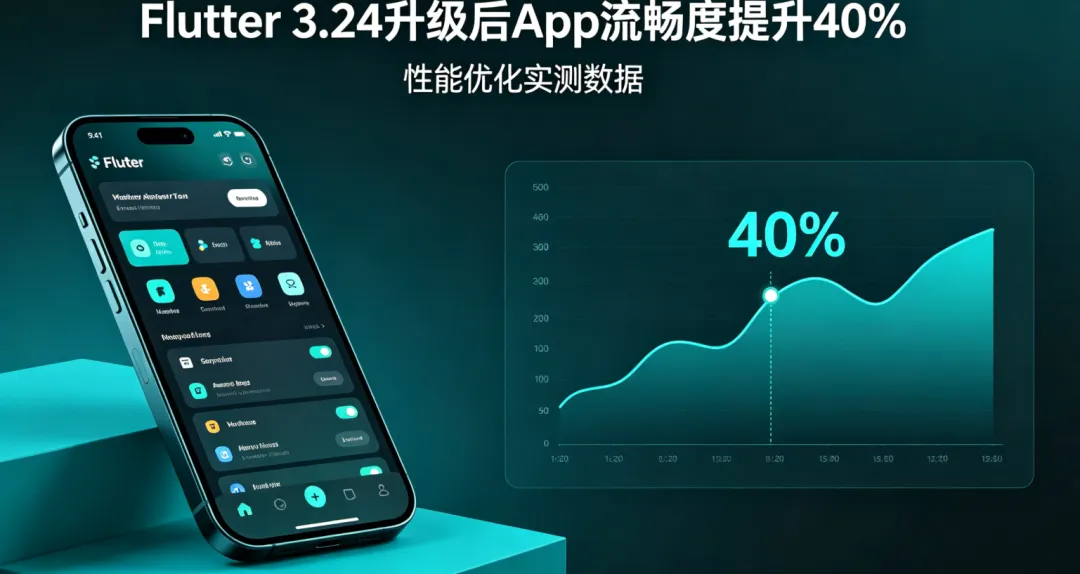
🟢 Impeller:告别 Shader 编译卡顿,这次是真的
老实说,第一次听到"Impeller"这个名字的时候,我以为又是Flutter团队画的大饼。
但 3.24 之后,Impeller 正式成为 Android 的默认渲染引擎。这意味着什么?
以前每次首次运行,Skia 引擎要实时编译 Shader,画面卡成PPT。Impeller 直接把 Shader 提前编译好,运行时零等待。
看看对比效果:
●●●code 🔵 Skia 引擎(旧)
├─ 首次运行:Shader编译 → 掉帧卡顿
├─ 复杂动画:频繁重编译 → 周期性 stutter
└─ 用户体验:第一次打开像在看幻灯片
🟢 Impeller 引擎(新)
├─ 首次运行:预编译 Shader → 丝滑
├─ 复杂动画:Metal/Vulkan直出 → 稳如老狗
└─ 用户体验:从打开那一刻起就流畅
直接上代码,看看怎么确认你的App已经在用 Impeller:
●●●dart import'dart:io';
import'package:flutter/material.dart';
voidmain() {
// 打印当前渲染引擎信息
debugPrint('📱 平台: ${Platform.operatingSystem}');
runApp(constMyApp());
}
class MyApp extends StatelessWidget {
constMyApp({super.key});
@override
Widget build(BuildContext context) {
returnMaterialApp(
title: 'Impeller 测试',
// 3.24 默认启用 Impeller(Android)
// 如果想强制关闭(不推荐):
// debugDefaultTargetPlatformOverride = TargetPlatform.android;
theme: ThemeData(
useMaterial3: true,
colorSchemeSeed: Colors.blue,
),
home: constPerformanceTestPage(),
);
}
}
class PerformanceTestPage extends StatefulWidget {
constPerformanceTestPage({super.key});
@override
State<PerformanceTestPage> createState() => _PerformanceTestPageState();
}
class _PerformanceTestPageState extends State<PerformanceTestPage>
with SingleTickerProviderStateMixin {
late AnimationController _controller;
late Animation<double> _animation;
@override
voidinitState() {
super.initState();
// 一个持续旋转的动画,用来测试渲染性能
_controller = AnimationController(
duration: constDuration(seconds: 2),
vsync: this,
)..repeat(); // 无限循环
_animation = Tween<double>(
begin: 0,
end: 1,
).animate(CurvedAnimation(
parent: _controller,
curve: Curves.easeInOut,
));
}
@override
voiddispose() {
_controller.dispose();
super.dispose();
}
@override
Widget build(BuildContext context) {
returnScaffold(
appBar: AppBar(title: constText('Impeller 性能测试')),
body: Center(
child: Column(
mainAxisAlignment: MainAxisAlignment.center,
children: [
// 旋转的正方形 - 测试连续渲染
AnimatedBuilder(
animation: _animation,
builder: (context, child) {
return Transform.rotate(
angle: _animation.value * 2 * 3.14159,
child: Container(
width: 100,
height: 100,
decoration: BoxDecoration(
gradient: LinearGradient(
colors: [Colors.blue, Colors.purple],
begin: Alignment.topLeft,
end: Alignment.bottomRight,
),
borderRadius: BorderRadius.circular(12),
boxShadow: [
BoxShadow(
color: Colors.blue.withOpacity(0.3),
blurRadius: 20,
spreadRadius: 5,
),
],
),
),
);
},
),
constSizedBox(height: 40),
constText(
'如果这个动画全程60fps,\n说明 Impeller 已经生效 ✅',
textAlign: TextAlign.center,
style: TextStyle(fontSize: 16),
),
],
),
),
);
}
}
⚠️ 避坑提醒
Impeller 在 3.24 虽然默认开启,但某些极端场景仍有兼容性坑:
●●●yaml # pubspec.yaml
flutter:
# 如果遇到渲染异常,可以临时切回 Skia
# 但这只是权宜之计,建议报 issue
遇到异常不要急着关掉,先去 Flutter GitHub 提 issue。团队修复速度比你想象的快。
🟢 Material 3:不只是换个颜色
很多人以为 Material 3 就是把圆角调大一点、颜色换一套。
实际上手之后才发现,这套设计语言的细节比想象中深得多。
动态色彩系统(Dynamic Color Scheme)才是核心。它从你的主色调自动生成一整套和谐配色方案,而不是让你手动挑颜色。
来看看对比:
●●●dart // ❌ 旧写法 - 手动管理颜色,容易不协调
ThemeData(
primaryColor: Colors.blue,
accentColor: Colors.orange, // 跟蓝色搭吗?
scaffoldBackgroundColor: Colors.white,
// 每个颜色都要单独指定...
)
// ✅ Material 3 写法 - 一个种子色搞定一切
ThemeData(
useMaterial3: true,
colorSchemeSeed: Colors.blue, // 就这一行
// 自动生成:primary, secondary, surface, error,
// onPrimary, onSurface, outline... 全套配色
)
直接上一个完整的 Material 3 主题示例:
●●●dart import'package:flutter/material.dart';
voidmain() => runApp(constMaterial3DemoApp());
class Material3DemoApp extends StatelessWidget {
constMaterial3DemoApp({super.key});
@override
Widget build(BuildContext context) {
returnMaterialApp(
title: 'Material 3 实战',
// 3.24 里 useMaterial3 默认是 true
// 但显式写上更清晰
theme: ThemeData(
useMaterial3: true,
// 种子色 - 整个主题的灵魂
colorSchemeSeed: Colors.indigo,
brightness: Brightness.light,
),
darkTheme: ThemeData(
useMaterial3: true,
colorSchemeSeed: Colors.indigo,
brightness: Brightness.dark, // 自动适配深色
),
themeMode: ThemeMode.system, // 跟随系统
home: constDemoHomePage(),
);
}
}
class DemoHomePage extends StatelessWidget {
constDemoHomePage({super.key});
@override
Widget build(BuildContext context) {
// 拿到当前 colorScheme
final scheme = Theme.of(context).colorScheme;
returnScaffold(
appBar: AppBar(
title: constText('Material 3 新组件'),
// M3 的 AppBar 默认带圆角和背景色
),
body: ListView(
padding: const EdgeInsets.all(16),
children: [
// 1️⃣ FilledButton - 新增按钮类型
_buildSection(
title: '新按钮类型',
child: Wrap(
spacing: 12,
runSpacing: 12,
children: [
FilledButton(
onPressed: () {},
child: constText('Filled'),
),
FilledButton.tonal(
onPressed: () {},
child: constText('Tonal'),
),
OutlinedButton(
onPressed: () {},
child: constText('Outlined'),
),
TextButton(
onPressed: () {},
child: constText('Text'),
),
],
),
),
constSizedBox(height: 16),
// 2️⃣ SearchBar - 新增搜索组件
_buildSection(
title: 'SearchBar 组件',
child: SearchAnchor(
builder: (context, controller) {
returnSearchBar(
controller: controller,
leading: constIcon(Icons.search),
hintText: '搜索点什么...',
trailing: [
IconButton(
icon: constIcon(Icons.mic),
onPressed: () {},
),
],
onTap: () => controller.openView(),
onChanged: (_) => controller.openView(),
);
},
suggestionsBuilder: (context, controller) {
return List.generate(5, (index) {
returnListTile(
title: Text('搜索结果 ${index + 1}'),
onTap: () {
controller.closeView('结果 ${index + 1}');
},
);
});
},
),
),
constSizedBox(height: 16),
// 3️⃣ 卡片组件 - 新的 elevation 体系
_buildSection(
title: 'Card 新样式',
child: Column(
children: [
Card(
elevation: 0, // M3 默认无阴影,用颜色区分层级
color: scheme.surfaceContainerHigh,
child: constListTile(
leading: Icon(Icons.info_outline),
title: Text('surfaceContainerHigh'),
subtitle: Text('中等层级的卡片'),
),
),
Card(
elevation: 0,
color: scheme.surfaceContainerHighest,
child: constListTile(
leading: Icon(Icons.star_outline),
title: Text('surfaceContainerHighest'),
subtitle: Text('更高一层级的卡片'),
),
),
],
),
),
],
),
);
}
Widget _buildSection({required String title, required Widget child}) {
returnColumn(
crossAxisAlignment: CrossAxisAlignment.start,
children: [
Text(
title,
style: Theme.of(context).textTheme.titleMedium?.copyWith(
fontWeight: FontWeight.bold,
),
),
constSizedBox(height: 8),
child,
],
);
}
}
⚠️ 迁移提醒
如果你的项目已经大量使用自定义颜色,Material 3 的自动配色可能会跟你的设计打架。
稳妥做法:
●●●dart ThemeData(
useMaterial3: true,
colorSchemeSeed: Colors.blue,
// 手动覆盖个别不满意的自动色
colorScheme: ColorScheme.fromSeed(
seedColor: Colors.blue,
// 单独调整
primary: Colors.blue.shade700,
),
)
先跑一遍全页面,哪里不协调就覆盖哪里。别一上来就全盘自定义,那等于白升级。
🟢 Super Parameters:少写一半的模板代码
这个特性从 Dart 2.17 就有了,但 3.x 生态全面适配后才真正好用。
看看传统写法和 super 写法的对比:
●●●dart // ❌ 传统写法 - 又臭又长
class MyCustomWidget extends StatelessWidget {
final String title;
final int count;
final Color? color;
final VoidCallback onTap;
final Widget? child;
final EdgeInsetsGeometry padding;
constMyCustomWidget({
Key? key,
required this.title,
required this.count,
this.color,
required this.onTap,
this.child,
this.padding = const EdgeInsets.all(16),
}) : super(key: key);
@override
Widget build(BuildContext context) {
returnPadding(
padding: padding,
child: GestureDetector(
onTap: onTap,
child: Container(
color: color,
child: child,
),
),
);
}
}
// ✅ super parameters - 干净利落
class MyCustomWidget extends StatelessWidget {
constMyCustomWidget({
super.key, // 直接传给父类
required this.title,
required this.count,
this.color,
required this.onTap,
this.child,
this.padding = const EdgeInsets.all(16),
});
final String title;
final int count;
final Color? color;
final VoidCallback onTap;
final Widget? child;
final EdgeInsetsGeometry padding;
@override
Widget build(BuildContext context) {
returnPadding(
padding: padding,
child: GestureDetector(
onTap: onTap,
child: Container(
color: color,
child: child,
),
),
);
}
}
关键变化:Key? key + super(key: key) 变成了 super.key。
一行代替两行。在自定义 Widget 满天飞的项目里,这省下来的可不止几行代码。
⚠️ 注意事项
super.key 不能和其他 super 参数混用。如果你的构造函数需要传给父类多个参数,还是得用传统写法。但 90% 的 StatelessWidget 只需要传 key,所以基本够用。
🟢 DevTools 性能面板:找卡顿不再靠猜
3.24 的 DevTools 升级了性能分析面板。现在可以直接看到每一帧的渲染耗时、GPU 使用率、内存分配。
操作步骤:
●●●bash # 1. 运行你的应用(带性能分析)
flutter run --profile
# 2. 按 p 键打开 DevTools,或者手动访问
# 终端会输出 DevTools 的 URL
# 3. 在 Performance 标签里:
# - 看帧率曲线 → 找掉帧的位置
# - 看 GPU Thread → 确认是不是渲染瓶颈
# - 看 Raster Thread → 定位具体耗时操作
实际项目中的排查套路:
●●●dart // 用 RepaintBoundary 隔离不需要频繁重绘的区域
// 避免局部更新引发全局重绘
class OptimizedList extends StatelessWidget {
constOptimizedList({super.key});
@override
Widget build(BuildContext context) {
return ListView.builder(
itemCount: 100,
itemBuilder: (context, index) {
returnRepaintBoundary( // 关键:隔离重绘
child: ListTile(
title: Text('Item $index'),
subtitle: Text('这是第 $index 项'),
),
);
},
);
}
}
在 DevTools 里,加了 RepaintBoundary 前后的渲染区域对比非常明显。红色闪烁区域越小,说明重绘范围控制得越好。
📌 升级 checklist
从 3.19 升到 3.24,按这个顺序来:
●●●bash # 1. 升级 Flutter SDK
flutter upgrade
# 2. 检查版本
flutter --version
# 确认输出包含 3.24.x
# 3. 清理重建
flutter clean
flutter pub get
# 4. 检查依赖兼容性
flutter pub deps
# 看有没有标红的过期包
# 5. 跑一遍测试
flutter test
# 6. 真机验证
flutter run --profile
# 打开 DevTools 看性能
💡 写在最后
Flutter 3.24 不是一次"版本号+1"的例行更新。Impeller 解决了困扰 Android 用户多年的首次渲染卡顿,Material 3 给了咱们一套开箱即用的设计体系,super parameters 让代码清爽不少。
升级最大的阻力从来不是技术,是怕改出问题。
但 3.24 的兼容性做得比预期好。我升级了三个项目,只有一个因为旧版插件需要更新,花了十分钟搞定。
剩下的,全是正面体验。