 夜雨聆风
夜雨聆风


App 自动化 Toast 定位 (十四)
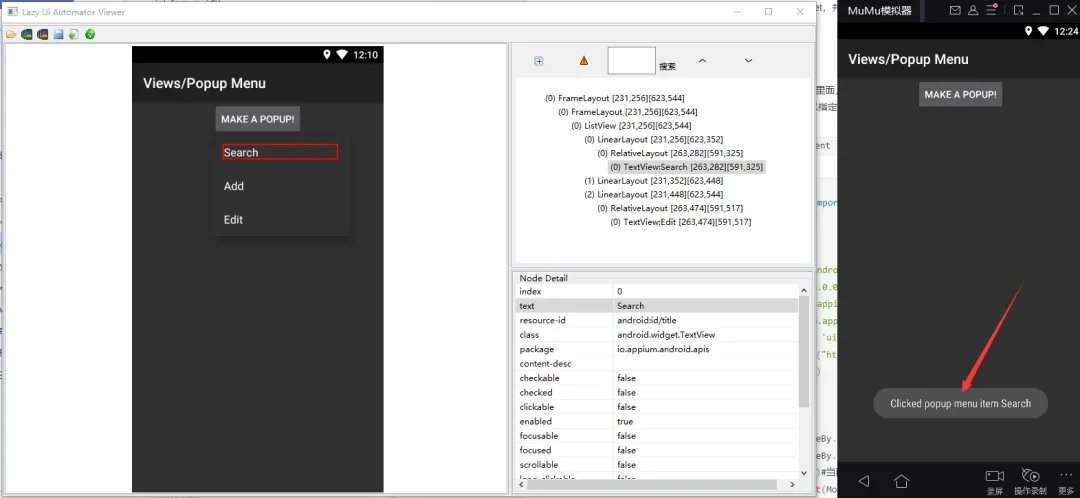
一、什么是 Toast?(通俗易懂版)
Toast 就是 Android 系统里那种 “一闪而过” 的提示消息。
-
登录成功提示
-
操作成功 / 失败提示
-
输入错误提示
-
点击按钮后的轻量反馈
Toast 的 4 个核心特点
-
自动消失:显示 1~2 秒就消失,不会停留
-
无焦点:不会挡住操作,也不能点击
-
系统级控件:不是 APP 自己画的,是系统弹窗
-
不在普通控件树里:普通定位方式抓不到
二、为什么 Toast 很难定位?
-
Toast 不属于 APP 内部控件,属于系统控件
-
显示时间极短,抓不住
-
getPageSource () 看不到
-
必须依赖uiautomator2才能抓取
定位 Toast 的必须条件
-
必须使用UiAutomator2引擎
-
必须用XPath定位
-
不能用 page_source 查看
-
必须配合显示等待(WebDriverWait)
三、定位 Toast 的核心配置
1)Desire Capability 必须加
desire_cap['automationName'] = 'uiautomator2'2)只能用 XPath 定位
//*[@class='android.widget.Toast']//*[contains(@text,'提示内容')]四、Toast 定位的 2 种标准写法
写法 1:通过 class 定位(最标准)
//*[@class='android.widget.Toast']写法 2:通过文本模糊匹配(最稳定)
//*[contains(@text,'Clicked popup')]五、完整可运行实战代码
from appium import webdriverfrom appium.webdriver.common.mobileby import MobileByfrom selenium.webdriver.support.ui import WebDriverWaitfrom selenium.webdriver.support import expected_conditions as ECclass TestToast():def setup(self):desire_cap = {}desire_cap['platformName'] = 'android'desire_cap['deviceName'] = '127.0.0.1:7555'desire_cap['appPackage'] = 'io.appium.android.apis'desire_cap['appActivity'] = 'io.appium.android.apis.view.PopupMenu1'desire_cap['automationName'] = 'uiautomator2' # 关键!必须用UiAutomator2desire_cap['noReset'] = Trueself.driver = webdriver.Remote("http://127.0.0.1:4723/wd/hub", desire_cap)self.driver.implicitly_wait(10)def test_toast(self):# 1 点击弹出菜单self.driver.find_element(MobileBy.ACCESSIBILITY_ID, "Make a Popup!").click()# 2 点击 Searchself.driver.find_element(MobileBy.XPATH, "//*[@text='Search']").click()# 3 定位 Toast(两种写法任选其一)# 写法1:class定位# toast_text = self.driver.find_element(MobileBy.XPATH, "//*[@class='android.widget.Toast']").text# 写法2:文本模糊匹配(推荐)toast_text = self.driver.find_element(MobileBy.XPATH, "//*[contains(@text,'Clicked popup')]").textprint("获取到的Toast内容:", toast_text)def teardown(self):self.driver.quit()
六、关键知识点总结(必须记住)
1. Toast 是系统控件
2. 必须用 uiautomator2
3. page_source 看不到 Toast
4. 只能用 XPath 定位
//*[@class='android.widget.Toast']//*[contains(@text,'部分文本')]
5. 显示时间短 → 必须加等待
WebDriverWait(driver,10).until(EC.presence_of_element_located((MobileBy.XPATH, "//*[contains(@text,'Clicked popup')]")))
七、额外补充:查看当前页面 Activity(你提到的命令)
adb shell dumpsys window | findstr mCurrent最终超级总结(背会就能定位所有 Toast)
-
Toast = 系统提示框,自动消失
-
必须用 uiautomator2 引擎
-
只能用 XPath 定位
-
万能定位公式:
//*[@class='android.widget.Toast']//*[contains(@text,'提示文字')] -
必须配合显示等待提高稳定性