ARTICLE · 1426576
罗塞塔:MacOS转译中的过去,现在和未来
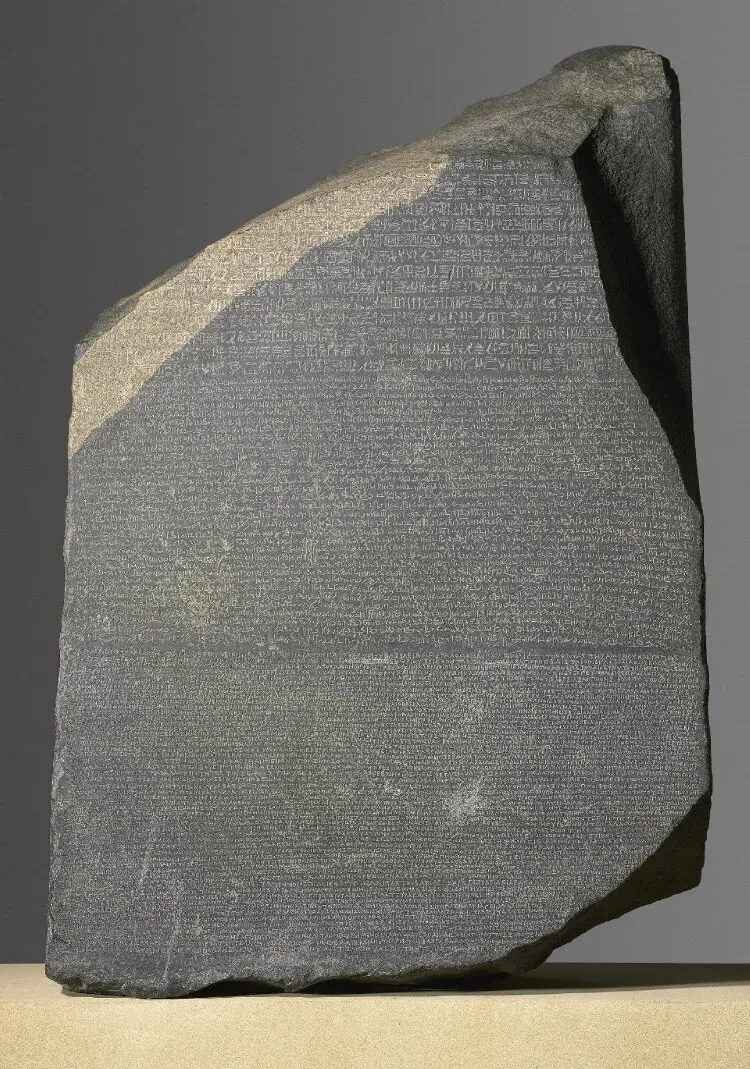 这是一块花岗闪长岩石碑的残存部分。整块石碑原刻有托勒密五世的一份诏书,现存可见碑文分别以三种不同文字记录了诏书的同一段落:
公元前196年藏品尺寸:高112.3厘米,宽75.7厘米,厚28.4厘米
藏品来源:英王乔治三世捐赠 入藏日期:1802年 馆藏编号:EA24
在前托勒密时期(公元前332年之前),埃及的诏书都是以象形文字(圣书体)书写并由国王颁布的。但到了公元4世纪末,这种文字已经被完全废弃,读写知识也已失传。
最终商博良在1822年给出了罗塞塔石碑的全文翻译,成为这场巅峰对决的获胜者。

由于 M1 芯片底层架构和过去不同,由此带来的应用生态兼容性问题是首先需要解决的,为此苹果也开启了为期两年的 Mac 过渡计划。具体来说,苹果借助的是 macOS 11 Big Sur 系统以及其内置的 Universal 2、Rosetta 2 和 Virtualizaion 三种技术来解决问题。
不过话虽如此,回顾当时可能还是有人会犹豫,是否真的可以解决 M1 芯片 Mac 的软件兼容性问题吗?特别是原来在 x86 架构上的应用,开发者还没有及时做适配,能在 Mac 上很好地运行吗?还值得升级吗?
历史证明,Rosetta2确实是一项优秀的转译技术。

在 macOS 27上,Apple对 Intel 架构 Mac 正是将画上句号,而 Rosetta 2 应用转换功能也将进入淘汰阶段,这标志着 Intel Mac 支持将结束。
现在可以明确的是:macOS 27 将成为最后一个支持 Intel Mac 的 macOS 版本。从之后开始,所有新版本系统都将仅支持 Apple Silicon 机型。
当然macOS Tahoe 安全更新将持续至 2028 年
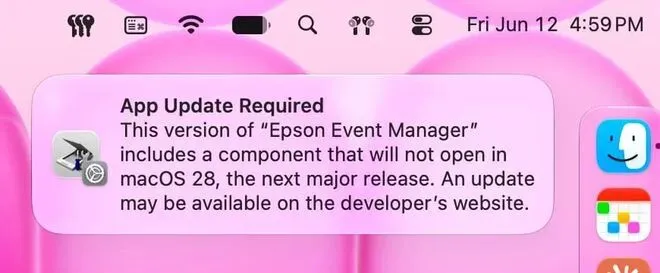
苹果将为 macOS Tahoe 提供安全更新直至 2028 年秋季,即该版本被 macOS 27 取代后的两年。这也是 macOS 系统惯常的支持周期——主版本发布后的第 一年包含功能和安全更新,接下来的两年则仅限于安全补丁,不再新增功能。
(苹果惯用的“蜜罐策略”,先给蜜后逐步收紧放自己的糖🍬)
Rosetta 2 功能将被限制
苹果计划逐步削减 Rosetta 2 的适用范围。
Rosetta 是苹果在 Intel 过渡到 Apple Silicon 期间推出的Intel 到 Arm 应用转换技术,能让基于 Intel 架构的应用在 Apple Silicon 设备上运行。
在 macOS 27 中,Rosetta 2 仍将作为通用的应用转换工具存在。但此后,它将仅限于运行某些特定类型的应用,主要是依赖 Intel 专属库、且开发者已停止维护的老旧游戏。
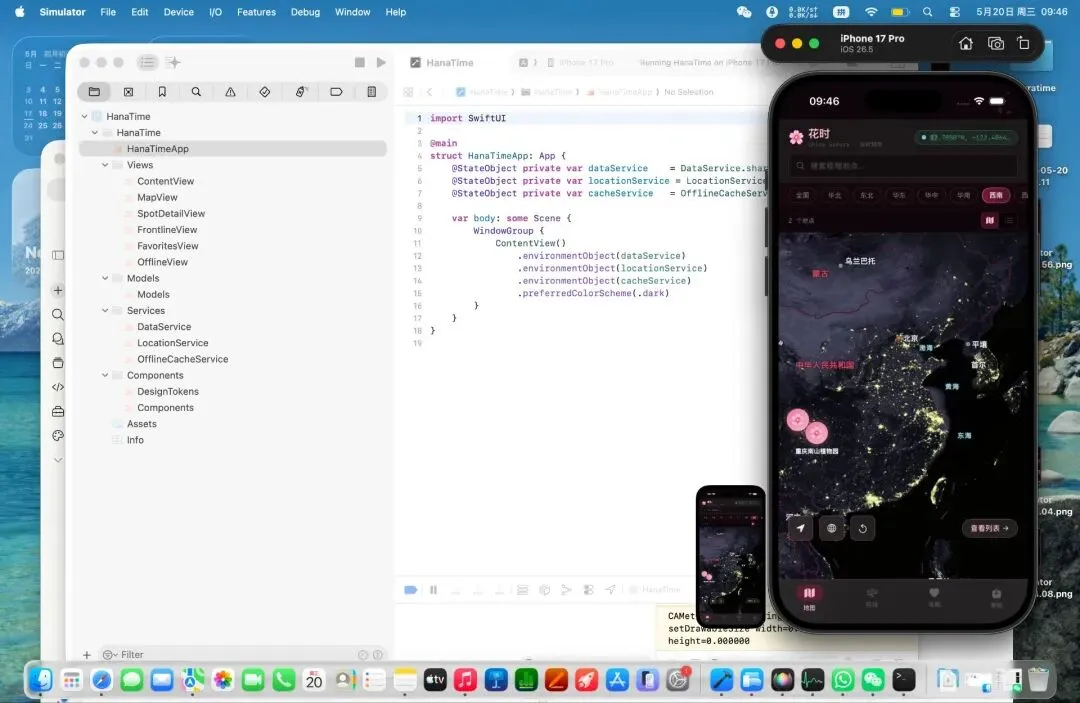
开发者希望他们的应用继续在后续版本的 macOS 上运行,就必须将应用迁移为 Apple Silicon 原生版本,或开发同时兼容两种架构的“通用应用”。
蜜罐策略
苹果早在 2000 年代中期从 PowerPC 转向 Intel 时,也曾采用类似策略。最初的 Rosetta 技术曾在 Mac OS X 10.4、10.5 和 10.6 中提供支持,但在 2011 年发布的 10.7 中被完全移除,距首款 Intel Mac 推出约五年。
虽然苹果停止对 Intel Mac 的支持是早晚的事,但某些机型的“被淘汰速度”比其他机型更快。尽管大部分 Intel Mac 在 2020 至 2021 年就被 Apple Silicon 机型替代,但苹果仍持续销售 2019 年的 Intel Mac Pro 和部分 2018 年的 Intel Mac mini 直至 2023 年。
这意味着,2023 年仍花高价购买 Mac Pro 的用户,最多也只获得 三个 macOS 主版本更新,以及五年安全更新;而 2018 年的 Mac mini 更惨,甚至无法升级到 macOS Tahoe——macOS 15 Sequoia 就是它的“终点”。
随着 macOS 向 Apple Silicon 全面转型,苹果显然在为打造更统一、更高效的生态系统做准备。这也标志着 Intel Mac 时代的彻底落幕。
运行以下指令强制安装Rosetta:
install
Starts the installation of Rosetta.
macOS 13.0+
class func installRosetta(completionHandler: @escaping @Sendable ((anyError)?) ->Void)
class func installRosetta() async throwsParameters
completionHandlerThe completion handler the framework invokes after the request finishes processing.
Discussion
The completion handler returns an error object that contains information about a problem, or nilif the installation completed successfully.
这一招,如今来到Mac OS 26版本,苹果逐步将剔除Rosetta 2 功能,过去依赖于蓝厂inter X86 架构的应用成为历史。谁知道会不会再来Rosetta 3呢?或者转译更加开源的RISC-V呢?(历史真是像个轮子)
macOS 27 新特性
在WWDC26中,新添加AI内置是亮点,另外还加入这些功能:

Foundation Models 框架
Foundation Models 框架是一套原生 Swift API,可让你直接访问驱动 Apple 智能的同款设备端模型。现在,你可以使用任何语言模型,包括 Apple Foundation Models、Claude 和 Gemini 等云端模型,或任何其他符合 Language Model 协议的供应商提供的模型。
多模态提示词让你能够同时传递图像和文本,使你的 App 可以对视觉内容进行推理;OCR 和条形码读取器等 Vision 框架工具也可供你的模型直接调用,全部在设备端完成。Dynamic Profiles 让你能够动态切换模型、工具和指令,使你的 App 行为可在连续会话中灵活调整。
如果你已加入 App Store Small Business Program,且你的 App 在 App Store 的首次下载总量少于 200 万次,你就可以免费访问在私有云计算上运行的下一代 Apple Foundation Models。借助全新 Evaluations 框架,你可以在各种动态条件下验证 AI 功能是否正常运行,弥补单元测试难以覆盖的场景。
App Intents 框架
游戏移植工具包 4 推出开源智能体编码技能,将 Metal 和 Apple 游戏开发的最佳做法统统融入移植流程的每一步,助你在 Apple 平台上更快地发布游戏。如果你的 App 涉及音频或媒体播放,则可利用 Music Understanding 框架,在设备端实现六个维度的音频分析。还可使用 NowPlaying 框架,将你 App 的媒体播放接入锁定屏幕、控制中心、灵动岛和 CarPlay 车载。此外,Core Image RAW 处理 API 推出第 9 版,可呈现更高的清晰度和更有质感的颜色,为你显著提升画质。
适用于 Safari 浏览器的 WebKit
适用于 Safari 浏览器 27 的 WebKit 带来 1000 多项浏览器引擎改进,以及全新的网页平台功能。Grid Lanes 和 Customizable Select 为布局和表格控制解锁更多可能,而 HTML
Spatial Preview 框架
Mac 虚拟显示器彻底改变了你的工作空间,让广阔、私密又便携的显示屏触手可及,方便你随时随地通过这一显示屏在 Mac 上大展身手。今年,全新的 macOS Spatial Preview 框架进一步增强了这项功能,让你能直接使用 Apple Vision Pro 预览 Mac 中的空间内容,还能通过同播共享与他人顺畅协作。
Spatial Preview 框架可将你的 Mac App 接入 visionOS 上的“快速查看”,这样你的用户就能在 Apple Vision Pro 上快速地预览并更新空间照片、Apple 沉浸视频,以及经过实时 USD 编辑的 3D 内容。你可以在 3D 场景周围自由移动、优化内容放置、调整光效和材质覆盖,并使用注释分享反馈——所有操作都在空间环境中完成。
Create virtual machines and run macOS and Linux-based operating systems
虚拟化框架提供高级API,用于在苹果芯片和基于英特尔的Mac电脑上创建和管理虚拟机(VM)。使用此框架在您定义的自定义环境中启动和运行 macOS 或基于 Linux 的操作系统。该框架支持虚拟I/O设备(VIRTIO)规范,该规范定义了许多设备类型的标准接口,包括网络、套接字、串行端口、存储、熵和内存气球设备。
要设置虚拟机,请配置
Running macOS in a virtual machine on Apple silicon
Overview
In macOS 13 and later on Mac computers with Apple silicon chips, the Virtualization framework supports apps using Intel binary translation in ARM Linux virtual machines (VMs). Until macOS 26, this capability was part of Rosetta, which allows apps built for Intel-based Mac computers to run seamlessly on Apple silicon. macOS 27 directly integrates support for Intel binary translation, without needing to install Rosetta. If your app has a minimum deployment target of macOS 27, continue with Create the Directory Share.
Test for Rosetta on macOS 26 and earlier
Before trying to install, run, or activate Rosetta, your app should check to ensure that the capability is available in the version of macOS running on the host computer. The availabilityclass method returns a value from the VZLinuxAvailabilityenumeration that describes whether the current host supports Rosetta or if the capability is already installed on the host Mac. The example below shows the process for checking for Rosetta availability:
import Virtualizationlet supportForIntelApps = VZLinuxRosettaDirectoryShare.availabilityswitch supportForIntelApps {case notSupported:// Alert the user the capability isn't available; offer// continuation options according to your app's requirements.case notInstalled:// Ask the user for permission to install Rosetta, and// start the installation process if they grant permission.case installed:break // Ready to go.}
Install Rosetta on macOS 26 and earlier
In macOS 26 and earlier, you need to install Rosetta to allow apps built for Intel-based Mac computers to run on Apple silicon. Installing Rosetta is a one-time process per computer that requires someone to grant permission for the system to install Rosetta. If someone has already installed Rosetta, the system activates it for use under the Virtualization framework; if Rosetta isn’t installed, the framework downloads the installer from the network and performs the installation. The installer interactively prompts a person for authorization, and your app needs to handle any of the possible error conditions that could occur during the authorization, download, and installation process. The example below shows how to start the installation:
do {try await VZLinuxRosettaDirectoryShare.installRosetta()// Success: The system installs Rosetta on the host system.} catch let error {switch error.code {case networkError:// A network error prevented the download from completing successfully.case outOfDiskSpace:// Not enough disk space on the system volume to complete the installation.case userCancelled:// The user cancelled the installation.case notSupported:// Rosetta isn't supported on the host Mac or macOS version.default:break // A non installer-related error occurred.}}
Create the Directory Share
With Intel binary translation support enabled, your app needs to configure an appropriate directory share in the Linux guest to enable translation capabilities. The shared directory must have a tag that uniquely identifies the share and that you validate using validateto ensure it conforms to the length and format for file system tags:
let tag = "EXAMPLE_TAG"let configuration = VZVirtualMachineConfiguration()do {try let validationError = VZVirtioFileSystemDeviceConfiguration.validateTag(tag)let rosettaDirectoryShare = tryVZLinuxRosettaDirectoryShare()let fileSystemDevice = VZVirtioFileSystemDeviceConfiguration(tag: tag)fileSystemDevice.share = rosettaDirectoryShareconfiguration.directorySharingDevices = [ fileSystemDevice ]} catch VZError.invalidVirtualMachineConfiguration {// Intel binary support is not present on this device.}
Mount the shared directory and register Rosetta
In order to use Intel binary translation in the Linux guest, a person must mount the Rosetta share in the guest VM and install Rosetta as the application the system uses to run x86_64 binaries using the following process:
Install the
update-binfmtscommand, if necessary. The command is part of the binfmt-support package in most Linux distributions; installation methods vary by distribution. Additionally, in order to run this command, someone must be able to use thesudocommand, which requires adding their username to the system’s/etc/sudoersfile.Create a directory as a mount point.
Mount the VirtioFS file system tag to the mount point. This is the file system tag the app uses to identify the share and must be the same as the tag someone specifies on the command line demonstrated here.
Check if the mounted directory has the Rosetta runtime. You should see
rosettain the mounted directory.Register the Rosetta runtime binary as the handler for x86_64 ELF format executable files using the
update-binfmtscommand. Themagicparameter describes the first 20 bytes of the ELF header for x86_64 binaries. The Linux kernel performs a bitwise logicalANDwith the first 20 bytes of a binary a user attempts to run with themaskvalue. If it matches themagicvalue, the kernel uses the registered handler as the interpreter for that binary. If the system can’t find a handler for the specified binary, it reports an error.
The example below lists the commands, with the exception of the update-binfmtscommand installation, required to enable Intel binary translation in the Linux guest:
When using Rosetta in macOS 13, set the preserveoption to no.
% mkdir /tmp/mountpoint% sudo mount -t virtiofs EXAMPLE_TAG /tmp/mountpoint% ls /tmp/mountpoint rosetta% sudo /usr/sbin/update-binfmts --install rosetta /tmp/mountpoint/rosetta \--magic "\x7fELF\x02\x01\x01\x00\x00\x00\x00\x00\x00\x00\x00\x00\x02\x00\x3e\x00" \--mask "\xff\xff\xff\xff\xff\xfe\xfe\x00\xff\xff\xff\xff\xff\xff\xff\xff\xfe\xff\xff\xff" \--credentials yes --preserve yes --fix-binary yes
Ensure Shared Libraries are Available for Dynamically Linked Apps
Rosetta can run statically linked x86_64 binaries without additional configuration. Binaries that are dynamically linked and that depend on shared libraries require the installation of the shared libraries, or library hierarchies, in the Linux guest in paths that are accessible to both the user account and to Rosetta.
Configure Rosetta’s ahead of time (AOT) caching options
In macOS 14 and later, Rosetta supports options that allow you control the ahead of time (AOT) cache characteristics; this can improve the performance of some X86 workloads.
There are two modes of operation for AOT caching: The first is communication using a Unix Domain Socket where the Virtualization framework shares a file that represents the socket between the Rosetta daemon and Rosetta runtime through a symlink or bind-mount. The second is communication through an abstract socket where the framework defines a shared name rather than a shared file.
You enable these options after you create the Rosetta directory share by setting one of the VZLinuxusing set. This example shows how to configure Rosetta’s caching options in a new virtual machine configuration using a UnixDomain Socket though a shared ,named file:
let configuration = VZVirtualMachineConfiguration()do {let rosettaDirectoryShare = tryVZLinuxRosettaDirectoryShare()try rosettaDirectoryShare.setCachingOptions(cachingOptions: .unixSocket("/valid/path/rosetta.sock"))let fileSystemDevice = VZVirtioFileSystemDeviceConfiguration(tag: "example-tag")fileSystemDevice.share = rosettaDirectoryShareconfiguration.directorySharingDevices = [ fileSystemDevice ]} catch VZError.invalidVirtualMachineConfiguration {// Rosetta for Linux is unavailable or failed to initialize Rosetta caching options.// If Rosetta for Linux is unavailable, clients may install the resources or proceed without them.// If Rosetta caching options failed to initialize, clients may gracefully fail or proceed without caching.}
The following example shows how to configure Rosetta’s caching options in a new virtual machine configuration using an abstract socket:
let configuration = VZVirtualMachineConfiguration()do {let rosettaDirectoryShare = tryVZLinuxRosettaDirectoryShare()try rosettaDirectoryShare.setCachingOptions(.abstractSocket("abstractSocketName"))let fileSystemDevice = VZVirtioFileSystemDeviceConfiguration(tag: "example-tag")fileSystemDevice.share = rosettaDirectoryShareconfiguration.directorySharingDevices = [ fileSystemDevice ]} catch VZError.invalidVirtualMachineConfiguration {// Rosetta for Linux is unavailable or failed to initialize Rosetta caching options.// If Rosetta for Linux is unavailable, clients may install the resources or proceed without them.// If Rosetta caching options failed to initialize, clients may gracefully fail or proceed without caching.}
The system defers app termination until the savemethod completes.