 夜雨聆风
夜雨聆风选择 LibreOffice,是在不花钱的前提下,获得了最接近商业软件效果的转换质量。
功能概述
使用 LibreOffice 命令行工具进行 Word 到 PDF 的转换,提供比传统 iText 更高的转换质量,特别是对中文和复杂表格的支持。
主要优势
🛠 转换质量
完美中文支持: 使用系统字体,无编码问题,无乱码 专业表格处理: 复杂表格结构正确渲染 格式保持: 最大程度保持 Word 原有格式 成熟稳定: 基于成熟的办公软件引擎
🛠 技术特点
命令行调用: 简单可靠的进程调用 跨平台支持: 支持 Windows、Linux、macOS 自动检测: 自动检测 LibreOffice 安装路径 错误处理: 完善的错误处理和日志输出
使用方法
1. 检查 LibreOffice 安装状态
import com.ts.doctor.util.PrescriptionPdfGenerator// 检查是否已安装 LibreOfficeval status = PrescriptionPdfGenerator.getLibreOfficeStatus()if (status["installed"] == true) { println("LibreOffice 已安装: ${status["path"]}") println("版本: ${status["version"]}")} else { println("请先安装 LibreOffice: ${status["message"]}")}2. 从 Word 文件转换为 PDF
// 基本用法val wordFile = "C:/path/to/file.docx"val pdfFile = "C:/path/to/output.pdf"val resultPath = PrescriptionPdfGenerator.convertWordFileToPdf(wordFile, pdfFile)println("PDF 生成成功: $resultPath")3. 从调试 Word 文件重新生成 PDF
// 从已有的 _debug.docx 重新生成 PDFval debugWordFile = "C:/data/doctor/files/prescription/20260527/RX20260526001_debug.docx"val newPdfFile = "C:/data/doctor/files/prescription/20260527/RX20260526001_libreoffice.pdf"PrescriptionPdfGenerator.convertWordFileToPdf(debugWordFile, newPdfFile)系统要求
Windows
# 从官网下载安装# https://www.libreoffice.org/download/download/Linux
# Ubuntu/Debiansudo apt-get install libreoffice# CentOS/RHELsudo yum install libreofficemacOS
# 使用 Homebrewbrew install --cask libreoffice测试验证
运行测试
json数据格式
{"hospitalName": "苏州市XXXX医院","prescriptionType": "普通处方","prescriptionNo": "RX20260526001","departmentName": "内科","prescriptionDate": "2026年5月26日","patientName": "张三","patientGender": "男","patientAge": "35岁","clinicalDiagnosis": "急性上呼吸道感染","contactPhone": "13800138000","drugList": [ {"sequenceNo": "1","drugName": "阿莫西林胶囊","specification": "0.5g×24粒","quantity": "1盒","dosageUsage": "口服,一次0.5g,一日3次","remark": "" }, {"sequenceNo": "2","drugName": "布洛芬分散片","specification": "0.5g×24粒","quantity": "1盒","dosageUsage": "口服,一次1袋,一日3次","remark": "" }, {"sequenceNo": "3","drugName": "蓝芩口服液","specification": "0.5g×24粒","quantity": "1盒","dosageUsage": "口服,一次1袋,一日3次","remark": "" } ],"doctorSignature": "李医生","auditPharmacist": "王药师","dispensingPharmacist": "赵药师","totalAmount": "¥32.50"}WORD模板
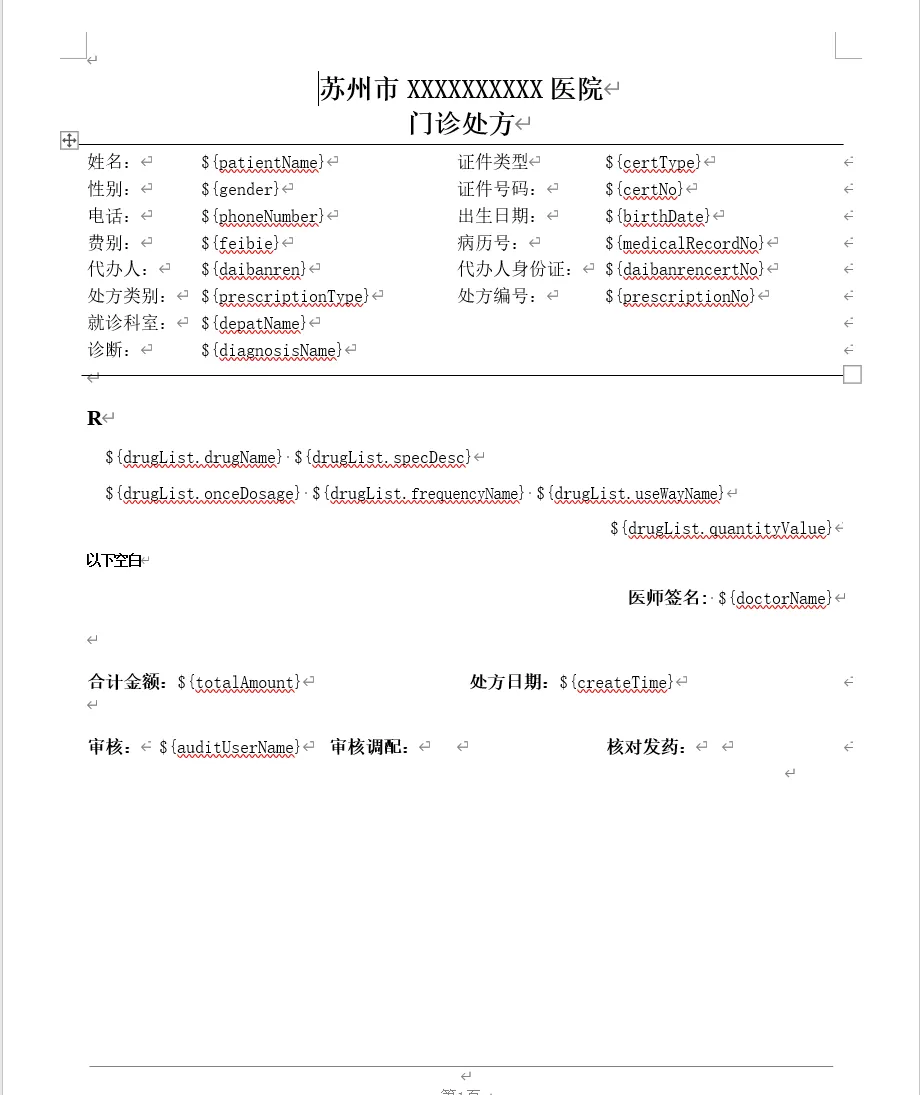
验证要点
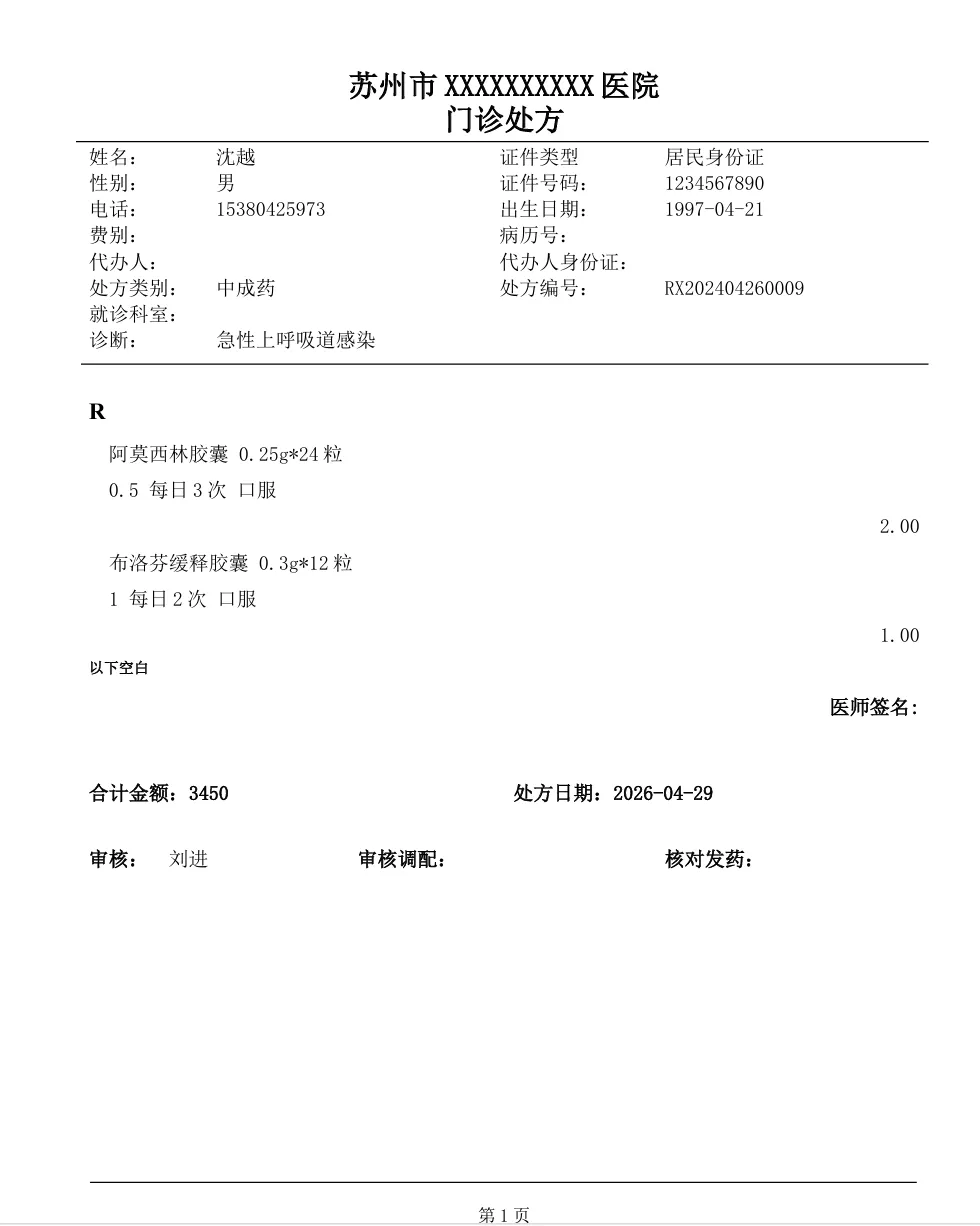
转换完成后,请验证以下要点:
✅ 数据完整性: 患者信息、药品列表等数据完整显示 ✅ 中文显示: 中文字符正常显示,无乱码或方框 ✅ 表格结构: 复杂表格和列表数据正确显示 ✅ 格式保持: PDF 格式接近 Word 原文
性能考虑
转换速度
LibreOffice 转换比纯代码库慢,但质量更高 首次转换较慢(启动 LibreOffice 进程) 适合重要文档的高质量转换
资源占用
每次转换会启动 LibreOffice 进程 建议使用异步处理避免阻塞主线程 不适合高频率的批量转换
API 说明
公共方法
convertWordFileToPdf(wordFilePath: String, pdfFilePath: String): String
直接从 Word 文件转换为 PDF 的公共方法。
/** * 使用 LibreOffice 命令行进行 PDF 转换 * @param wordFilePath Word 文件路径 * @param pdfFilePath 输出 PDF 文件路径 */ private fun convertWithLibreOffice(wordFilePath: String, pdfFilePath: String) { try { println("🔧 使用 LibreOffice 进行 PDF 转换...") // 检测 LibreOffice 安装路径 val libreOfficePaths = listOf("C:/Program Files/LibreOffice/program/soffice.exe","C:/Program Files (x86)/LibreOffice/program/soffice.exe","C:/Program Files/LibreOffice/program/soffice.com","/usr/bin/libreoffice","/usr/bin/soffice","/Applications/LibreOffice.app/Contents/MacOS/soffice" ) var libreOfficeExe: String? = nullfor (path in libreOfficePaths) {if (File(path).exists()) { libreOfficeExe = path println("✅ 找到 LibreOffice: $path")break } }if (libreOfficeExe == null) { throw BusinessException("未找到 LibreOffice 安装,请先安装 LibreOffice") } // 获取输出目录 val outputFile = File(pdfFilePath) val outputDir = outputFile.parentFile?.absolutePath ?: throw BusinessException("无法确定输出目录") // 构建 LibreOffice 命令 val command = mutableListOf( libreOfficeExe,"--headless","--convert-to", "pdf","--outdir", outputDir, wordFilePath ) println("🔄 执行转换命令:") println(" ${command.joinToString(" ")}") // 执行命令 val process = ProcessBuilder(command) .redirectErrorStream(true) .start() // 等待进程完成并获取输出 val output = process.inputStream.bufferedReader().use { it.readText() } val exitCode = process.waitFor()if (exitCode != 0) { println("⚠️ LibreOffice 转换警告 (退出码: $exitCode):") println(output) } // 检查输出文件 val generatedPdf = File(pdfFilePath)if (!generatedPdf.exists()) { // LibreOffice 可能生成的文件名不同,尝试查找 val wordFile = File(wordFilePath) val alternativeName = outputDir + "/" + wordFile.nameWithoutExtension + ".pdf" val alternativeFile = File(alternativeName)if (alternativeFile.exists()) { // 重命名为目标文件名 alternativeFile.renameTo(generatedPdf) println("✅ PDF 文件已生成并重命名") } else { throw BusinessException("LibreOffice 转换失败,未生成 PDF 文件") } } println("✅ LibreOffice 转换完成") println("📄 PDF 文件信息:") println(" - 路径: $pdfFilePath") println(" - 大小: ${generatedPdf.length()} bytes") } catch (e: Exception) { logger.error("LibreOffice PDF 转换失败: wordFilePath=$wordFilePath", e) throw BusinessException("LibreOffice PDF 转换失败: ${e.message}") } }参数:
wordFilePath: 源 Word 文件路径(.docx 格式)pdfFilePath: 目标 PDF 文件路径
返回:
生成的 PDF 文件完整路径
异常:
BusinessException: 文件不存在、转换失败等错误
getLibreOfficeStatus(): Map<String, Any>
获取 LibreOffice 安装状态信息。
返回:
installed: 是否已安装path: LibreOffice 可执行文件路径version: 版本信息message: 未安装时的提示信息
checkLibreOfficeInstalled(): String?
检查 LibreOffice 是否已安装。
返回:
LibreOffice 可执行文件路径,未安装返回 null
错误处理
常见错误及解决方案
错误: "未找到 LibreOffice 安装,请先安装 LibreOffice"解决: 从官网下载安装 LibreOffice
错误: "LibreOffice 转换失败,未生成 PDF 文件"解决: 检查文件路径、权限,查看详细错误信息
错误: "Word 文件不存在"解决: 确认 Word 文件路径正确
部署建议
生产环境部署
安装 LibreOffice: 服务器需要安装 LibreOffice 路径配置: 确认 LibreOffice 在标准安装路径 权限设置: 确保应用程序有调用 LibreOffice 的权限 异步处理: 建议使用异步处理避免阻塞 监控日志: 监控转换成功率和性能
配置优化
// 可以添加 LibreOffice 路径配置(需要扩展)object PrescriptionPdfGenerator {privatevar customLibreOfficePath: String? = null@JvmStaticfunsetLibreOfficePath(path: String) { customLibreOfficePath = path }}对比优势
LibreOffice vs iText/XDocReport
最佳实践
重要文档: 使用 LibreOffice 转换确保质量 批量处理: 分批处理,避免资源占用 错误重试: 实现重试机制处理临时失败 质量验证: 转换后验证 PDF 文件大小和内容 日志监控: 记录转换时间和成功率
后续优化
性能优化: 实现 LibreOffice 进程复用 异步处理: 添加异步转换 API 质量监控: 自动验证 PDF 转换质量 降级方案: 保留原 iText 方案作为备选
总结:LibreOffice 转换功能提供了高质量的 Word 到 PDF 转换解决方案,特别适合需要完美中文支持的场景。虽然转换速度较慢,但转换质量显著提升,是处理重要文档的理想选择。