 夜雨聆风
夜雨聆风点击蓝字

关注我们
备份当前文件
在手动删除BarTender之前,建议创建以下项目的备份:
BarTender 文档 (.btw)
BarTender 组件 (.btc)
命名数据库连接
BarTender系统数据库
集成构建器集成文件(.btin)
任何BarTender文档使用的其他文件或资源,例如图片文件、脚本库等
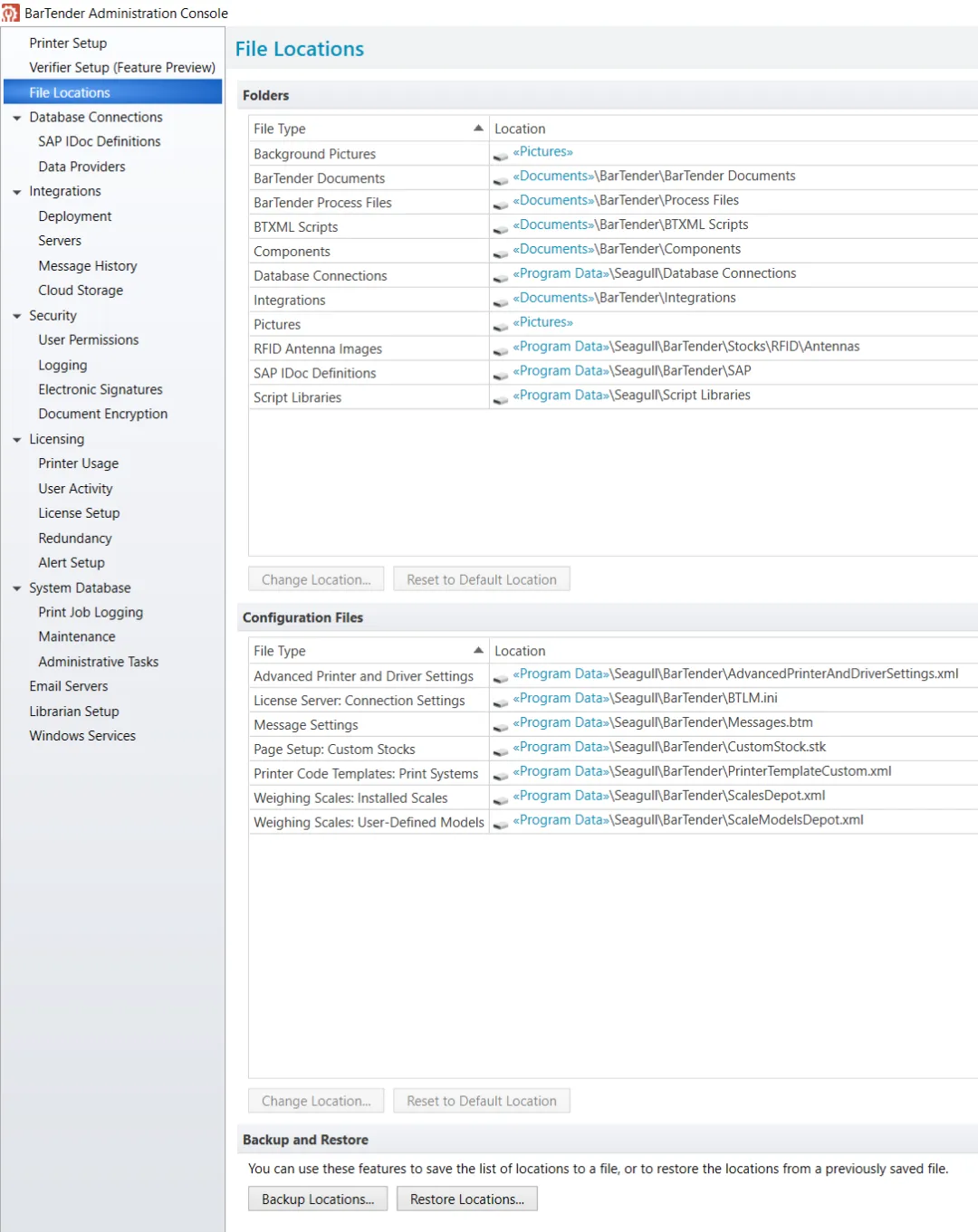
如果您不确定这些文件的存储位置,请打开管理控制台,然后在左侧选择文件位置标签页。
停止并移除服务
1
停止所有由BarTender安装的Windows服务。这可以通过以下命令行操作完成:
sc stop "BarTender Integration Service"
sc stop "BarTender Print Scheduler"
sc stop "Seagull License Service"
sc stop "BarTender Licensing Service"
sc stop Maestro
net stop "BarTender System Service"
注:停止这些服务时,可能会出现有关某些已停止服务的消息/错误。这是由于BarTender系统服务已经停止了依赖于它的服务。
2
当手动删除Seagull服务时,运行相关的Seagull services.exe卸载命令也同样重要。这需要以管理员身份打开Windows命令提示符,并运行以下命令:
cd "C:\Program Files\Seagull\[BarTender Suite]" ([BarTender Suite] 应替换为您的 BarTender 版本,例如 BarTender 2021).
Seagull.Notification.SystemTray.exe /unregister
DataBuilder.exe /unregister
Maestro.Service.exe /uninstall
Integration.Service.exe /uninstall
PrintScheduler.Service.exe /uninstall
Licensing.Service.exe /uninstall
BtSystem.Service.exe /uninstall
完成以上步骤后将实现:
从Windows控制面板卸载服务
清理并删除Microsoft消息队列
安装文件清理
1
所有服务移除后,重新启动系统
2
使用微软官方的程序安装和卸载故障排除工具来移除软件
你可以访问微软支持中心,搜索 “程序安装和卸载故障排除工具” 来获取该工具
3
手动删除以下文件夹:
C:\Program Files\Seagull(适用于BarTender 64位)
C:\Program Files (x86)\Seagull (适用于BarTender 32位)或您安装BarTender软件的其他文件夹
C:\ProgramData\Seagull
C:\ProgramData\Seagull Security
4
删除以下Windows注册表键:
HKEY_CURRENT_USER\Software\Seagull Scientific
HKEY_LOCAL_MACHINE\SOFTWARE\Seagull Scientific
HKEY_CURRENT_USER\SOFTWARE\Seagull Scientific
HKEY_CURRENT_USER\Software\WOW6432Node\Seagull Scientific(适用于32位安装)
HKEY_LOCAL_MACHINE\Software\WOW6432Node\Seagull Scientific(适用于32位安装)
最后,再重新启动一次系统
此时,您即可重新安装 BarTender 软件了


条码RFID视觉集成专家