 夜雨聆风
夜雨聆风adobe要钱,想要切割已有的pdf用在结合能查询的脚本上,所以顺便做了这个切割pdf的脚本。

用途 / Purpose
中文版这是一个基于 PyQt5 开发的 PDF 页面分割工具,主要功能是从 PDF 文件中提取指定页面,生成一个新的 PDF 文件。适用于需要从大型 PDF 文档中提取特定页面的场景,如:
从长篇报告中提取关键章节
从合同文件中抽取特定条款页面
从学术论文中分离出图表或摘要页
批量整理和归档 PDF 文档
English VersionThis is a PDF page splitting tool developed with PyQt5. Its main function is to extract specified pages from a PDF file and generate a new PDF file. It is suitable for scenarios where specific pages need to be extracted from large PDF documents, such as:
Extracting key chapters from lengthy reports
Extracting specific clause pages from contract documents
Separating charts or abstract pages from academic papers
Batch organizing and archiving PDF documents
完整使用说明 / Complete User Guide
一、系统要求 / System Requirements
二、安装步骤 / Installation Steps
中文版
确保已安装 Python 3.6+
安装所需依赖库:
bash
pip install PyQt5 PyPDF2 PyMuPDF
English Version
Ensure Python 3.6+ is installed
Install required dependencies:
bash
pip install PyQt5 PyPDF2 PyMuPDF
三、启动程序 / Launch the Program
中文版在终端或命令行中执行:
bash
python P2.pyEnglish VersionRun in terminal or command line:
bash
python P2.py四、界面功能说明 / Interface Features
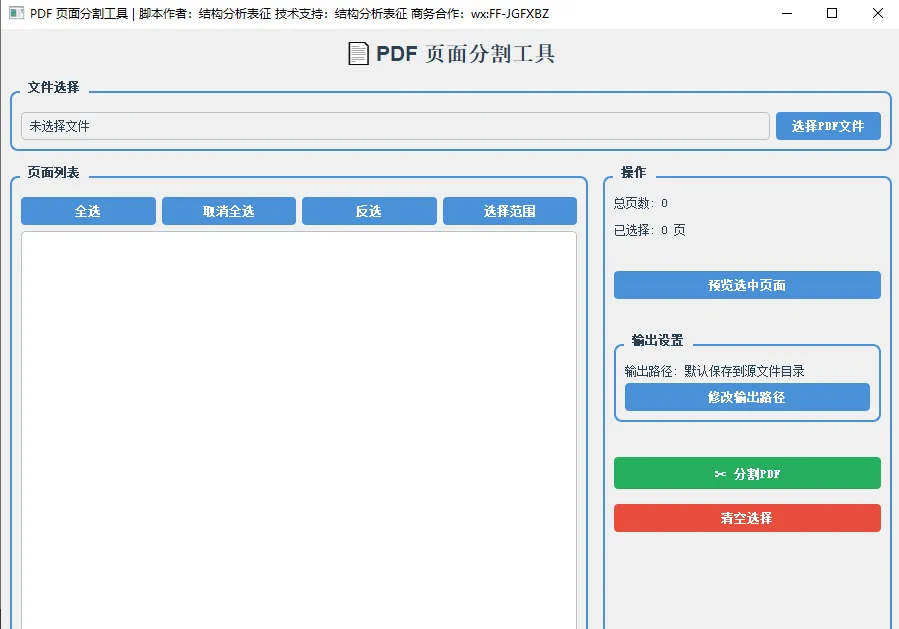
| 文件选择区域 | |
| 页面列表 | |
| 工具栏 | |
| 操作面板 | |
| 输出设置 | |
| 状态栏 |
五、操作步骤 / Step-by-Step Instructions
步骤 1:加载 PDF 文件 / Step 1: Load PDF File
中文版
点击 "选择PDF文件" 按钮
在弹出的文件对话框中选择目标 PDF 文件
文件加载后,页面列表会显示所有页码
English Version
Click the "选择PDF文件" (Select PDF File) button
Choose the target PDF file in the file dialog
After loading, all pages will be displayed in the page list
步骤 2:选择要保留的页面 / Step 2: Select Pages to Keep
中文版
单选:点击单个页面
多选:按住
Ctrl键点击多个页面范围选择:按住
Shift键点击起始和结束页面全选:点击"全选"按钮
取消全选:点击"取消全选"按钮
反选:点击"反选"按钮,反转当前选择状态
选择范围:点击"选择范围"按钮,输入起始和结束页码
English Version
Single selection: Click on a single page
Multiple selection: Hold
Ctrland click multiple pagesRange selection: Hold
Shiftand click start and end pagesSelect All: Click the "全选" (Select All) button
Deselect All: Click the "取消全选" (Deselect All) button
Invert Selection: Click the "反选" (Invert) button to reverse current selection
Range Selection: Click the "选择范围" (Select Range) button and enter start/end page numbers
步骤 3:预览选中页面 / Step 3: Preview Selected Pages
中文版点击 "预览选中页面" 按钮,会显示所选页面的编号列表,方便确认选择是否正确。
English VersionClick the "预览选中页面" (Preview Selected Pages) button to display the list of selected page numbers, making it easy to confirm your selection.
步骤 4:设置输出路径(可选)/ Step 4: Set Output Path (Optional)
中文版
默认情况下,分割后的文件会保存在源文件目录,文件名为
分割_原文件名.pdf点击 "修改输出路径" 按钮可以自定义保存位置和文件名
English Version
By default, the split file will be saved in the source file directory as
分割_原文件名.pdf(split_original_filename.pdf)Click the "修改输出路径" (Change Output Path) button to customize the save location and file name
步骤 5:执行分割 / Step 5: Execute Splitting
中文版
点击 "✂️ 分割PDF" 按钮
在弹出的确认对话框中确认操作
等待处理完成(进度条会显示处理进度)
完成后会弹出成功提示,新 PDF 文件已生成
English Version
Click the "✂️ 分割PDF" (Split PDF) button
Confirm the operation in the confirmation dialog
Wait for processing to complete (progress bar will show the progress)
A success message will appear when completed, and the new PDF file is generated
六、水印功能 / Watermark Feature
中文版程序界面右下角会显示一个水印图标:
悬停放大:鼠标悬停时水印会放大
点击显示版权信息:点击水印会弹出作者和版权信息窗口
窗口标题:包含版权声明信息
English VersionA watermark icon is displayed at the bottom-right corner of the interface:
Hover to zoom: The watermark enlarges when hovering the mouse
Click to show copyright: Clicking the watermark displays author and copyright information
Window title: Contains copyright notice information
七、快捷键 / Shortcut Keys
八、常见问题 / FAQ
Q1: 分割后文件无法打开?中文版:请确保源PDF文件没有损坏,且选择了正确的页面。可以尝试使用其他PDF阅读器打开。English: Make sure the source PDF file is not corrupted and you have selected the correct pages. Try opening with another PDF reader.
Q2: 页面选择后没有反应?中文版:请检查是否选择了至少一页,然后点击"分割PDF"按钮。English: Check that you have selected at least one page, then click the "Split PDF" button.
Q3: 水印图片不显示?中文版:确保 watermark.png 文件与程序在同一目录下,且图片格式正确。English: Make sure watermark.png is in the same directory as the program and the image format is correct.
Q4: 支持加密的PDF吗?中文版:当前版本不支持带密码保护的PDF文件。English: The current version does not support password-protected PDF files.
九、版权信息 / Copyright Information
脚本作者 / Author:结构分析表征 (Structural Analysis Characterization)技术支持 / Technical Support:结构分析表征 (Structural Analysis Characterization)商务合作 / Business Cooperation:wx:FF-JGFXBZ
十、注意事项 / Important Notes
中文版:请确保有足够的磁盘空间保存分割后的文件
中文版:处理大文件时请耐心等待,程序会显示进度
中文版:建议在处理重要文件前先备份原文件
English: Ensure sufficient disk space to save the split file
English: Please be patient when processing large files; the program will show progress
English: It is recommended to back up the original file before processing important documents