 夜雨聆风
夜雨聆风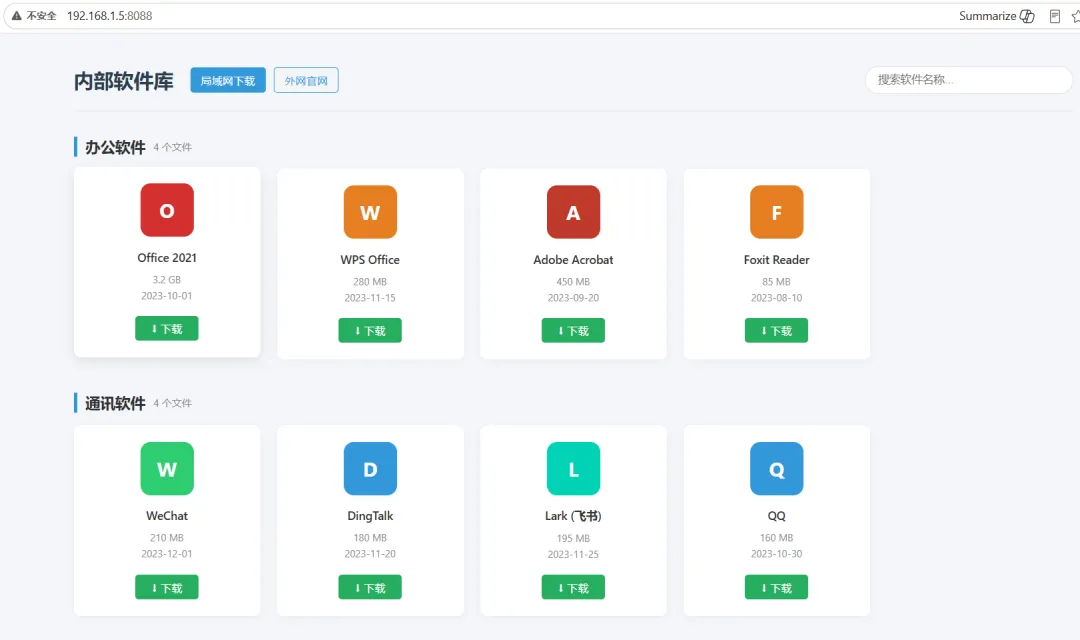
第一步:修改 Nginx 配置以允许软链接
打开你的 Nginx 站点配置文件(例如 /etc/nginx/sites-available/mywebsite),在 server 或 location / 块中添加或修改以下配置:我是准备建在software下所以我用以下命令
vi /etc/nginx/sites-available/software新建个software文件内容如下:
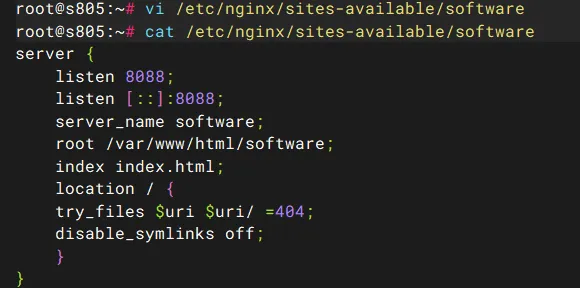
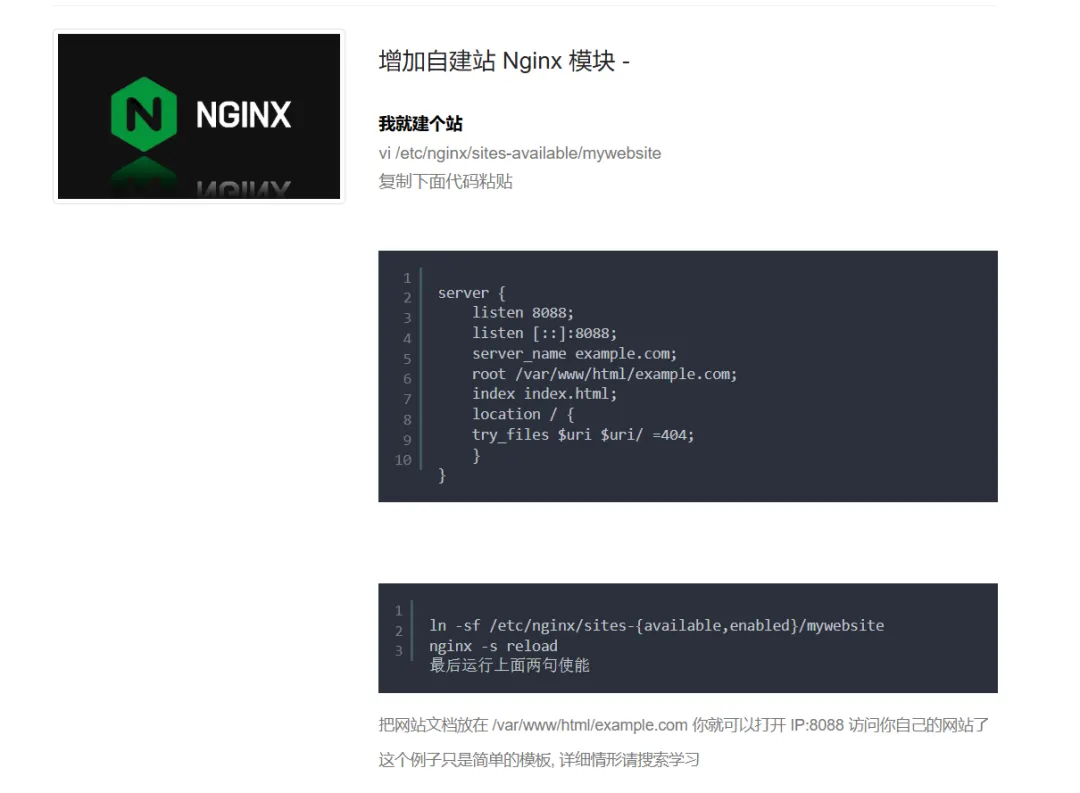
关于这部分使用说明里就有的,这里多加了一句disable_symlinks off;允许访问软连接,这样我放软件的文件夹就软连接到网站目录下
第二步:创建目标目录并建立软链接
假设你的 Web 根目录是 /var/www/html/software,请依次执行以下命令:
# 1. 确保 Web 目录存在(如果不存在则创建)sudo mkdir -p /var/www/html/software# 2. 创建指向安装包目录的软链接sudo ln -sf /mnt/sda1/usbfiles /var/www/html/software/soft# 3. 创建指向图标目录的软链接sudo ln -sf /mnt/sda1/usbfiles/icon /var/www/html/software/icon
第三步:检查并赋予权限(非常重要)
Nginx 进程通常以 www-data(Ubuntu/Debian)或 nginx(CentOS/RHEL)用户运行。如果 U 盘的挂载权限过于严格,Nginx 将无法读取文件。
# 检查 Nginx 是否能读取软链接指向的目录sudo -u www-data ls -l /var/www/html/software/soft
如果提示 Permission denied,你需要修改 U 盘的挂载参数。例如,重新挂载时加上读取权限:
sudo mount -o remount,ro,exec,uid=www-data,gid=www-data /mnt/sda1(注:具体的挂载参数取决于你的 U 盘文件系统类型,如 NTFS、exFAT 或 ext4)
vi /var/www/html/software/index.html把ai生成的代码粘贴进去(要达到想要的效果多请教ai)。
<!DOCTYPE html><htmllang="zh-CN"><head><metacharset="UTF-8"><metaname="viewport"content="width=device-width, initial-scale=1.0"><title>内部软件下载中心</title><style>:root {--primary-color: #2c3e50;--accent-color: #3498db;--bg-color: #f4f6f9;--card-bg: #ffffff;--text-main: #333;--text-sub: #888;}* { margin: 0; padding: 0; box-sizing: border-box; }body {font-family: 'Segoe UI', 'Microsoft YaHei', sans-serif;background-color: var(--bg-color);color: var(--text-main);padding: 20px;}.container {max-width: 1200px;margin: 0 auto;}/* 顶部导航/标题区 */header {margin-bottom: 30px;padding: 20px 0;border-bottom: 1px solid #e1e4e8;display: flex;justify-content: space-between;align-items: center;}h1 { font-size: 24px; color: var(--primary-color); }.search-box input {padding: 8px 15px;border-radius: 20px;border: 1px solid #ddd;width: 250px;outline: none;}/* 分类区块 */.category-section {margin-bottom: 40px;}.category-title {font-size: 18px;font-weight: 600;margin-bottom: 15px;padding-left: 10px;border-left: 4px solid var(--accent-color);display: flex;align-items: center;}.category-count {font-size: 12px;color: var(--text-sub);margin-left: 10px;font-weight: normal;}/* 网格布局 */.grid {display: grid;grid-template-columns: repeat(5, 1fr); /* 默认一行5个 */gap: 20px;}/* 响应式调整 */@media (max-width: 1024px) { .grid { grid-template-columns: repeat(4, 1fr); } }@media (max-width: 768px) { .grid { grid-template-columns: repeat(3, 1fr); } }@media (max-width: 480px) { .grid { grid-template-columns: repeat(2, 1fr); } }/* 软件卡片样式 (仿截图) */.card {background: var(--card-bg);border-radius: 8px;box-shadow: 0 2px 8px rgba(0,0,0,0.05);padding: 20px;text-align: center;transition: transform 0.2s, box-shadow 0.2s;display: flex;flex-direction: column;align-items: center;justify-content: space-between;height: 100%;}.card:hover {transform: translateY(-3px);box-shadow: 0 5px 15px rgba(0,0,0,0.1);}.icon-area {width: 64px;height: 64px;margin-bottom: 15px;display: flex;align-items: center;justify-content: center;}.icon-area img {max-width: 100%;max-height: 100%;object-fit: contain;}/* 默认占位图标 */.placeholder-icon {width: 100%;height: 100%;border-radius: 12px;display: flex;align-items: center;justify-content: center;color: white;font-size: 24px;font-weight: bold;}.info-area {flex-grow: 1;margin-bottom: 15px;}.app-name {font-size: 14px;font-weight: 600;color: var(--text-main);margin-bottom: 8px;word-break: break-all;display: -webkit-box;-webkit-line-clamp: 2;-webkit-box-orient: vertical;overflow: hidden;}.meta-info {font-size: 12px;color: var(--text-sub);line-height: 1.6;}.download-btn {display: inline-block;background-color: #27ae60; /* 截图中的深绿色按钮 */color: white;text-decoration: none;padding: 6px 20px;border-radius: 4px;font-size: 13px;transition: background 0.2s;}.download-btn:hover {background-color: #219150;}/* 底部维护说明 */.footer-note {margin-top: 50px;padding: 20px;background: #fff;border: 1px dashed #ccc;border-radius: 8px;color: #666;font-size: 13px;line-height: 1.8;}.footer-note code {background: #eee;padding: 2px 5px;border-radius: 3px;color: #c7254e;}</style></head><body><divclass="container"><header><h1>📦 内部软件库</h1><divclass="search-box"><inputtype="text"id="searchInput"placeholder="搜索软件名称..."></div></header><divid="contentArea"><!-- JS 将在这里动态生成内容 --></div><divclass="footer-note"><strong>🛠️ 维护说明:</strong><br>后期维护需将收集好的 exe 文件放入 <code>/var/www/software/soft/</code> 目录,文件名需与 data.js 中的配置完全一致。<br>图标文件(可选)放入 <code>/var/www/software/icon/</code>。注意安装包文件名统一英文命名,前端展示名使用中文。</div></div><script>// ============================================================// 1. 数据结构:按分类组织// ============================================================const softwareData = [{category: "办公软件",list: [{ name: "Office 2021", exePath: "./soft/OfficeSetup.exe", size: "3.2 GB", date: "2023-10-01", color: "#D32F2F", icon: "./icon/office.png" },{ name: "WPS Office", exePath: "./soft/WPS.exe", size: "280 MB", date: "2023-11-15", color: "#E67E22", icon: "" },{ name: "Adobe Acrobat", exePath: "./soft/Acrobat.exe", size: "450 MB", date: "2023-09-20", color: "#C0392B", icon: "" },{ name: "Foxit Reader", exePath: "./soft/Foxit.exe", size: "85 MB", date: "2023-08-10", color: "#E67E22", icon: "" }]},{category: "通讯软件",list: [{ name: "WeChat", exePath: "./soft/WeChat.exe", size: "210 MB", date: "2023-12-01", color: "#2ECC71", icon: "./icon/wechat.png" },{ name: "DingTalk", exePath: "./soft/DingTalk.exe", size: "180 MB", date: "2023-11-20", color: "#3498DB", icon: "" },{ name: "Lark (飞书)", exePath: "./soft/Lark.exe", size: "195 MB", date: "2023-11-25", color: "#00D2B4", icon: "" },{ name: "QQ", exePath: "./soft/QQ.exe", size: "160 MB", date: "2023-10-30", color: "#3498DB", icon: "" }]},{category: "社交媒体",list: [{ name: "微博", exePath: "./soft/Weibo.exe", size: "90 MB", date: "2023-05-10", color: "#E74C3C", icon: "" },{ name: "小红书", exePath: "./soft/XHS.exe", size: "110 MB", date: "2023-06-15", color: "#FF2442", icon: "" }]},{category: "网络浏览",list: [{ name: "Chrome", exePath: "./soft/ChromeSetup.exe", size: "11.1 MB", date: "2026-12-10", color: "#4285F4", icon: "./soft/icon/Chrome.png" },{ name: "谷歌浏览器插件omega", exePath: "./soft/zeroomega-3.5.0.crx", size: "1.59 MB", date: "2026-12-05", color: "#0078D7", icon: "./soft/icon/omega.png" },{ name: "Edge", exePath: "https://c2rsetup.officeapps.live.com/c2r/downloadEdge.aspx?platform=Default&source=EdgeStablePage&Channel=Stable&language=zh-cn&Consent=1&brand=M100", size: "1.61 MB", date: "2023-12-05", color: "#0078D7", icon: "./soft/icon/edge.png" },{ name: "Firefox", exePath: "./soft/Firefox%20Installer", size: "374 KB", date: "2026-07-02", color: "#FF9500", icon: "./soft/icon/Firefox.png" }]},{category: "实用工具",list: [{ name: "7-Zip", exePath: "./soft/7zip.exe", size: "1.5 MB", date: "2023-01-01", color: "#2196F3", icon: "" },{ name: "WinRAR", exePath: "./soft/WinRAR-7.20-Final-x64_leihuohanhua.exe", size: "3.83 MB", date: "2026-02-15", color: "#3F51B5", icon: "./soft/icon/winrar.png" },{ name: "PotPlayer", exePath: "./soft/PotPlayer.exe", size: "28 MB", date: "2023-09-01", color: "#333333", icon: "" },{ name: "Snipaste", exePath: "./soft/Snipaste.exe", size: "12 MB", date: "2023-08-20", color: "#F1C40F", icon: "" },{ name: "Everything", exePath: "https://www.voidtools.com/Everything-1.5.0.1418b.x64-Setup.exe", size: "2 MB", date: "2023-07-10", color: "#795548", icon: "./soft/icon/everything.png" }]},{category: "其他软件",list: [{ name: "Steam", exePath: "./soft/Steam.exe", size: "5 MB", date: "2023-10-10", color: "#171a21", icon: "" },{ name: "Spotify", exePath: "./soft/Spotify.exe", size: "80 MB", date: "2023-11-05", color: "#1DB954", icon: "" }]}];// ============================================================// 2. 渲染逻辑// ============================================================const contentArea = document.getElementById('contentArea');function createCardHTML(item) {// 处理图标逻辑let iconHtml = '';if (item.icon && item.icon.trim() !== '') {// 如果有图标路径,使用 img 标签,添加 onerror 防止破图iconHtml = `<img src="${item.icon}" alt="${item.name}" onerror="this.style.display='none';this.nextElementSibling.style.display='flex'">`;}// 生成首字母占位符背景const firstChar = item.name.charAt(0).toUpperCase();const placeholderHtml = `<div class="placeholder-icon" style="background: ${item.color || '#95a5a6'}; display: ${item.icon ? 'none' : 'flex'}">${firstChar}</div>`;return `<div class="card"><div class="icon-area">${iconHtml}${placeholderHtml}</div><div class="info-area"><div class="app-name" title="${item.name}">${item.name}</div><div class="meta-info"><div>${item.size}</div><div>${item.date}</div></div></div><a href="${item.exePath}" class="download-btn" download>⬇ 下载</a></div>`;}function renderAll(data) {contentArea.innerHTML = ''; // 清空当前内容if (data.length === 0) {contentArea.innerHTML = '<div style="text-align:center; padding:50px; color:#888;">未找到相关软件</div>';return;}data.forEach(cat => {if (cat.list.length === 0) return; // 跳过空分类const section = document.createElement('div');section.className = 'category-section';// 构建分类标题const titleHtml = `<div class="category-title">${cat.category}<span class="category-count">${cat.list.length} 个文件</span></div>`;// 构建网格容器const gridHtml = `<div class="grid">${cat.list.map(item => createCardHTML(item)).join('')}</div>`;section.innerHTML = titleHtml + gridHtml;contentArea.appendChild(section);});}// 初始化渲染renderAll(softwareData);// ============================================================// 3. 搜索功能 (跨分类搜索)// ============================================================document.getElementById('searchInput').addEventListener('input', function(e) {const keyword = e.target.value.toLowerCase().trim();if (keyword === '') {renderAll(softwareData);return;}// 过滤逻辑:保留包含关键词的分类,且分类内的列表也要过滤const filteredData = softwareData.map(cat => {const filteredList = cat.list.filter(item => item.name.toLowerCase().includes(keyword));return {category: cat.category,list: filteredList};}).filter(cat => cat.list.length > 0); // 移除没有匹配软件的分类renderAll(filteredData);});</script></body></html>
如何维护下载链接
主要维护下面双引号里面的信息就可以了:
{ name: "Everything", exePath: "https://www.voidtools.com/Everything-1.5.0.1418b.x64-Setup.exe", size: "2 MB", date: "2023-07-10", color: "#795548", icon: "./soft/icon/everything.png" }我的软件件都是放在u盘下/mnt/sda1/usbfiles/下面,图标都是放在/mnt/sda1/usbfiles/icon下面,所以上面用到了软连接,
第四步:测试并重载 Nginx
完成上述操作后,测试配置并重载服务:
# 检查语法是否正确sudo nginx -t# 重载配置使其生效sudo systemctl reload nginx
浏览器输入ip:端口,我的是http://192.168.1.5:8088可以浏览了。

