 夜雨聆风
夜雨聆风平时在软件使用中,我们经常遇到打开软件有个提示框或升级框。只有用户点击后才能使用软件功能。今天我们也学习编写这样的一个功能。
作为VC++编程入门新手,还是习惯用VC6.0作为开发平台。其他版本安装麻烦,安装动不动就是几个G的空间。哪有VC6.0方便还有绿色版本下载就用了。
新建一个名为it0365_Notice的MFCE程序,确定。
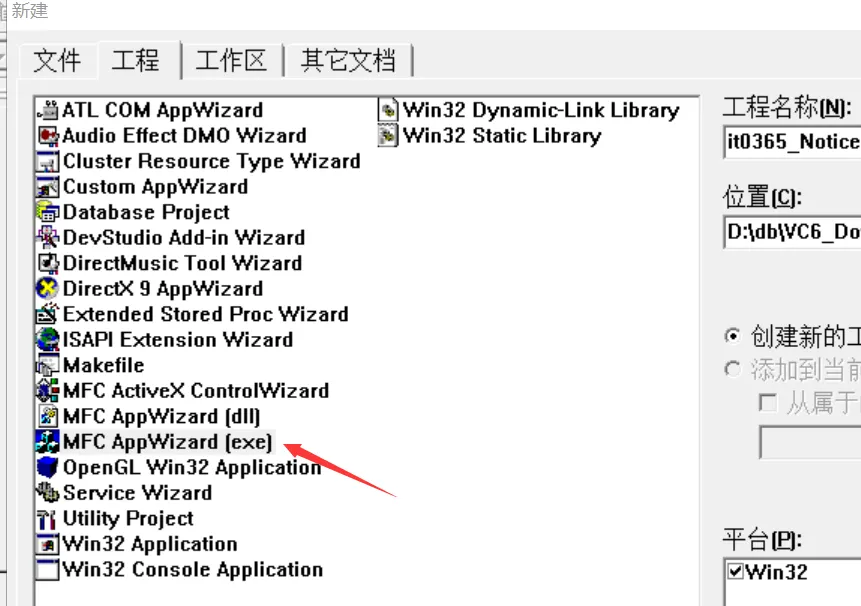
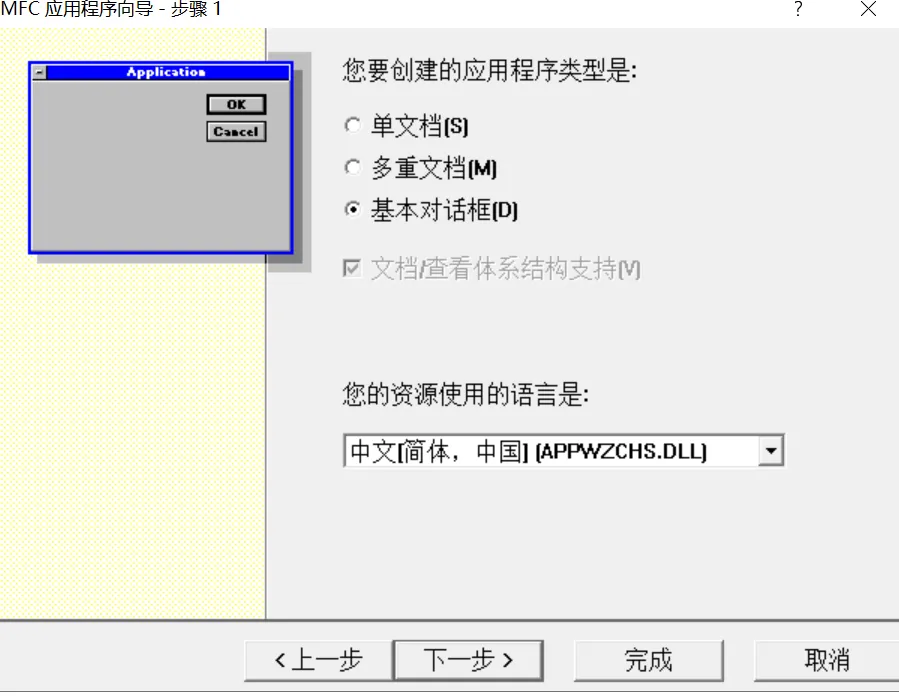
选择基本对话框,完成。
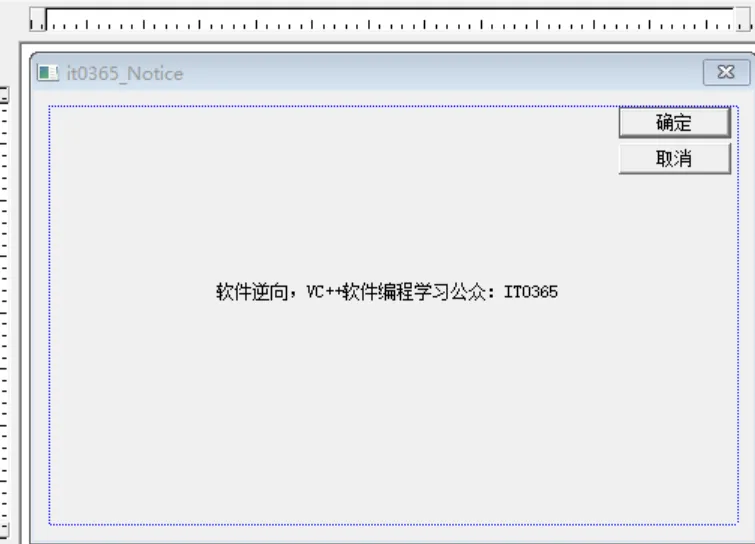
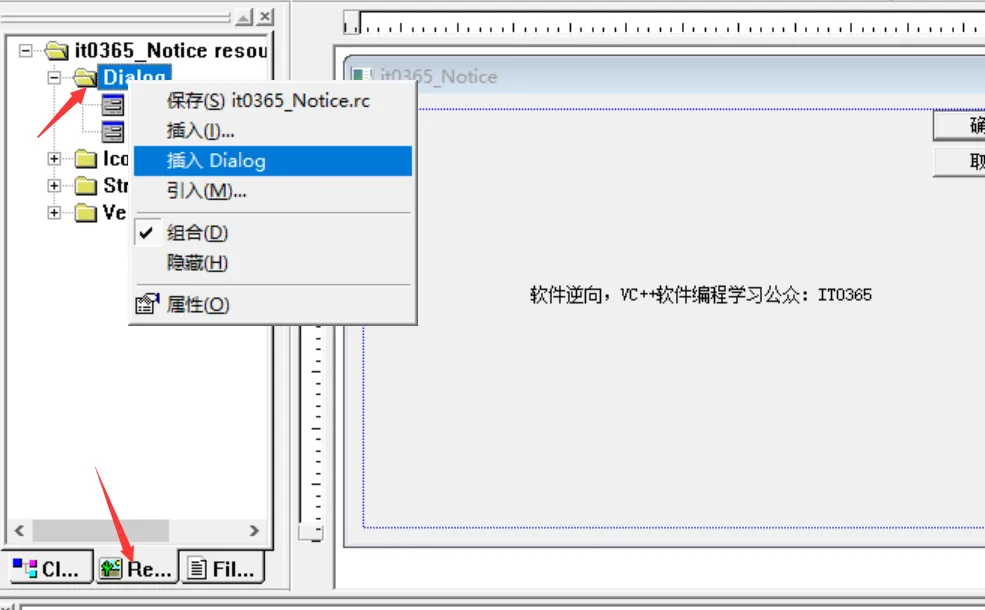
主窗口创建完成后。我们在创建一个新的窗口。资源对话框中,选择Dialog右键 插入Dialog
创建好新的对话框后,在给对话框创建新的类。双击对话框创建
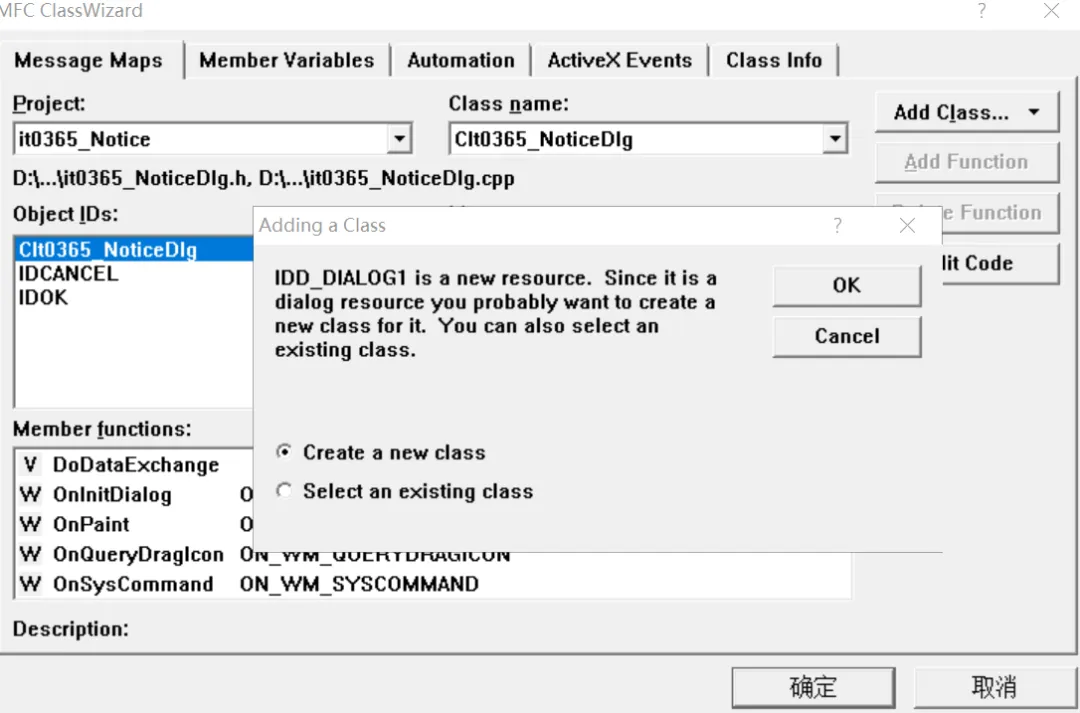
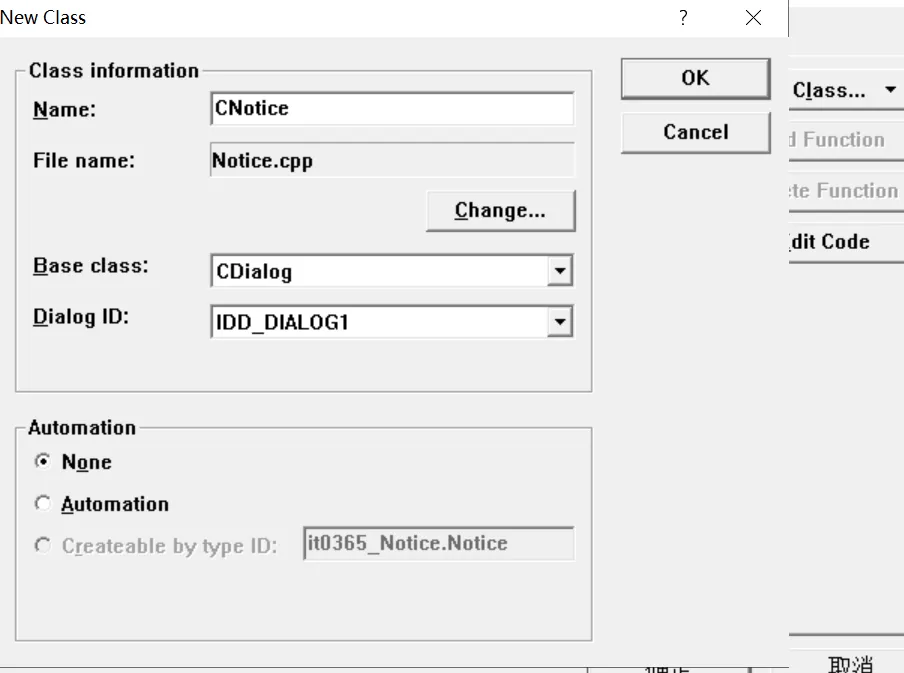
建立一个CNotice的类。创建完毕后,编译下。
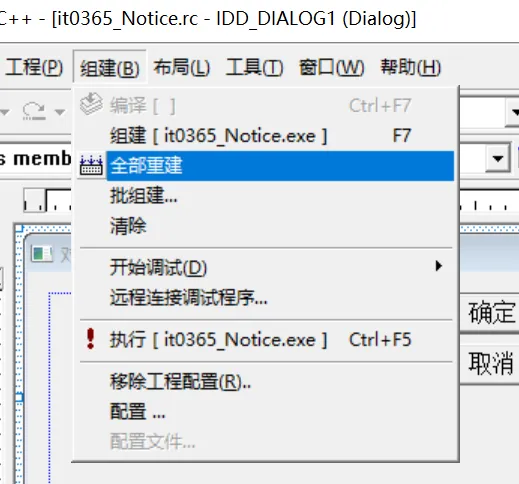
编译完,运行程序直接启动的是我们的主程序。
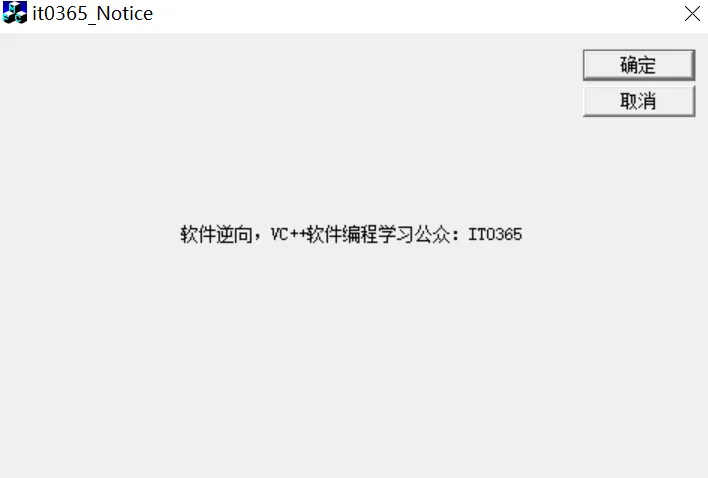
我们希望的是启动就出现提示框,用户同意后进入主程序界面。
在类窗口中选择主窗口的类名双击
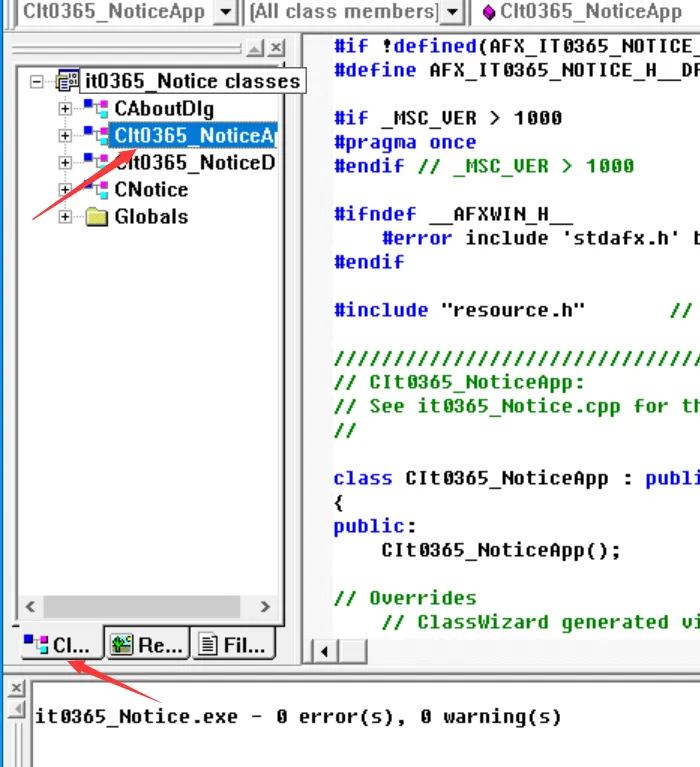
在头文件中添加我们的提示框头文件和声明
#include"Notice.h"classCIt0365_NoticeApp : publicCWinApp{public:CIt0365_NoticeApp();CNotice ndlg;
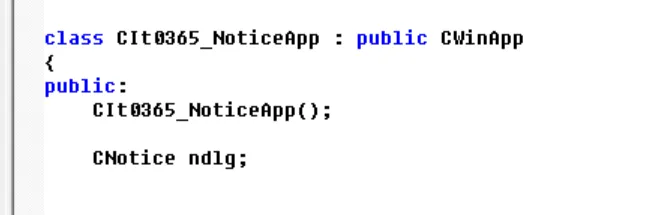
添加好后,进入到主程序的
BOOL CIt0365_NoticeApp::InitInstance(){AfxEnableControlContainer();// Standard initialization// If you are not using these features and wish to reduce the size// of your final executable, you should remove from the following// the specific initialization routines you do not need.#ifdef _AFXDLLEnable3dControls(); // Call this when using MFC in a shared DLL#elseEnable3dControlsStatic(); // Call this when linking to MFC statically#endifCIt0365_NoticeDlg dlg;m_pMainWnd = &dlg;int nResponse = dlg.DoModal();if (nResponse == IDOK){// TODO: Place code here to handle when the dialog is// dismissed with OK}else if (nResponse == IDCANCEL){// TODO: Place code here to handle when the dialog is// dismissed with Cancel}// Since the dialog has been closed, return FALSE so that we exit the// application, rather than start the application's message pump.return FALSE;}
在初始化函数中,进行稍微修改。把我们的提示框界面显示,用户点击OK控件后显示出主程序。
int nResponse = ndlg.DoModal();if (nResponse == IDOK){CIt0365_NoticeDlg dlg;m_pMainWnd = &dlg;dlg.DoModal();}else if (nResponse == IDCANCEL){// TODO: Place code here to handle when the dialog is// dismissed with Cancel}
通过上面这样修改,程序就优先启动提示框。
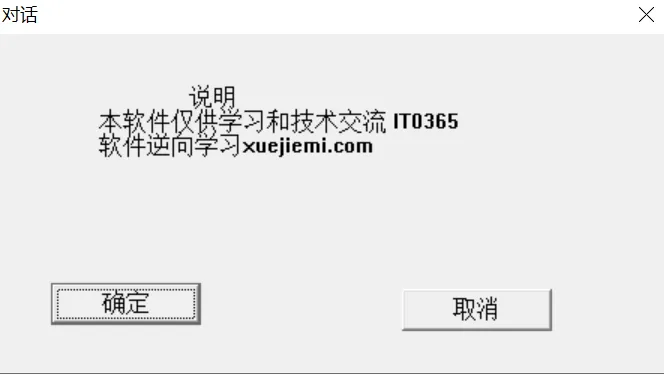
为了更友好,我们给提示框加个倒计时,并给字体设置成红色。
添加一个计时器
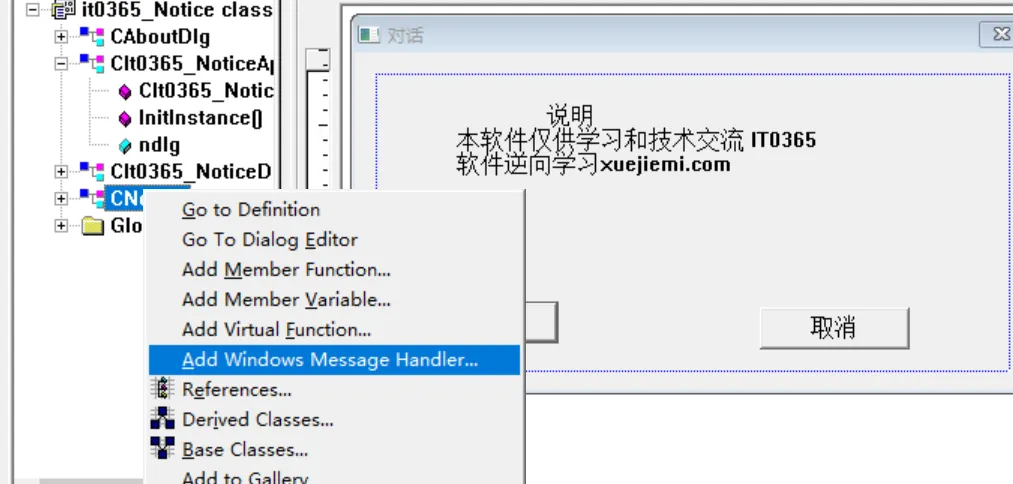
找到TIMER的消息添加
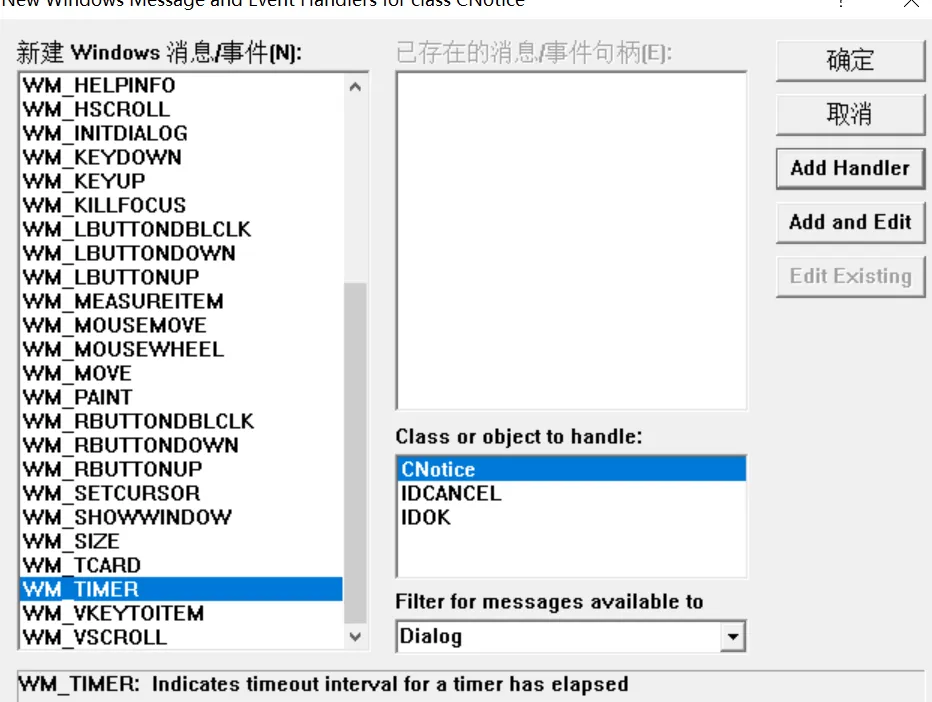
int icon=5;CString str;void CNotice::OnTimer(UINT nIDEvent){// TODO: Add your message handler code here and/or call defaultif(icon<0){GetDlgItem(IDOK)->SetWindowText("同意");(CButton*)GetDlgItem(IDOK)->EnableWindow();KillTimer(100);}else{(CButton*)GetDlgItem(IDOK)->EnableWindow(FALSE);str.Format("同意(%d)",icon);GetDlgItem(IDOK)->SetWindowText(str);}icon--;CDialog::OnTimer(nIDEvent);}
启动计时器,在给窗口添加一个初始化消息函数,上面的方法找到INITDIALOG消息双击添加。
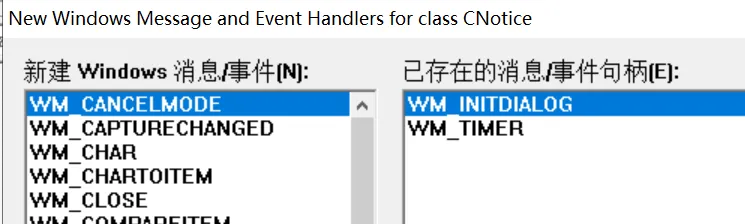
设置计时器,一秒执行一次
BOOL CNotice::OnInitDialog(){CDialog::OnInitDialog();SetTimer(100,1000,NULL);return TRUE; // return TRUE unless you set the focus to a control// EXCEPTION: OCX Property Pages should return FALSE}
把程序的同意按钮设置成禁用。等待5秒结束后可正常点击
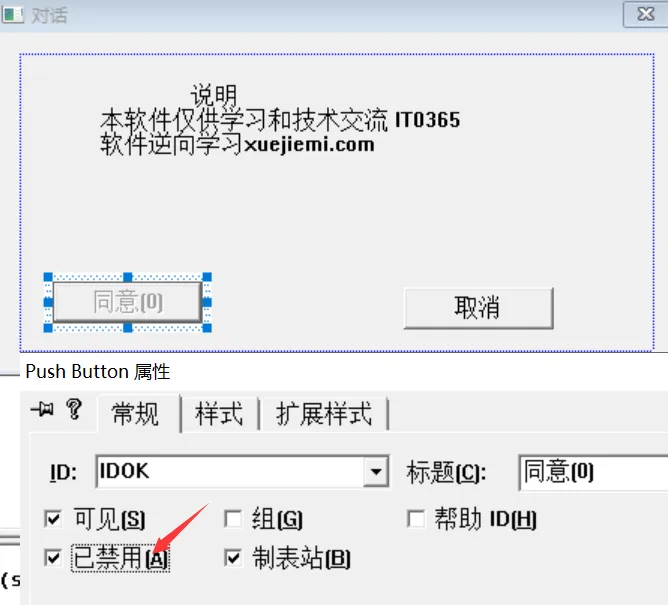
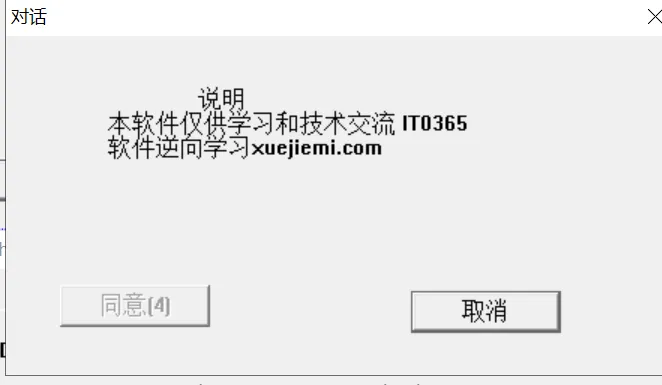
给文件加上颜色。
添加CTLCOLOR消息
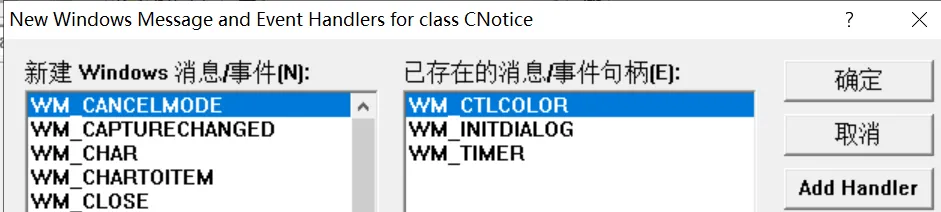
消息函数添加代码
HBRUSH CNotice::OnCtlColor(CDC* pDC, CWnd* pWnd, UINT nCtlColor){HBRUSH hbr = CDialog::OnCtlColor(pDC, pWnd, nCtlColor);if(pWnd->GetDlgCtrlID()==IDC_STATI)//如果是静态编辑框{pDC->SetTextColor(RGB(255,0,0));//修改字体的颜色pDC->SetBkMode(TRANSPARENT);//把字体的背景变成透明的}return hbr;}
给字体设置成红色。
最终效果
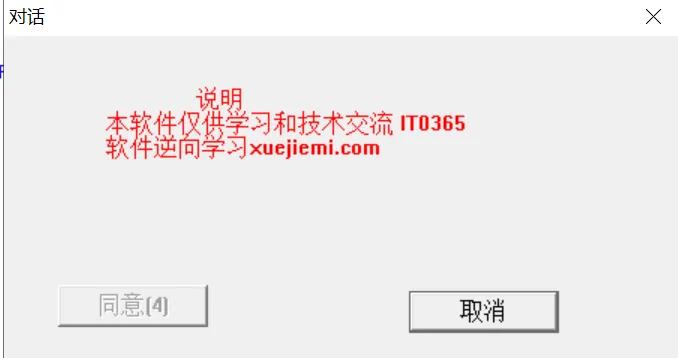
这样简简单单的实现了软件的弹窗功能。