 夜雨聆风
夜雨聆风


跟着做,一步步搭建您的第一个 AI助手
⏱️ 只需喝一杯咖啡的时间,你就能拥有一个真正能干活的 AI Agent
想象一下:
喝杯咖啡的时间,你的电脑里就多了一个 24 小时在线的”数字员工”——帮你在飞书/钉钉/微信等/软件上回复客户,自动整理数据、监控竞品动态,甚至半夜发现异常第一时间喊你起床。
它就在你电脑上运行,文件不离手的小龙🦞:
-
• 📁 你电脑里的文件,不用上传到任何地方,Agent 直接读取处理 -
• ⏰ 配置一次,日历/任务/提醒全自动运行 -
• 📱 手机、电脑、iPad 同时在线,随时唤醒你的 Agent
这不是科幻,是 OpenClaw 正在做的事。
今天,手把手教你从零搭起你的第一个 Agent。30分钟搞定基础配置,立即上手用起来。
第一步:检查电脑有没有 Node.js
按快捷键 Ctrl + 空格(macOS)或 Win + R(Windows),输入 “终端” 并回车,打开终端后输入:
node --version如果显示版本号(如 v22.14.0),说明已有 Node.js ✅
如果提示”没找到命令”,需要先安装 Node.js:
-
• macOS/Linux:官网 https://nodejs.org 下载 LTS 版本 -
• Windows:推荐使用 WSL2(见文末”Windows 用户注意事项”)
第二步:一行命令安装
在终端里输入这一行命令,回车:
npm install -g openclaw@latest等待安装完成(通常 1-2 分钟),看到类似 added xxx packages 即成功 ✅
第三步:验证安装成功
openclaw --version看到版本号即安装成功 ✅
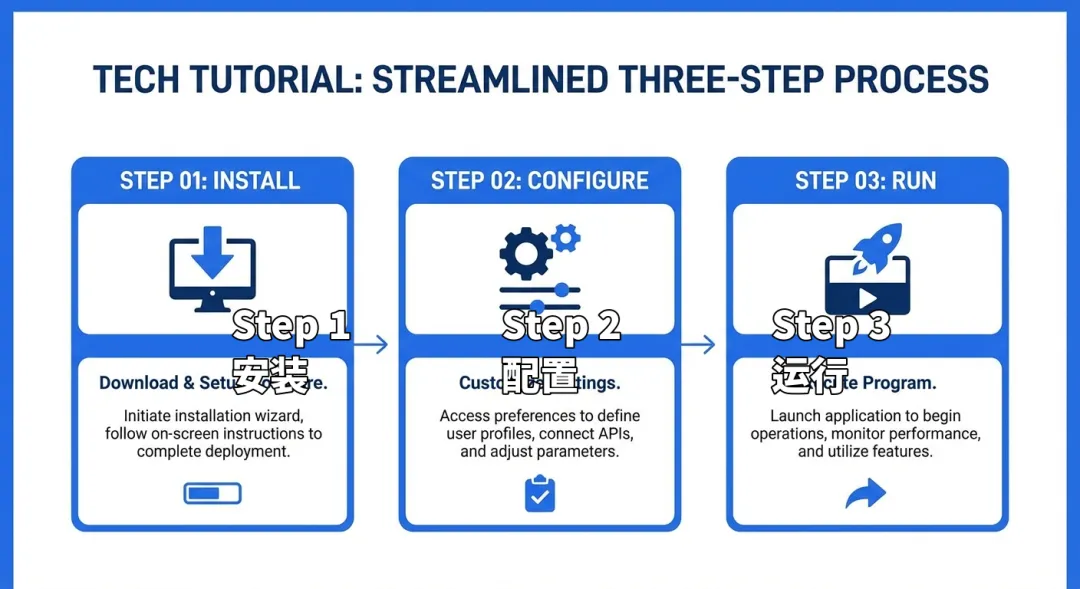
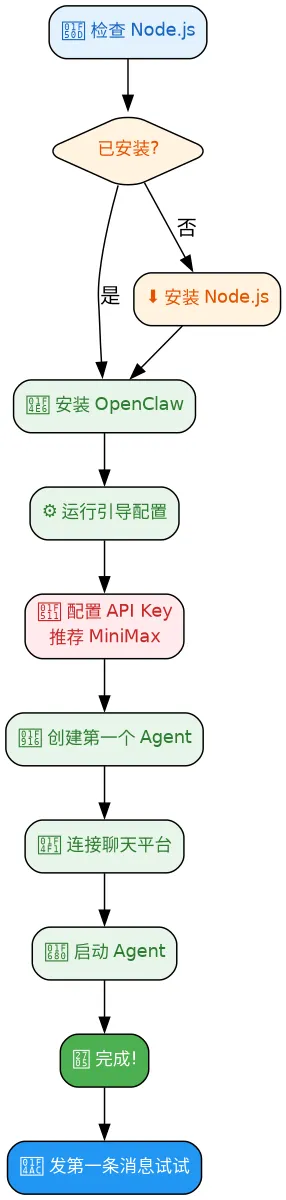
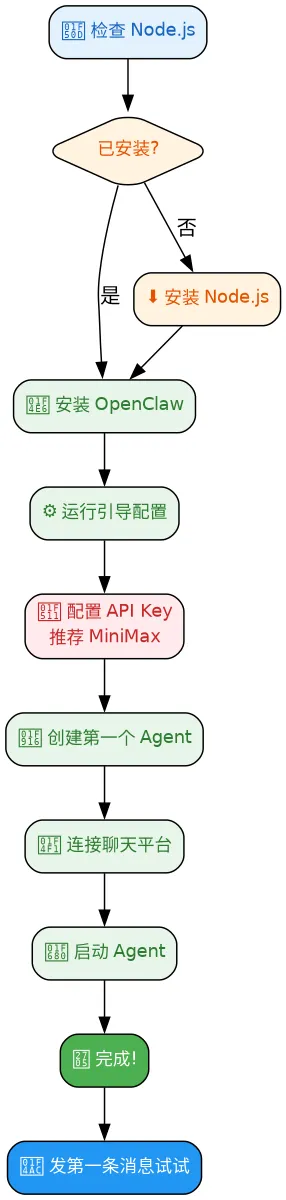
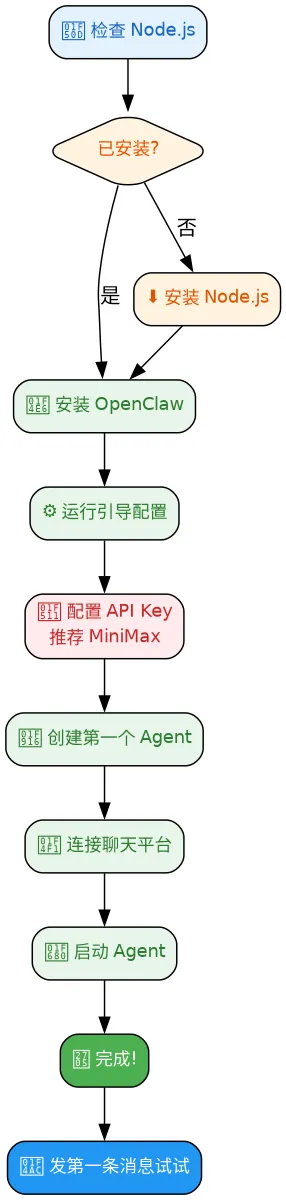
配置引导:7步搞定基础配置
第四步:运行引导配置
openclaw onboard --install-daemon这会启动一个交互式向导,你会在终端看到类似以下的界面:
╔════════════════════════════════════════════════════════════════╗║ OpenClaw Onboarding ║║ Welcome to OpenClaw! 🚀 ║╚════════════════════════════════════════════════════════════════╝Follow the prompts below to configure your OpenClaw Gateway.Press [ENTER] to accept the default value shown in [brackets].Press [↑/↓] to navigate, [SPACE] to select.Press [Q] to quit at any time.? Choose a setup mode › ❯ QuickStart (recommended) Advanced引导流程包含以下 7 个步骤:
|
|
|
|
|---|---|---|
|
|
模式选择 |
|
|
|
模型/认证 |
|
|
|
工作区 |
~/.openclaw/workspace) |
|
|
Gateway |
|
|
|
频道 |
|
|
|
守护进程 |
|
|
|
Skills |
|
第五步:选择 AI 模型(重要!)
⚠️ 这里推荐使用 MiniMax,价格便宜,支持图文音视频!
向导会让你选择 AI 模型提供商,以下是推荐:
💡 新手建议选包月套餐,先买一个月,不爽再换,推荐 MiniMax,避免踩坑:
按量计费虽然灵活,但没注意的话一个月下来账单可能让你肉疼
包月套餐用量更可控,5小时用完就会重置,新手阶段配置不熟练,固定预算更安心
体验好了再切换按量付费,先用起来最重要
当然,MiniMax 本身性价比已经很高——支持图片、视频、音乐生成,一站式搞定,后续有更多需求再加购也行。
终端界面示例:
? Select a model provider › ❯ MiniMax Anthropic (Claude) OpenAI (GPT-4) Google (Gemini) Groq Ollama Custom (Manually enter API URL)如何获取 MiniMax API Key:
-
1. 打开 https://platform.minimaxi.com/ 注册账号 -
2. 进入控制台 → 创建 API Key -
3. 把 Key 复制粘贴到向导中
输入 API Key 时:
? Enter your API key (hidden) ›✔ API key set successfully!第六步:选择要安装的 Skills
? Select skills to install (recommended) › ❯ [✓] @openclaw/skill-brave-search (Web search) [✓] @openclaw/skill-filesystem (File operations) [✓] @openclaw/skill-code-exec (Run code snippets) [ ] @openclaw/skill-image (Image generation) [ ] @openclaw/skill-git (Git operations)直接回车选择推荐的 3 个即可,后续可以再添加。
第七步:完成引导
✅ Installation complete!Next steps: 1. Run 'openclaw start' to start the Gateway 2. Run 'openclaw tui' to open the terminal UI 3. Configure chat channels with 'openclaw configure'Your config is stored at: ~/.openclaw/openclaw.json看到 Installation complete! 即引导完成 ✅
启动 Agent:让它跑起来
第八步:检查运行状态
# 方式1:终端 UI(推荐!)openclaw tui这会打开一个漂亮的终端界面,显示 Agent 运行状态。
# 方式2:查看 Gateway 状态openclaw gateway status# 方式3:检查所有问题openclaw doctor第九步:找到 Gateway Token(如果你需要远程访问)
有时候你需要远程访问 Agent 的控制面板,需要用到 Token。
Token 在配置文件中:
cat ~/.openclaw/openclaw.json | grep token找到 "token": "..." 那一行,复制 Token 值。
如何用浏览器访问?
-
1. 浏览器打开: http://localhost:18789 -
2. 如果是远程访问: http://你的服务器IP:18789 -
3. 输入 Token 登录
或者直接打开控制面板(自动用 Token):
openclaw dashboard这会自动打开浏览器并用你的 Token 登录。
第十步:连接聊天平台
先看哪个平台适合你:
推荐:飞书(更适合中国用户,功能更强)
飞书有哪些应用?
|
|
|
|---|---|
|
|
|
|
|
|
|
|
|
|
|
|
|
|
|
|
|
|
快速创建飞书机器人(推荐!):
用这个链接一键创建,权限都帮你配置好了:
👉 https://open.feishu.cn/page/openclaw?form=multiAgent
-
1. 点击链接 → 创建应用 -
2. 获取 App ID和App Secret -
3. 在 OpenClaw 配置:
openclaw configure选择 “Channels” → “Feishu”,按提示填入 App ID 和 App Secret。
如果你选微信:
微信接入较复杂,建议先接飞书跑通,再研究微信。
第十一步:启动 Agent
openclaw start看到类似 Gateway running at http://localhost:18789 即启动成功 ✅
验证:确认 Agent 能正常工作
第十二步:发送第一条消息
打开飞书/微信,找到你的 Bot,发送:
你好如果 Bot 回复了你,说明 Agent 已经跑起来了!🎉
验证命令清单
# 检查 Agent 状态openclaw agents list# 检查渠道连接状态openclaw channels status# 打开终端 UIopenclaw tui# 查看日志(出问题时用)openclaw logs --follow避坑清单:常见问题与解决方案
❌ 错误1:openclaw 命令找不到
表现: 终端提示 command not found: openclaw
解决方法:
# 检查 Node 和全局包路径node -vnpm prefix -g# 如果路径不在 PATH 中,添加到 ~/.zshrcexport PATH="$(npm prefix -g)/bin:$PATH"source ~/.zshrc❌ 错误2:sharp 构建错误
表现: 安装时报错 sharp 相关错误
解决方法:
SHARP_IGNORE_GLOBAL_LIBVIPS=1 npm install -g openclaw@latest❌ 错误3:Gateway 启动失败
表现:EADDRINUSE 或 another gateway instance is already listening
诊断命令:
openclaw statusopenclaw gateway statusopenclaw logs --followopenclaw doctor解决方法:
# 端口冲突,杀掉占用进程lsof -i :18789kill -9 <PID># 或者更改端口openclaw config set gateway.port 18790❌ 错误4:Bot 有回复但不是你的消息
表现: 频道连接正常,但发消息没反应
原因排查:
openclaw pairing list --channel <channel>|
|
|
|
|---|---|---|
|
|
|
|
|
|
|
@机器人 你好 |
|
|
|
|
❌ 错误5:API Key 配置错误
表现: Bot 回复”我好像出了点问题”或 AuthenticationError
解决方法:
# 检查配置文件中的 API Keycat ~/.openclaw/openclaw.json | grep -A2 "auth"# 重新配置openclaw configure❌ 错误6:Node 版本太旧
表现: 安装时报错 node:zlib: invalid
解决方法:
# 更新 Node.jsnpm install -g nn latest❌ 错误7:飞书 Bot 没开启消息权限
解决方法:
-
1. 打开 https://open.feishu.cn/app 找到你的应用 -
2. → 权限管理 → 搜索”发消息” → 开通 -
3. → 事件订阅 → 开启”接收消息”
进阶调试命令
# 检查所有问题openclaw doctor# 查看 Gateway 状态openclaw gateway status# 查看日志openclaw logs --follow# 检查频道连接openclaw channels status# 测试频道连通性openclaw channels status --probe# 重启 Gatewayopenclaw gateway restart你现在的 Agent 能做什么?
你的 Agent 已经连接到 AI 大脑,可以通过聊天控制了:
|
|
|
|---|---|
|
|
|
|
|
|
|
|
|
|
|
|
|
|
|
|
|
|
🚀 下期预告:你的 Agent 能做什么?
第一个 Agent 跑起来了——但它能解决的问题,远比你想象的多 👇
下期6个真实案例:
📝 文案处理 — 一句话帮你写完产品文案,PPT 自动排版
🛡️ 恶意软件分析 — 扔进去一个文件,自动告诉你有没有毒
⏰ 定时任务 — 告诉它”每天早上9点发日报”,它就自动跑
👥 团队协作 — 多个 Agent 分工合作,你指挥它它去干活
📄 自动筛选简历 — HR 效率翻倍,再也不怕招聘季
🛒 自动购物 — 监控价格,一降价就提醒,一键下单
• … 02是”怎么搭”,03是”能做什么”。跟着猛龙战队,AI提效不再难!
关注我们,下期见!🔥
作者:我的 AI 助手 | 关注我,一起探索 AI 提效的无限可能
附录:Windows 用户注意事项
推荐使用 WSL2
Windows 原生对 OpenClaw 支持有限,强烈推荐使用 WSL2:
# 1. 以管理员身份打开 PowerShell,安装 WSL2wsl --install# 2. 重启后,在 WSL 内启用 systemd(Gateway 安装需要)sudo tee /etc/wsl.conf >/dev/null <<'EOF'[boot]systemd=trueEOF# 3. 重启 WSLwsl --shutdown# 4. 在 WSL 内安装 OpenClawcurl -fsSL https://openclaw.ai/install.sh | bashopenclaw onboard --install-daemonWindows 原生支持状态
|
|
|
|---|---|
install.ps1) |
|
--version、doctor等) |
|
|
|
|
|
|
|
Windows 快速安装(仅 CLI)
如果不想用 WSL2,可以快速体验 CLI:
openclaw onboard --non-interactive --skip-healthopenclaw gateway run配图 Mermaid 源码
快速搭建流程图
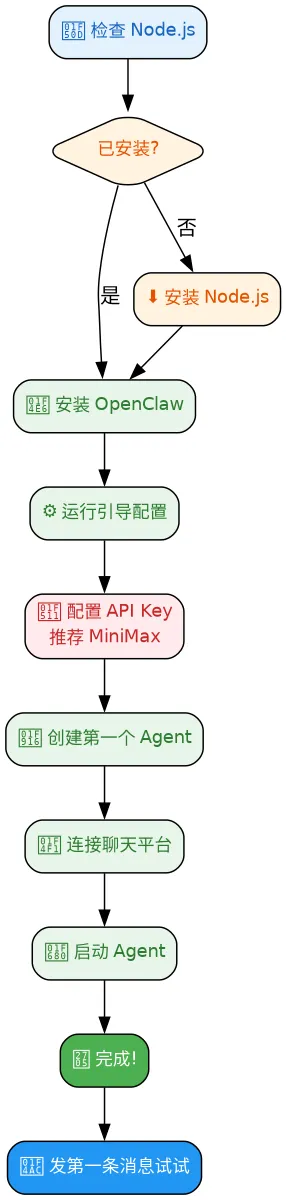
引导配置7步图